Despite Microsoft’s claims, things work differently in the Native client vs Teams on the web and it can be hard to troubleshoot. Having access to the developer tools like you do in the browser can make solving some of those a little easier.
If you are using the Classic Teams client, you can find instructions here for the developer tools: DevTools for Microsoft Teams tabs. Good luck!

Create the Configuration File
Perhaps to make the process feel even more developery or maybe because having a simple toggle in the interface seemed too hard, Microsoft now requires a configuration file to enable the dev menu.
Create a file called configuration.json in notepad, vscode, or whatever text editor you like. Put this inside it:
{
  "core/devMenuEnabled": true
}
Save this file to %localappdata%\Packages\MSTeams_8wekyb3d8bbwe\LocalCache\Microsoft\MSTeams

Be sure you quit teams entirely. Remember, Teams is sneaky and just closing the main window won’t do it. Go to the icon in the system tray (might be hidden by default) and right-click on the Teams icon and choose Quit:

Reopen teams (Make sure it’s the new one with the flashy New written on it):

For some reason, I got this message when I first did this:
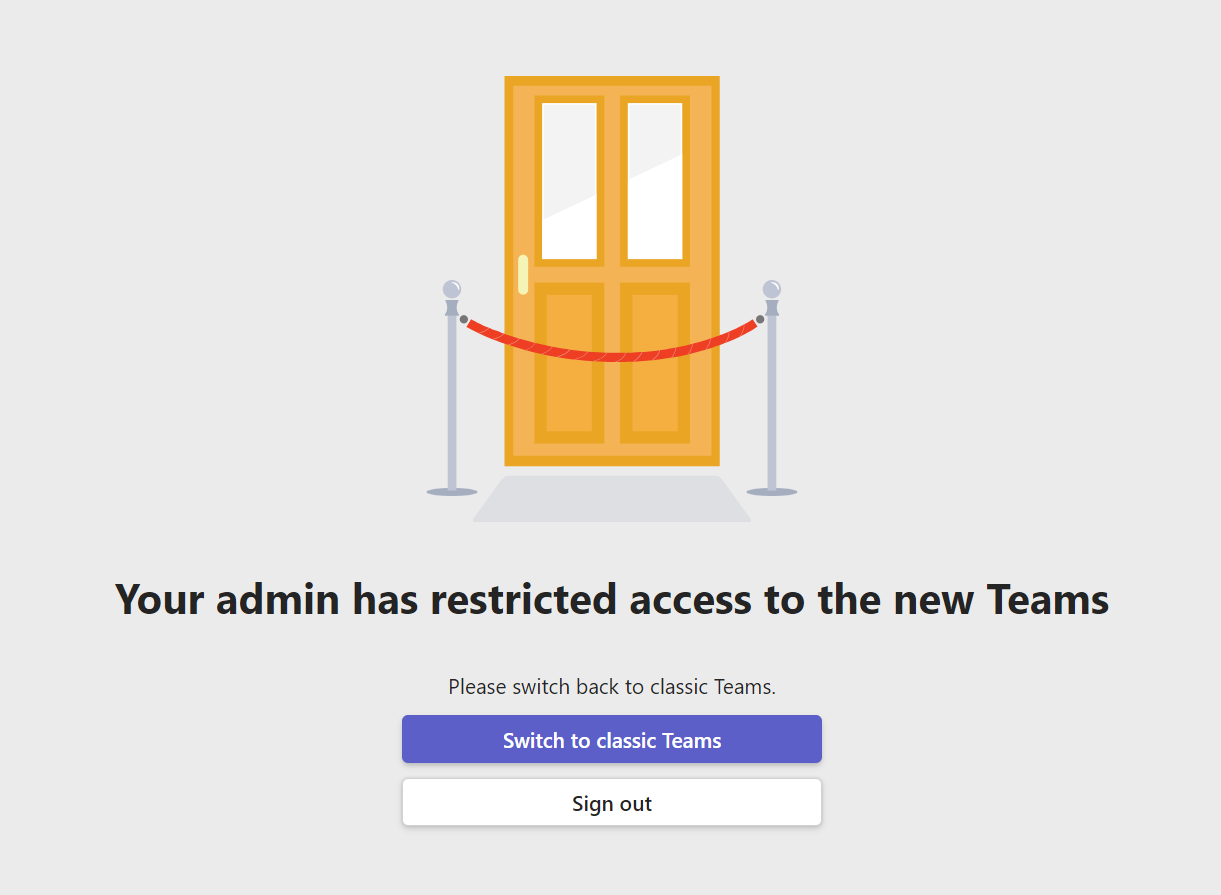
I clicked Sign out and when I signed back in everything was fine. Hopefully, you don’t get the above.
Enable Dev Tools
You might think you could right-click on the icon in the task bar and enable them, but we’d both be wrong.

Instead, right-click on the Teams icon in the system tray (like we did earlier) and you should now have an Engineering Tools menu with all sorts of goodies including the Open Dev Tools option we’ve been looking for:

That’s it! You should be able to open the developer tools (in a separate window) and inspect your elements as expected. Here’s me using it to find out what went wrong with my SPFx tab:

Spoiler, it was CSS. For me, it’s always CSS.
Credit
I found this information hidden in a comment on the GA announcement for the New Teams client by Aleksandr Spiridonov. It’s his only comment, but I’m grateful for it!
 The Chris Kent