Using Feed Parameters in the RSS Viewer Web Part

Applies To: SharePoint 2010, RSS Viewer Web Part

The RSS Viewer web part is an Out of the Box SharePoint web part that can really add to your site by allowing you to integrate dynamic content directly on your pages from other sites in your environment (requires either anonymous or kerberos authentication) or from sites all over the web. You can add it like any other web part (Located under Content Rollup) and get it going quickly by setting the Feed URL property.

There are feeds all over the web and getting the URL for these is generally straight forward (click the RSS icon/button and then copy the URL) and I’ll let you figure that part out. If you’re simply grabbing a news feed from Yahoo! or someplace, then you’re probably done. There’s a lot that can be done with the formatting of the feed’s content using XSLT, but that’s out of scope for this particular article.

However, what if you would like something a little bit more dynamic? Some feeds are very customizable using query string parameters to automatically filter what you want. A good example might be pulling the SEC Filings from the Securities and Exchange Commission website. You can get a feed of Google’s Filings using the following URL:

http://www.sec.gov/cgi-bin/browse-edgar?action=getcompany&CIK=0001288776&type=&dateb=&owner=exclude&start=0&count=40&output=atom

There are several parts to this URL beyond the base of http://www.sec.gov/cgi-bin/browse=edgar (They begin after the ? mark and are separated by the & and take the format of name=value). The one I’m most interested in is the CIK (Central Index Key). This is what tells the feed to return Google’s filings. (As a bonus, for publicly traded companies you can replace that 10 digit number with their Ticker Symbol: GOOG for Google).

Great! Now you can generate a feed for multiple companies’ SEC filings using multiple RSS Viewer web parts. But what if you only want one web part that can switch which company is being displayed? That’s exactly where Feed Parameters come in.

Configure the Filter

Like many web parts, the RSS Viewer web part allows connections to other parts including the filter web parts. Most any of the Filter parts will work depending on what you’re trying to accomplish. An obvious example would be to use the SharePoint List Filter web part to pull company ticker symbols in from another SharePoint list and use a drop down to select which filings to view. My preference, however, is to use a Query String (URL) Filter part so that I can hook it to multiple parts to create a dynamic page that can be linked as if it were many pages. I’ll show you how to hook that up, but the basic concept is the same for any of the parts – Filter some value and send it to the RSS Viewer.

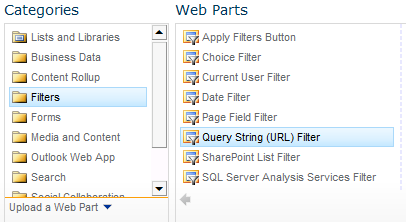
Add a Query String (URL) Fitler part to your page (Located under Filters):
From the tool pane for the Query String (URL) Filter part the key values can be found in the Filter section. The Filter Name property should match the query string property name in your RSS Feed’s URL. So in this case our Filter Name is CIK. The Query String Parameter Name is the name of your own query string to the page. In this case I’ve set it to Symbol. The Default Value is optional, but is generally a good idea so that if the page is accessed without a query string, the feed still shows something. I’ve set ours to GOOG (Although I could easily have set it to Google’s CIK value since the SEC feed is pretty flexible):

It’s also a good idea to also give your filter web part a better name than the default since this is the name you’ll see when setting up the connection. This is just the Title property in the Appearance section. I’ve set mine to Symbol Filter. Press OK to save your changes.

Setup the Connection

Using the drop down menu for the RSS Viewer Web Part choose Connections > Get Feed URL From > Symbol Filter (If you don’t have a Connections menu, select Edit Web Part and look again):

If everything has been successfully connected the Query String (URL) Filter should look similar to this when editing the page (it isn’t visible normally):

If you add ?Symbol=MSFT to the end of your page’s URL (If your page is http://app/site/SitePages/Home.aspx then the filtered url would be http://app/site/SitePages/Home.aspx?Symbol=MSFT) then the RSS Viewer should now be showing Microsoft’s latest SEC Filings. Just kidding! There’s one little gotcha that’s very easy to fix.

If a feed parameter is already set in the RSS Viewer’s URL, then any feed parameters from connected web parts are ignored. In this case, this is because we pasted the sec.gov feed’s URL in directly including the CIK=0001288776 section of the URL. To fix this, just delete this part of the URL. So our new feed URL will look like:

http://www.sec.gov/cgi-bin/browse-edgar?action=getcompany&type=&dateb=&owner=exclude&start=0&count=40&output=atom

Now try that filtered URL (Your page + ?Symbol=MSFT) again and you should see Microsoft’s SEC Filings:

This quickly gives us a lot of flexibility. This works great for all sorts of feeds allowing you to filter or customize your feeds before they ever get to you; and all on the fly.

Conclusion

So here’s the summary of what you need to do to get this working:

  • Add an RSS Viewer web part and set the Feed URL to the address of the feed you want to pull. Remove the dynamic parameter you want to set.
  • Add a Filter web part and configure it to pass the filter name as the name of the dynamic filter in the feed URL
  • Connect the RSS Viewer web part to the Filter web part using the Feed Parameter connection
  • Shout Abracadabra every time anyone uses a dynamic view of the page

The RSS Viewer part can be a very powerful part of your page allowing dynamic content without any custom code.

Hiding the Recently Modified Section in SharePoint 2010

Applies To: SharePoint 2010, CSS

I recently added a Wiki Pages Library to a site for some end users and they really like it. However, they had a seemingly straight forward request to hide the Recently Modified section that was showing up above the Quick Launch:

This may come up as a requirement when using some of the default templates that automatically include a Site Pages library or if a user adds a new page and is prompted to create the Site Pages library automatically.

I assumed there was a setting somewhere either for the library or the site in order to turn off this “feature”. Nope. Somebody decided that this was not only a feature everyone would want, but it was so great they put it in the left actions content place holder (PlaceHolderLeftActions) of the master page – which puts it on top of the quick launch.

Some quick searching turned up “solutions” that suggested setting the contentplaceholder’s visible property to false within the master page. This works; however, it also hides anything that uses that contentplaceholder such as some of the Blog tools. This makes it a very poor candidate for a farm wide branding solution.

The other option is to use some CSS (cascading style sheets). If you’re pushing this as part of a branding solution, just add this to one of your style sheets:

.s4-recentchanges{
	display:none;
}

That’s it. Microsoft provided a very handy class just for this section and some quick use of the CSS Display property takes care of it.

So what if this is just a one off thing – You aren’t currently using any custom branding or just want it to affect one site? For a single site you can use SharePoint Designer 2010 to open the master page (v4.master – choose edit in advanced mode). Then somewhere on the page add the following:

<style>
.s4-recentchanges{
	display:none;
}
</style>

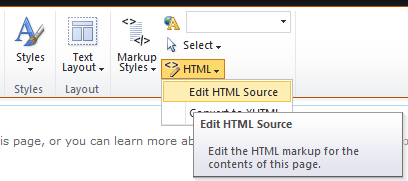
If you just want to apply it page by page, you can put the style directly in the HTML of the page. Since this is a Wiki page, choose to edit the page (Under the Page Ribbon assuming you have the rights). Click anywhere on the page and choose the HTML drop down and pick Edit HTML Source:

Somewhere on the page add the following:

<style>
.s4-recentchanges{
	display:none;
}
</style>
You can also do this in a content editor web part using the same Edit HTML Source option.

If you don’t hide this thing, I would suggest editing the master page to at least move that contentplaceholder below the quicklaunch so your navigation doesn’t get all wonky or at least displaced by a relatively unused feature.

Minimal.Master missing corev4.css

Applies To: SharePoint 2010

While testing our new master page that replaces the minimal.master I noticed that depending on your permission level, things were rendering differently. If you had full permissions then things looked great, but if you were a visitor with read-only permissions things were a little off.

Taking a look at the actual page source we found that the stylesheet links in the header section looked different. With Full permissions the link to corev4.css existed, but didn’t for anyone else. Obviously permission to the corev4.css file wasn’t the issue since this was working fine on all other sites regardless of user permissions.

Some quick searching and experimentation revealed that the corev4.css link was only added to the page when the Site Actions menu was set to render. For the standard minimal.master file this is fine, but if you are depending on any of the corev4.css styles, you’ve got a problem. Fortunately, the solution is simple.

In your custom minimal.master master page find this section in the head element:

 <SharePoint:CssLink runat="server" Alternate="true"/>
 <SharePoint:Theme runat="server"/>
 <SharePoint:CssRegistration Name="minimalv4.css" runat="server"/>
 <SharePoint:CssRegistration Name="layouts.css" runat="server"/>

And add a CssRegistration element to corev4.css above the minimalv4.css CssRegistration:

 <SharePoint:CssLink runat="server" Alternate="true"/>
 <SharePoint:Theme runat="server"/>
 <SharePoint:CssRegistration Name="corev4.css" runat="server"/>
 <SharePoint:CssRegistration Name="minimalv4.css" runat="server"/>
 <SharePoint:CssRegistration Name="layouts.css" runat="server"/>

That’ll do it. The corev4.css will load regardless of the presence of the Site Actions menu and there aren’t any conflicts since SharePoint ensures it isn’t registered twice.

Auto Publish and Approve Your Solution Files

Applies To: SharePoint 2010

By default, every file you deploy using a sandboxed solution is left checked out. This can lead to problems depending on the type of site you are deploying to and/or the permissions of your end users.

This post focuses on Branding solutions, but anytime you are deploying a sandboxed solution these techniques should help you. This is especially important for Master Pages since these often need an approved/published version in order to be visible to anyone but the site administrators.

I found an interesting approach by Waldek Mastykarz where he suggests using a “Stamp” (Feature ID property) on each file and using that to find and check in each file. This was very cool, but requires you to modify the Elements.xml entry for each file to ensure that property is added and he also never addressed Master Pages which can be a bit of a special case.

For my needs, I generally take a simpler approach of just deploying my resources to one root folder and creating sub folders as needed. This makes it easier to find stuff, but it also means I don’t need to track each file individually. Obviously if you are doing something a little more extensive then you may need to take a hybrid approach of using the featureid property and/or just tracking the various folders you are deploying too. But for a simple branding solution you really just need to:

  1. Apply your branding to each site
  2. Publish and Approve each resource file
  3. Publish and Approve each Master Page

All of this can be done in the FeatureActivating event with a simpler helper method:

    Public Overrides Sub FeatureActivated(ByVal properties As SPFeatureReceiverProperties)
        Dim siteCollection As SPSite = CType(properties.Feature.Parent, SPSite)
        If siteCollection IsNot Nothing Then
            Dim topSite As SPWeb = siteCollection.RootWeb

            'Calculate relative path to site from Web Application root
            Dim WebAppRelativePath As String = topSite.ServerRelativeUrl
            If Not WebAppRelativePath.EndsWith("/") Then WebAppRelativePath &= "/"

            'Enumerate through each site and apply branding
            For Each site As SPWeb In siteCollection.AllWebs
                If Not site.MasterUrl.EndsWith("minimal.master") Then
                    site.MasterUrl = WebAppRelativePath & "_catalogs/masterpage/BSmain.master"
                Else
                    site.MasterUrl = WebAppRelativePath & "_catalogs/masterpage/BSminimal.master"
                End If
                If Not site.CustomMasterUrl.EndsWith("minimal.master") Then
                    site.CustomMasterUrl = WebAppRelativePath & "_catalogs/masterpage/BSmain.master"
                Else
                    site.CustomMasterUrl = WebAppRelativePath & "_catalogs/masterpage/BSminimal.master"
                End If
                site.AlternateCssUrl = WebAppRelativePath & "Style%20Library/BSResources/BS.css"
                site.SiteLogoUrl = WebAppRelativePath & "Style%20Library/BSResources/Images/BSlogo.png"
                site.UIVersion = 4
                site.Update()
            Next

            'Publish and Approve each file
            Dim styleLibrary As SPList = topSite.Lists.TryGetList("Style Library")
            If styleLibrary IsNot Nothing Then
                Dim folders As SPListItemCollection = styleLibrary.Folders
                Dim item As SPListItem = DirectCast((From i In folders Where DirectCast(i, SPListItem).Url = "Style Library/BSResources" Select i).FirstOrDefault(), SPListItem)
                ApproveAndPublish(item.Folder, styleLibrary.EnableModeration)
            End If

            'Publish and Approve the Master Pages
            Dim mpGallery As SPList = siteCollection.GetCatalog(SPListTemplateType.MasterPageCatalog)
            If mpGallery IsNot Nothing Then
                Dim mpages As SPListItemCollection = mpGallery.GetItems(New SPQuery With {.Query = "<Where><Or><Eq><FieldRef Name='FileLeafRef' /><Value Type='Text'>RegalIC.master</Value></Eq><Eq><FieldRef Name='FileLeafRef' /><Value Type='Text'>RegalICminimal.master</Value></Eq></Or></Where>"})
                If mpages IsNot Nothing Then
                    For Each i As SPListItem In mpages
                        If Not i.File.CheckOutType = SPFile.SPCheckOutType.None Then
                            i.File.CheckIn("Feature Activation", SPCheckinType.MajorCheckIn)
                            If mpGallery.EnableModeration Then
                                i.File.Approve("Feature Activation")
                            End If
                        End If
                    Next
                End If
            End If

        End If
    End Sub

    Private Sub ApproveAndPublish(folder As SPFolder, Approve As Boolean)
        If folder Is Nothing Then Return
        For Each subfolder As SPFolder In folder.SubFolders
            ApproveAndPublish(subfolder, Approve)
        Next
        For Each file As SPFile In folder.Files
            If Not file.CheckOutType = SPFile.SPCheckOutType.None Then
                file.CheckIn("Feature Activation", SPCheckinType.MajorCheckIn)
                If Approve Then
                    file.Approve("Feature Activation")
                End If
            End If
        Next
    End Sub

1. Apply your branding to each site

After gathering basic information about where the feature is being deployed and getting the correct reference URLs, we begin looping through every site in the sitecollection and setting the master page, sitelogo, and CSS settings to use our custom branding beginning in line 11.

The only thing different than the approach described in the Microsoft article, Deploying Branding Solutions for SharePoint 2010 Sites Using Sandboxed Solutions is that I am checking if the current master page is the minimal.master and if so, using my BSminimal.master file instead. This allows me to have both master pages deployed correctly, but it also allows me to restore these settings more accurately in the deactivating event (See my previous post).

2. Publish and Approve each resource file

To keep things simple, I keep all of my resource files in a single root folder within the Style Library. This makes looping through each subfolder and resource very simple to ensure that each one gets checked in and/or approved as necessary.

Lines 29-34 get a reference to the resource folder within the Style Library and pass that information over to a helper method called ApproveAndPublish. This method takes an SPFolder reference and a boolean indicating if approval is necessary or not. For the initial call, the folder is our resource folder and the approval setting comes directly from the Style Library and is found in the EnableModeration property of the SPList object.

The ApproveAndPublish method (Lines 55-68) is a recursive function that loops through every subfolder and checks in every file found. If Approval is required, it also marks them as approved.

This means you don’t have to track each file (either through stamping or keeping a list). This really cuts down on all the plumbing that is often necessary when working on a SharePoint solution.

3. Publish and Approve each Master Page

Unfortunately, Master Pages aren’t usually deployed to a sub folder and so the above technique for approval and check in has to be tweaked slightly. Lines 37-50 take care of this. Basically, we get a reference to the Master Page Catalog and use some basic CAML to isolate our master pages and then loop through them to check them in and/or activate them if required.

That’s all that’s required. You now have your files successfully deployed and ready to be used. Be sure to check out my previous post Branding Solution Cleanup. In that post I describe how to remove all of your solution files when your solution gets deactivated.

Branding Solution Cleanup

Applies To: SharePoint 2010

I followed the Microsoft article, Deploying Branding Solutions for SharePoint 2010 Sites Using Sandboxed Solutions and I was able to quickly get the bones of a Branding project put together. Unfortunately, I found that when the solution was deactivated all the files I deployed remained exactly where they were.

I found various solutions for removing your files ranging from individual file lists to marking every file with your feature ID, but for a simple Branding project all you really need to do is:

  1. Remove usage of your Master Pages from every site referencing them
  2. Remove your files from the Style Library
  3. Remove your Master Page files from the Master Page Catalog

The first two can be done in the FeatureDeactivating event handler and the third can be done in the FeatureUninstalling event handler. For those that just want the code, here it is:

    Public Overrides Sub FeatureDeactivating(ByVal properties As SPFeatureReceiverProperties)
        Dim siteCollection As SPSite = CType(properties.Feature.Parent, SPSite)
        If siteCollection IsNot Nothing Then
            Dim topSite As SPWeb = siteCollection.RootWeb

            'Calculate relative path to site from Web Application root
            Dim WebAppRelativePath As String = topSite.ServerRelativeUrl
            If Not WebAppRelativePath.EndsWith("/") Then WebAppRelativePath &= "/"

            'Enumerate through each site and remove branding
            For Each site As SPWeb In siteCollection.AllWebs
                If Not site.MasterUrl.EndsWith("minimal.master") Then
                    site.MasterUrl = WebAppRelativePath & "_catalogs/masterpage/v4.master"
                Else
                    site.MasterUrl = WebAppRelativePath & "_catalogs/masterpage/minimal.master"
                End If
                If Not site.CustomMasterUrl.EndsWith("minimal.master") Then
                    site.CustomMasterUrl = WebAppRelativePath & "_catalogs/masterpage/v4.master"
                Else
                    site.CustomMasterUrl = WebAppRelativePath & "_catalogs/masterpage/minimal.master"
                End If
                site.AlternateCssUrl = String.Empty
                site.SiteLogoUrl = String.Empty
                site.Update()
            Next

            'Kill Style Library Folder
            Dim styleLibrary As SPList = topSite.Lists.TryGetList("Style Library")
            If styleLibrary IsNot Nothing Then
                Dim folders As SPListItemCollection = styleLibrary.Folders
                Dim item As SPListItem = DirectCast((From i In folders Where DirectCast(i, SPListItem).Url = "Style Library/BSResources" Select i).FirstOrDefault(), SPListItem)
                item.Delete()
            End If

        End If
    End Sub

    Public Overrides Sub FeatureUninstalling(ByVal properties As SPFeatureReceiverProperties)
        Dim siteCollection As SPSite = properties.UserCodeSite
        If siteCollection IsNot Nothing Then

            'Kill Master Pages
            Dim mpGallery As SPList = siteCollection.GetCatalog(SPListTemplateType.MasterPageCatalog)
            If mpGallery IsNot Nothing Then
                Dim mpages As SPListItemCollection = mpGallery.GetItems(New SPQuery With {.Query = "<Where><Or><Eq><FieldRef Name='FileLeafRef' /><Value Type='Text'>BSmain.master</Value></Eq><Eq><FieldRef Name='FileLeafRef' /><Value Type='Text'>BSminimal.master</Value></Eq></Or></Where>"})
                If mpages IsNot Nothing Then
                    For i As Integer = mpages.Count - 1 To 0 Step -1
                        mpages(i).Delete()
                    Next
                End If
            End If

        End If
    End Sub

Wow code! Alright Scriptkitties, copy away! Everyone else, here’s what we’re doing and why:

1. Remove usage of your Master Pages from every site referencing them

After gathering basic information about where the feature was deployed and figuring out the correct reference URLs, we begin looping through every site in the sitecollection and resetting the master page to the defaults beginning in line 11.

We are just undoing what was done in the FeatureActivating event. The only thing of note is that I hate when a Branding solution replaces every MasterPage with theirs and then just blindly restores v4.master. Mostly this is fine, but if one of your subsites is an Enterprise Search site or anything else using the minimal.master you’ve just wrecked it. Obviously if you know you aren’t using minimal.master then you can simplify this section. Also, I always name my minimal.master replacement in the form [Something]minimal.master to ensure this works out.

2. Remove your files from the Style Library

To keep things simple, I keep all of my resource files in a single root folder within the Style Library. Obviously I have subfolders to organize images, fonts, etc. but all of those are within my one folder. This makes finding stuff much easier, but more than that it makes removing the files super easy – Just delete that folder.

Lines 27-33 do just that. After getting a reference to the Style Library (Every sitecollection in SharePoint 2010 has one of these), grab the folder (just replace the “Style Library/BSResources” string in line 31 with your folder path) and delete.

3. Remove your Master Page files from the Master Page Catalog

There are lots of guides for deleting deployed master pages and I didn’t find any that worked. Basically every time I tried to delete a master page from within the FeatureDeactivating event I got an error about them still being used. I’m sure there’s a good reason for this (feel free to let me know in the comments), but it doesn’t really matter because as long as you followed step 1 above, it’ll work in the FeatureUninstalling event.

We simply grab a reference to the sitecollection’s Master Page Gallery and use some simple CAML to grab references to our Master Pages. Then we walk through them and delete them.

That’s it, you now have a self-cleaning solution and you are a responsible member of the SharePoint community.

Relative Paths in SharePoint using SPUrlExpressionBuilder ($SPUrl)

Applies To: SharePoint Server (MOSS)

When you edit pages and/or master pages in SharePoint either for branding or some other project you will eventually come across the need to link to some resource file whether it’s an image, icon, CSS, etc. When this came up for me, I realized I had no idea how to do this properly.

Sure you can hardcode a link, but if this is part of a solution (especially a sandboxed solution) then this quickly becomes an unusable option. You can use the dots to do relative links, but again this can easily break on system pages or when you need to reference site collection level items from any sub site regardless of level.

Fortunately, some quick searching found the solution I needed. I came across Bugra Postaci’s blog post on the subject and that got me going. Be sure to check it out for some background, but the basic idea is to use the SPUrlExpressionBuilder class to generate relative links. Unfortunately, this class is part of the publishing namespace and so is only available in SharePoint Server (2010) and MOSS (2007).

He gives an example of linking to an image within the Style Library of the site collection using the following code directly within the master page:

<asp:Image ImageUrl="<% $SPUrl:~sitecollection/Style Library/CustomImages/BlogofBugra.jpg %>" runat="server" />

The key thing to note is the inline use of the $SPUrl command. The example shows this within an asp:Image control but this can be done in a standard tag as well (img, link, etc.).

After seeing that, I really wanted to know what other magic tokens you can use, but the Microsoft Documentaiton on the class doesn’t even show the inline $SPUrl syntax, let alone list any of the usable tokens! Doing a quick search will find you an assortment of undocumented tokens. However this can be misleading as the tokens listed in {} braces are generally only for custom actions and not for inline links (you can find examples of those lists here and here).

Here is what I’ve found by actually looking at the code using Reflector:

Token Replaced By Version
~site/ SPContext.Current.Web.ServerRelativeUrl 2007, 2010
~sitecollection/ SPContext.Current.Site.ServerRelativeUrl 2007, 2010
~language Thread.CurrentThread.CurrentUICulture.Name 2007, 2010
With the exception of the ~language token, the others are replaced using a call to Microsoft.SharePoint.Utilities.SPUtility.UrlFromPrefixedUrlCore.

SharePoint 2010 Default Theme Colors

Applies To: SharePoint

I’ve been messing with Branding quite a bit lately and have been trying to find a way to keep it as simple as possible. The easiest choice is to use themes. There are several out of the box and it’s easy enough to create your set of colors using PowerPoint or ThemeBuilder. On a publishing site you can even just specify them right on the site!

But every theme I tried just didn’t look right. I finally decided that I really liked the default theme except for a color or two. Unfortunately, I couldn’t just start with the default and change a couple of colors using the simple themes engine. So I cracked open the corev4.css to see if I could find the default colors. Sure enough, you can see where the Theme Replacement comments are right next to a specified color (default when no theme).

So I started just snooping through the CSS and found some really interesting things. First, the theming engine is really powerful. Not only does it replace element colors on the fly, it can tint images (nice png gradients), and for each color it will actually use shades for various elements allowing you to only have to specify a small number of colors to get a wide palette.

For much more detail about where and how theme colors are used in the CSS check out Eric Schrader’s blog post that includes a pretty awesome Excel file: http://eschrader.com/2010/09/23/sharepoint-2010-%E2%80%93-themes-and-corev4-css-comparison-technique-for-developers/

However, the most interesting thing I found was that when you don’t use a theme (Default) you get many more colors and so the page looks much better. What I mean is that in trying to find the theme color default, I found that each one had several variations which I’ve laid out in a chart below. I expected to find (except in the case of tinting and named variations (lighter, lightest, etc.)) a single color for each theme color. Instead, most had several variations – ALL of which get replaced by a single color. This results in the default theme having a much greater depth than any theme available.

For example, in the CSS file there are even single classes that specify different defaults for the same theme replacement (Lines 2302 & 2304 below):

.ms-siteactionsmenuinner{
/* [ReplaceColor(themeColor:"Dark2")] */ border-color:#21374C;
/* [ReplaceColor(themeColor:"Dark2")] */ border-top-color:#394f63;
/* [RecolorImage(themeColor:"Dark2-Lighter",method:"Filling",includeRectangle:{x:0,y:467,width:1,height:11})] */ background:url("/_layouts/images/bgximg.png") repeat-x -0px -467px;
/* [ReplaceColor(themeColor:"Dark2")] */ background-color:#21374c;
}

Notice the background-color and the border-top-color are defaulting to different colors but both are replaced with the Dark2 theme color.

So what does this mean? Well it means that the default theme (no theme) will always look better than any theme you choose. Looking through the chart below you may even be surprised to see that certain colors are reused in the default theme but are replaced by different theme colors! (The default Hyperlink color #0072BC for instance). If you’d like to achieve the same level of depth you’ll need to create your own CSS file based on corev4.css removing the theme comments and manually specifying your colors. If you’re very serious about Branding, you’re probably already doing this, but those of us looking for a quick solution, this is pretty frustrating.

The themeing engine is very powerful and is still a huge leg up from the themeing available in SharePoint 2007, but it surprises me that they didn’t extend it further to handle all the options they themselves obviously required.

Default Theme Colors

Theme Color Value Example of Color
Light1 #FFFFFF
Dark1 #000000
#003759
#676767
#525252
#6d6f72
#3b4f65
#0072bc
Light2 #f6f6f6
#efefef
#fcfcfc
#F5F6F7
#e7e7e8
#ffffff
#f9f9f9
Dark2 #204d89
#003759
#929fad
#65686b
#0072bc
#161d25
#3b4f65
#5d6878
#003759
#49617a
#21374C
#394f63
#23272c
#666666
#476382
#182738
Accent1 #44aff6
#529dcc
#0072bc
Accent2 #ff0000
#EC008C
#CA0078
Accent3 #003399
#0093CA
#00adee
Accent4 #fd9f08
#ffbb47
#FD9F08
Accent5 #058036
#36B000
Accent6 #FAE032
Hyperlink #0072BC
#0061a0
FollowedHyperlink #b10069