Relative Paths in SharePoint using SPUrlExpressionBuilder ($SPUrl)

Applies To: SharePoint Server (MOSS)

When you edit pages and/or master pages in SharePoint either for branding or some other project you will eventually come across the need to link to some resource file whether it’s an image, icon, CSS, etc. When this came up for me, I realized I had no idea how to do this properly.

Sure you can hardcode a link, but if this is part of a solution (especially a sandboxed solution) then this quickly becomes an unusable option. You can use the dots to do relative links, but again this can easily break on system pages or when you need to reference site collection level items from any sub site regardless of level.

Fortunately, some quick searching found the solution I needed. I came across Bugra Postaci’s blog post on the subject and that got me going. Be sure to check it out for some background, but the basic idea is to use the SPUrlExpressionBuilder class to generate relative links. Unfortunately, this class is part of the publishing namespace and so is only available in SharePoint Server (2010) and MOSS (2007).

He gives an example of linking to an image within the Style Library of the site collection using the following code directly within the master page:

<asp:Image ImageUrl="<% $SPUrl:~sitecollection/Style Library/CustomImages/BlogofBugra.jpg %>" runat="server" />

The key thing to note is the inline use of the $SPUrl command. The example shows this within an asp:Image control but this can be done in a standard tag as well (img, link, etc.).

After seeing that, I really wanted to know what other magic tokens you can use, but the Microsoft Documentaiton on the class doesn’t even show the inline $SPUrl syntax, let alone list any of the usable tokens! Doing a quick search will find you an assortment of undocumented tokens. However this can be misleading as the tokens listed in {} braces are generally only for custom actions and not for inline links (you can find examples of those lists here and here).

Here is what I’ve found by actually looking at the code using Reflector:

Token Replaced By Version
~site/ SPContext.Current.Web.ServerRelativeUrl 2007, 2010
~sitecollection/ SPContext.Current.Site.ServerRelativeUrl 2007, 2010
~language Thread.CurrentThread.CurrentUICulture.Name 2007, 2010
With the exception of the ~language token, the others are replaced using a call to Microsoft.SharePoint.Utilities.SPUtility.UrlFromPrefixedUrlCore.

Resetting the SharePoint 2010 Farm PassPhrase

Applies To: SharePoint 2010

I was setting up a Report Server for our SharePoint 2010 Farm this morning and I ran into a show stopper. After installing SharePoint 2010 on the new server and getting it ready, I ran the SharePoint Products Configuration Wizard only to get to the PassPhrase step and be told I was entering the incorrect passphrase.

I have it written down from the original setup and I was positive it was correct, but no matter what I tried I couldn’t get it accepted. So I did a quick look-up on how to recover it. Turns out you can’t. Fortunately, you can change it without knowing the old one or requiring any downtime for your farm.

This material is covered elsewhere (http://www.sharepointedutech.com/2010/10/05/sharepoint-2010-farm-passphrase-recovery/ and http://bobmixon.com/?p=297), but I wanted to put it somewhere I would remember it. I also wanted to give first hand testimony to it working without causing any issues with our farm. You can read either of the linked blogs to get the full details, but here’s the quick powershell you’ll need to get this taken care of:

$passphrase = ConvertTo-SecureString -asPlainText –Force
Set-SPPassPhrase -PassPhrase $passphrase –Confirm

You will be prompted for your new passphrase after the first command and will be asked to confirm it on the second.

That’s it. Go back to your configuration wizard and try again. No service restarts or downtime needed, it’s SUPER EFFECTIVE!!

SharePoint 2010 Ribbon Weirdness

Applies To: SharePoint 2010

I was recently helping a user with their SharePoint site on their machine and I noticed some weirdness with the ribbon display. The Tab names were all truncated and too small and their User Name (Menu) was not showing in the upper right corner. Obviously, this concerned me.

Some quick searching didn’t turn up anything and I couldn’t reproduce it on my end. Then 2 days later I was helping someone else and they had the same display problems. Checked their version of IE and they were exactly the same (8.0.6001.18702CO)! But I believe the problem can happen with any version of IE 8.

With this new information did another quick search and found this quick article from Microsoft: http://support.microsoft.com/kb/2062185 where they indicate the Zoom feature is causing the problem.

Sure enough, adjusting the zoom back to 100% fixed the display issue. Strangely, IE 8 seemed to be handling zoom levels in increments of 10 just fine (110%, 120%, etc.) but custom zoom levels (like 128%) freaked it out.

This is problematic because it looks like a problem with the site and adjusting your zoom level is as easy as holding the CTRL key while using the middle mouse scroll. I found that I couldn’t reproduce the problem with IE 9. Until we can get everyone upgraded (a major process around here), it’s just a matter of education among our support staff and end users.

Simple SharePoint FAQ in 5 Minutes

Applies To: SharePoint

A common requirement/feature of sites is to have a Frequently Asked Questions (FAQ) section. This is a quick and easy way to provide help to end users. A FAQ is nothing more than a series of questions with their answers.

This can be implemented in a variety of ways but the standard way is to have the question above the answer all on a single page. This isn’t always the best way, but it’s certainly the most common and recognizable way.

Fortunately SharePoint makes this really easy using a custom list and only takes about 5 minutes to setup. This can be done in SharePoint 2007 or 2010 in both MOSS/Server and WSS/Foundation. Here’s the steps:

  1. Create a custom list. Name it FAQ or something.
  2. Edit the Title column and rename it Question.
  3. Add a new Column of type Multi-Line Text and name it Answer
  4. Modify the default view to only show those 2 columns and set the style to Newsletter.

That’s it! You end up with something like this:

FAQ in SharePoint 2007

FAQ in SharePoint 2010

You can then place this on a page using a ListView Web Part or just link directly to the main view. WOWEE!

Want to get fancy? Add another column called Order of type Number and use it to set custom ordering values and just sort by that column in your view.

Fixing SharePoint Office Integration Problems

Applies To: SharePoint

We recently upgraded to SharePoint 2010. Things went relatively smoothly, but we began to experience problems with some of our Office users. I looked everywhere but I couldn’t find anything that described our problem perfectly or that provided a solution. So here is the guide I wish we’d had before we called Microsoft Support.

Symptoms:

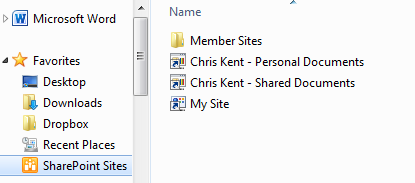
Windows 7/Vista machines had missing/broken links to the sites within the SharePoint Sites library on their machine. These were all users with MySites most of whom had had no problem opening and saving documents directly within Office to SharePoint 2007. This was affecting both Office 2007 and Office 2010 users.

The Save/Open dialog showing a normal SharePoint Sites Library

Sometimes there was a MySite link, sometimes just a Member Sites folder, sometimes neither and sometimes various levels of Member Sites with the wrong type of Icon (Not like shown above). Some users could connect fine although it was very slow, others would have some very strange issues.

In addition to constantly asking for authentication or telling them access was denied to their own MySite, there were users who seemed to be saving their documents nowhere. Checking the Upload Center would show they did save them but not as expected.

For instance, one guy added his personal documents library to Office using the Connect To Office button on the SharePoint Ribbon. Trying to save a word document he double clicked on this link within the SharePoint Sites Library and everything saved. Further investigation with SharePoint Designer showed that their was a word document at his MySite root named PersonalDocuments.aspx.doc!

Obviously these links were broken. Sometimes they were gone from one day to the next and this was causing a lot of frustration. We tried messing with the registry entries, checking our version of Office, verifying access was setup correctly and finally gave up and called Microsoft Support.

Our Environment:

We had had a SharePoint 2007 farm using Windows Authentication. We built a new SharePoint 2010 farm and used the Database Attach upgrade approach. The new farm was built to use Kerberos authentication. When everything was good to go we switched the DNS entries to the new farm and voila, everything worked! (Obviously excluding the weird Office problems).

Our clients are mostly XP machines running Office 2007 – these had no issue. The Windows 7 clients running both Office 2007 and Office 2010 began experiencing the problems even though everything worked fine with SharePoint 2007.

Our DNS entry for SharePoint was set to the FQDN (ie sharepoint.something.something). Although alternate access mapping was setup for just the sharepoint portion, the FQDN is the only public url. This turned out to be the problem.

The Cause of the Problem:

The solution was found in this Microsoft Support article: Prompt for Credentials When Accessing FQDN Sites From a Windows Vista or Windows 7 Computer

In summary, the Web Client service uses Windows HTTP Services (WinHTTP) to do network operations behind the scenes (including requesting the list of Member Sites and MySite urls to update your SharePoint Sites Library). WinHTTP only sends user credentials in response to requests that occur on a local intranet site.

So just add your site to the Trusted Sites list and you’re done! Just kidding, that’s far too easy! WinHTTP does NOT use the security zone settings in Internet Explorer to determine if it should send the credentials. Instead it uses some pretty basic logic:

Are there any periods in the server’s name?
Nope: must be local – send them credentials!
Yes: Eeeek! Evil Internet, no credentials for you!

So if you happen to be using a FQDN or anything else with periods in the address, unless you’ve setup a local (no perioded(?)) proxy, no authentication is gonna happen which is pretty problematic for nearly every use case in SharePoint.

A hotfix is available for Vista and was included in Windows 7. But the hotfix doesn’t fix the logic nor does it start using the security zone definitions from your internet options. It provides a registry configuration of trusted sites (see solution below).

Testing the Problem:

Office only requests this list of sites/libraries once every 24 hours or so based on a registry key. However, following the steps below you can get it to make the request(s) again. In order to watch them, download and install Fiddler. You should be able to see all the requests as it makes them.

Close all Office programs (including Outlook)

Using RegEdit, delete the LinkPublishingTimestamp registry key.

Vista and Above:
HKEY_CURRENT_USER\Software\AppDataLow\Microsoft\Office\14.0\Common\Portal\LinkPublishingTimestampWindows
XP:
HKEY_CURRENT_USER\Software\Microsoft\Office\14.0\Common\Portal\LinkPublishingTimestamp

If you are using Office 2007, just replace the 14.0 used above with 12.0

Restart the Web Client service using the Services console (Administrator Tools > Services or Run services.msc)

Open Word and choose Save As (It may take a few minutes to start populating).

In Fiddler you should see all or at least most of the requests receive 401 responses (unauthorized). So, let’s get it fixed.

Solution:

  1. Using RegEdit, navigate to the following key:
    HKEY_LOCAL_MACHINE\SYSTEM\CurrentControlSet\Services\WebClient\Parameters
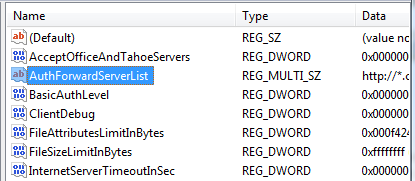
  2. Add a New Multi-String Vlaue (Edit > New).
  3. Name it AuthForwardServerList and press Enter.
  4. Set the value (Edit > Modify) to your FQDN. Or you can do something more comprehensive like http://*.something.something
  5. To verify it worked follow the steps above and see if everything updates (Or wait a day for things to recycle)

Now slap that registry setting in a Group Policy targeted at Windows 7/Vista users and you’re good to go.

SharePoint 2010 Default Theme Colors

Applies To: SharePoint

I’ve been messing with Branding quite a bit lately and have been trying to find a way to keep it as simple as possible. The easiest choice is to use themes. There are several out of the box and it’s easy enough to create your set of colors using PowerPoint or ThemeBuilder. On a publishing site you can even just specify them right on the site!

But every theme I tried just didn’t look right. I finally decided that I really liked the default theme except for a color or two. Unfortunately, I couldn’t just start with the default and change a couple of colors using the simple themes engine. So I cracked open the corev4.css to see if I could find the default colors. Sure enough, you can see where the Theme Replacement comments are right next to a specified color (default when no theme).

So I started just snooping through the CSS and found some really interesting things. First, the theming engine is really powerful. Not only does it replace element colors on the fly, it can tint images (nice png gradients), and for each color it will actually use shades for various elements allowing you to only have to specify a small number of colors to get a wide palette.

For much more detail about where and how theme colors are used in the CSS check out Eric Schrader’s blog post that includes a pretty awesome Excel file: http://eschrader.com/2010/09/23/sharepoint-2010-%E2%80%93-themes-and-corev4-css-comparison-technique-for-developers/

However, the most interesting thing I found was that when you don’t use a theme (Default) you get many more colors and so the page looks much better. What I mean is that in trying to find the theme color default, I found that each one had several variations which I’ve laid out in a chart below. I expected to find (except in the case of tinting and named variations (lighter, lightest, etc.)) a single color for each theme color. Instead, most had several variations – ALL of which get replaced by a single color. This results in the default theme having a much greater depth than any theme available.

For example, in the CSS file there are even single classes that specify different defaults for the same theme replacement (Lines 2302 & 2304 below):

.ms-siteactionsmenuinner{
/* [ReplaceColor(themeColor:"Dark2")] */ border-color:#21374C;
/* [ReplaceColor(themeColor:"Dark2")] */ border-top-color:#394f63;
/* [RecolorImage(themeColor:"Dark2-Lighter",method:"Filling",includeRectangle:{x:0,y:467,width:1,height:11})] */ background:url("/_layouts/images/bgximg.png") repeat-x -0px -467px;
/* [ReplaceColor(themeColor:"Dark2")] */ background-color:#21374c;
}

Notice the background-color and the border-top-color are defaulting to different colors but both are replaced with the Dark2 theme color.

So what does this mean? Well it means that the default theme (no theme) will always look better than any theme you choose. Looking through the chart below you may even be surprised to see that certain colors are reused in the default theme but are replaced by different theme colors! (The default Hyperlink color #0072BC for instance). If you’d like to achieve the same level of depth you’ll need to create your own CSS file based on corev4.css removing the theme comments and manually specifying your colors. If you’re very serious about Branding, you’re probably already doing this, but those of us looking for a quick solution, this is pretty frustrating.

The themeing engine is very powerful and is still a huge leg up from the themeing available in SharePoint 2007, but it surprises me that they didn’t extend it further to handle all the options they themselves obviously required.

Default Theme Colors

Theme Color Value Example of Color
Light1 #FFFFFF
Dark1 #000000
#003759
#676767
#525252
#6d6f72
#3b4f65
#0072bc
Light2 #f6f6f6
#efefef
#fcfcfc
#F5F6F7
#e7e7e8
#ffffff
#f9f9f9
Dark2 #204d89
#003759
#929fad
#65686b
#0072bc
#161d25
#3b4f65
#5d6878
#003759
#49617a
#21374C
#394f63
#23272c
#666666
#476382
#182738
Accent1 #44aff6
#529dcc
#0072bc
Accent2 #ff0000
#EC008C
#CA0078
Accent3 #003399
#0093CA
#00adee
Accent4 #fd9f08
#ffbb47
#FD9F08
Accent5 #058036
#36B000
Accent6 #FAE032
Hyperlink #0072BC
#0061a0
FollowedHyperlink #b10069

Show Term Store Manager on Site

Applies to: SharePoint

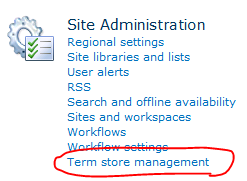
If you’ve ever used the Records Center or one of the other templates that has it, you might wonder how you can get the Term store management link to show up under the Site Administration section of your Site Settings page as shown below.

This is a hidden feature and so can’t be activated from the Site Features. From Powershell, use this command:

Enable-SPFeature -ID "73EF14B1-13A9-416b-A9B5-ECECA2B0604C" -url http://sharepointsite/sites/targetsite

Choose Which Content Database to Create Your Site Collection in

Applies to: SharePoint

If you want to choose which Content Database to use when creating a new Site Collection you will have to use Powershell. There are some crazy solutions out there that tell you to do things like detach all other content databases or adjust the site limits to force SharePoint to pick your Content Database, but in a production environment that is usually not possible – not to mention stupid.

You can do all of this with the stsadm tool in SharePoint 2007, but I won’t be covering that here. But a good reference to figure out what commands match the powershell ones can be found here: http://technet.microsoft.com/en-us/library/ff621081.aspx

If you already have a Content Database you’d like to use, then skip ahead. Otherwise you can create a new Content Database pretty easy in Powershell using this command:

New-SPContentDatabase -Name MyNewSite_Content -WebApplication http://mysharepointsite.com

One of the main irritations with creating a new Site Collection from Powershell rather than the GUI is, although you gain the ability to specify the Content Database, you have to specify the site template by internal name. To get the internal names of all the Site Templates available, use this command:

Get-SPWebTemplate

But for the lazy (me), I’ve put a quick list of most of the templates and their internal names (For English sites – 1033) at the end of this article.

To create the new Site Collection while specifying the Content Database use the following command:

New-SPSite http://mysharepointsite.com/sites/mynewsite -OwnerAlias "MyDomain\MyUser" -ContentDatabase MyNewSite_Content -Name "My New Site!" -Template "STS#0"

That’s it! There’s a bunch of other parameters for the New-SPSite command you can specify (Like Description), but that’s the basic syntax.

Default Installed Templates and their internal Names:

Internal Name Title
GLOBAL#0 Global template
STS#0 Team Site
STS#1 Blank Site
STS#2 Document Workspace
MPS#0 Basic Meeting Workspace
MPS#1 Blank Meeting Workspace
MPS#2 Decision Meeting Workspace
MPS#3 Social Meeting Workspace
MPS#4 Multipage Meeting Workspace
CENTRALADMIN#0 Central Admin Site
WIKI#0 Wiki Site
BLOG#0 Blog
SGS#0 Group Work Site
TENANTADMIN#0 Tenant Admin Site
ACCSRV#0 Access Services Site
ACCSRV#1 Assets Web Database
ACCSRV#3 Charitable Contributions Web Database
ACCSRV#4 Contacts Web Database
ACCSRV#6 Issues Web Database
ACCSRV#5 Projects Web Database
BDR#0 Document Center
BT#0 Bug Database
OFFILE#0 (obsolete) Records Center
OFFILE#1 Records Center
OSRV#0 Shared Services Administration Site
PPSMASite#0 PerformancePoint
BICenterSite#0 Business Intelligence Center
SPS#0 SharePoint Portal Server Site
SPSPERS#0 SharePoint Portal Server Personal Space
SPSMSITE#0 Personalization Site
SPSTOC#0 Contents area Template
SPSTOPIC#0 Topic area template
SPSNEWS#0 News Site
CMSPUBLISHING#0 Publishing Site
BLANKINTERNET#0 Publishing Site
BLANKINTERNET#1 Press Releases Site
BLANKINTERNET#2 Publishing Site with Workflow
SPSNHOME#0 News Site
SPSSITES#0 Site Directory
SPSCOMMU#0 Community area template
SPSREPORTCENTER#0 Report Center
SPSPORTAL#0 Collaboration Portal
SRCHCEN#0 Enterprise Search Center
PROFILES#0 Profiles
BLANKINTERNETCONTAINER#0 Publishing Portal
SPSMSITEHOST#0 My Site Host
ENTERWIKI#0 Enterprise Wiki
SRCHCENTERLITE#0 Basic Search Center
SRCHCENTERLITE#1 Basic Search Center
SRCHCENTERFAST#0 FAST Search Center
visprus#0 Visio Process Repository

Batch Updates with SharePoint Web Services

Applies To: SharePoint

One of the biggest irritations to me coming from a SQL background is trying to do SQL like things in SharePoint 2007. One of those irritations is performing a simple update through the web services.  In SQL, I could write something like:

UPDATE ListTable
    SET FieldName = FieldValue
    WHERE QueryFieldName = QueryFieldValue

In the generic T-SQL above, any row where the QueryFieldName column had a value equal to the QueryFieldValue would have it’s FieldName Column set to FieldValue. Pretty straightforward for anyone with a database background.

With the SharePoint Web Services, however, there isn’t a simple UPDATE command like this. Instead of the one simple command above, we have to make 2 calls to the Web Service and provide some complicated XML parameters. This can be a big hassle the first time you do this, so to hopefully save you some headaches, I’ll provide most of the code required below.

I won’t be showing you how to setup whatever project you are using or how to connect to the web service. The code is in C# and I will assume your service reference (Lists) is called myService.  So let’s get started!

Helper Functions:

I will be using a few helper functions to make generating the XML parameters easier, I’ll go ahead and list these here:

private void AddAttribute(XmlDocument x, ref XmlNode node,
          string attributename, string attributevalue,
          string AttributeNameSpace = "")
{
    XmlNode attnode =
              x.CreateNode(XmlNodeType.Attribute, attributename,
              AttributeNameSpace);
    attnode.Value = attributevalue;
    node.Attributes.Append(attnode);
}

private XmlNode CreateUpdateNode(XmlDocument x, int ID, string RowID)
{
    XmlNode node = x.CreateNode(XmlNodeType.Element, "Method", null);
    AddAttribute(x, node, "ID", ID);
    AddAttribute(x, node, "Cmd", "Update");
    node.AppendChild(CreateFieldNode(x, "ID", RowID));
    return node;
}

private XmlNode CreateFieldNode(XmlDocument x, string Name, string Value)
{
    XmlNode node = x.CreateNode(XmlNodeType.Element, "Field", null);
    AddAttribute(x, node, "Name", Name);
    node.InnerText = Value;
    return node;
}

Retrieve the Items to be Updated:

This is equivalent to the WHERE clause of the example SQL query. You will need to use the GetListItems method of the Lists service.

This method uses the List GUID to reference the target list, I’ll leave it to you to retrieve it and will assume it in the variable ListGUID. You will also need to replace the QueryFieldName, QueryFieldType, and QueryFieldValue variables with appropriate values.

XmlDocument doc = new XmlDocument();
XmlNode queryNode = doc.CreateNode(XmlNodeType.Element, "Query", null);
queryNode.InnerXml =
          string.Format("<Where><Eq><FieldRef Name='{0}' />
                         <Value Type='{1}'>{2}</Value></Eq></Where>",
          QueryFieldName, QueryFieldType, QueryFieldValue);

XmlNode viewNode = doc.CreateNode(XmlNodeType.Element, "ViewFields", null);
viewNode.InnerXml = "<FieldRef Name='ID'/>";

XmlNode resultsNode = myService.GetListItems(ListGUID, null, queryNode,
          viewNode, null,
          doc.CreateNode(XmlNodeType.Element, "QueryOptions", null), null);

 Parse the IDs from the Results:

XmlNamespaceManager nsmgr = new XmlNamespaceManager(doc.NameTable);
nsmgr.AddNamespace("z", "#RowsetSchema");
XmlNodeList rowNodes = resultsNode.SelectNodes(".//z:row", nsmgr);
List<int> IDs = new List<int>();
foreach (XmlNode rowNode in rowNodes) {
    XmlAttribute result = rowNode.Attributes("ows_ID");
    IDs.Add(int.Parse(result.Value));
}

Perform the Update:

This is equivalent to the SET portion of the example SQL query. You will need to use the UpdateListItems method of the Lists service.

Again, this method uses the List GUID to reference the target list, I’ll leave it to you to retrieve it and will assume it in the variable ListGUID. You will also need to replace the FieldName and FieldValue variables with appropriate values.

<pre>XmlDocument doc2 = new XmlDocument();
XmlNode node = doc2.CreateNode(XmlNodeType.Element, "Batch", null);
AddAttribute(doc2, node, "OnError", "Continue");

int itemCount = 1;
foreach (int i in IDs) {
    XmlNode updateNode = CreateUpdateNode(doc2, itemCount, i);
    updateNode.AppendChild(CreateFieldNode(doc2, FieldName, FieldValue));
    //Append More children here to update multiple fields
    node.AppendChild(updateNode);
    itemCount += 1;
}

myService.UpdateListItems(ListGUID, node);

That’s it. To review, we created a CAML query and retrieved the IDs of the matching rows using the GetListItems method. We parsed the XML result and put all of those IDs in a List<int>. We then added each row ID to a batch update XML parameter which we used in the UpdateListItems method.

As you can see, this is way more complicated and not nearly as obvious as a SQL UPDATE command, but you can take the above code and create a pretty generic wrapper to make your web service updates nearly as easy. Let me know how it works out for you or if you have any questions!

Originally Published on WireBear.com/blog on February 11, 2011