Updating an XML File in the 14 Hive Using a Custom Timer Job

Applies To: SharePoint 2010, .NET Framework (C#, VB.NET)

As mentioned in a previous post, I’ve recently put together a solution for automatically configuring your SharePoint servers to use the Adobe PDF icon for PDF files. You can download the solution as well as the source for free from CodePlex here: WireBear PDFdocIcon. I’m going to show some of the code as it currently exists below, but be sure to check out the CodePlex site to ensure you have the latest version.

I’ve also provided the bulk of the code and some explanation for installing/uninstalling a custom job from a SharePoint solution in my last post: Implementing a Custom SharePoint Timer Job. In this post we’ll explore what’s actually happening in the execution of the timer job.

The goal is to update the DOCICON.xml file in the 14\TEMPLATE\XML folder within the SharePoint 2010 Hive to include or remove a mapping entry for a specific file extension. Here is the entire DocIconJob class:

The Code:

Imports Microsoft.SharePoint.Administration
Imports System.IO
Imports Microsoft.SharePoint.Utilities
Imports System.Xml

Public Class DocIconJob
    Inherits SPServiceJobDefinition

#Region "Properties"

    Private _dociconPath As String
    Public ReadOnly Property DocIconPath() As String
        Get
            If String.IsNullOrEmpty(_dociconPath) Then _dociconPath = SPUtility.GetGenericSetupPath("TEMPLATE\XML\DOCICON.XML")
            Return _dociconPath
        End Get
    End Property

    Private Const InstallingKey As String = "DocIconJob_InstallingKey"
    Private Property _installing() As Boolean
        Get
            If Properties.ContainsKey(InstallingKey) Then
                Return Convert.ToBoolean(Properties(InstallingKey))
            Else
                Return True
            End If
        End Get
        Set(ByVal value As Boolean)
            If Properties.ContainsKey(InstallingKey) Then
                Properties(InstallingKey) = value.ToString
            Else
                Properties.Add(InstallingKey, value.ToString)
            End If
        End Set
    End Property

    Private Const FileExtensionKey As String = "DocIconJob_FileExtensionKey"
    Private Property _fileExtension() As String
        Get
            If Properties.ContainsKey(FileExtensionKey) Then
                Return Convert.ToString(Properties(FileExtensionKey))
            Else
                Return String.Empty
            End If
        End Get
        Set(ByVal value As String)
            If Properties.ContainsKey(FileExtensionKey) Then
                Properties(FileExtensionKey) = value
            Else
                Properties.Add(FileExtensionKey, value)
            End If
        End Set
    End Property

    Private Const ImageFilenameKey As String = "DocIconJob_ImageFilenameKey"
    Private Property _imageFilename() As String
        Get
            If Properties.ContainsKey(ImageFilenameKey) Then
                Return Convert.ToString(Properties(ImageFilenameKey))
            Else
                Return String.Empty
            End If
        End Get
        Set(ByVal value As String)
            If Properties.ContainsKey(ImageFilenameKey) Then
                Properties(ImageFilenameKey) = value
            Else
                Properties.Add(ImageFilenameKey, value)
            End If
        End Set
    End Property

#End Region

    Public Sub New()
        MyBase.New()
    End Sub

    Public Sub New(JobName As String, service As SPService, Installing As Boolean, FileExtension As String, ImageFilename As String)
        MyBase.New(JobName, service)
        _installing = Installing
        _fileExtension = FileExtension
        _imageFilename = ImageFilename
    End Sub

    Public Overrides Sub Execute(jobState As Microsoft.SharePoint.Administration.SPJobState)
        UpdateDocIcon()
    End Sub

    Private Sub UpdateDocIcon()
        Dim x As New XmlDocument
        x.Load(DocIconPath)

        Dim mapNode As XmlNode = x.SelectSingleNode(String.Format("DocIcons/ByExtension/Mapping[@Key='{0}']", _fileExtension))

        If _installing Then
            'Create DocIcon entry
            If mapNode Is Nothing Then
                'Create Attributes
                Dim keyAttribute As XmlAttribute = x.CreateAttribute("Key")
                keyAttribute.Value = _fileExtension
                Dim valueAttribute As XmlAttribute = x.CreateAttribute("Value")
                valueAttribute.Value = _imageFilename

                'Create Node
                mapNode = x.CreateElement("Mapping")
                mapNode.Attributes.Append(keyAttribute)
                mapNode.Attributes.Append(valueAttribute)

                Dim byExtensionNode = x.SelectSingleNode("DocIcons/ByExtension")
                Dim NodeAdded As Boolean = False
                If byExtensionNode IsNot Nothing Then
                    'Add in alphabetic order
                    For Each mapping As XmlNode In byExtensionNode.ChildNodes
                        If mapping.Attributes("Key").Value.CompareTo(_fileExtension) > 0 Then
                            byExtensionNode.InsertBefore(mapNode, mapping)
                            NodeAdded = True
                            Exit For
                        End If
                    Next

                    If Not NodeAdded Then byExtensionNode.AppendChild(mapNode)
                    x.Save(DocIconPath)
                End If
            End If
        Else
            'Remove DocIcon entry
            If mapNode IsNot Nothing Then
                Dim byExtensionNode = x.SelectSingleNode("DocIcons/ByExtension")
                If byExtensionNode IsNot Nothing Then
                    byExtensionNode.RemoveChild(mapNode)
                    x.Save(DocIconPath)
                End If
            End If
        End If
    End Sub

End Class

What’s Going On:

Lines 9-73 are just the declaration of and logic needed to persist some properties. Again more information can be found in my last post, but basically I am using the SPJobDefinition’s Properties HashTable to store my own properties as specified in the constructor. Except for in the case of the DocIconPath property which is really just wrapping up some logic to get a reference to the 14 Hive’s TEMPLATE\XML directory using the SPUtility class.

The Execute method beginning in line 86 is what is called when the Timer Job actually runs. I override this method to ensure my custom code gets called instead. My custom code really begins in the UpdateDocIcon method starting at line 90.

In lines 91-94, I load the DOCICON.xml file into and XmlDocument object and attempt to find the mapping node that applies to the appropriate file extension (In this case it’s going to be pdf).

If this job is installing (Running on Solution Activation), then I just check to see if the node was found. If so, all done! If not, then it’s time to add it. I create the node and setup it’s attributes in lines 100-108 using standard objects from the System.Xml namespace.

In order to work, the mapping node needs to be added as a child of the ByExtension element, so we find that in line 110. By default the mapping nodes are listed in alphabetical order by their extension. Since I’m anal, I use a method in lines 114-120 presented by Steve Goodyear to ensure I insert the mapping node in it’s proper position. Failing that, I add it to the end in Line 122 and save the file in line 123.

If this job is uninstalling (Running on Solution Deactivation) and the mapping exists, we delete it and save the file in lines 128-134.

Isn’t that Super Exciting?!?! Hopefully this example will help make the concepts I was talking about in my previous post make some sense. If not, then sadness will fill my soul and flowers will no longer bloom or something.

Implementing a Custom SharePoint Timer Job

Applies To: SharePoint 2010

As mentioned in my previous post, I’ve recently put together a solution for automatically configuring your SharePoint servers to use the Adobe PDF icon for PDF files. You can download the solution as well as the source for free from CodePlex here: WireBear PDFdocIcon. I’m going to show some of the code as it currently exists below, but be sure to check out the CodePlex site to ensure you have the latest version.

In order to perform the necessary work on each server in the farm, the PDFdocIcon solution uses a custom Timer Job. This post will focus on the plumbing necessary to setup your own custom timer job that runs on every server in the farm. The actual code to change the DOCICON.XML file will be saved for later.

Choosing Your Job Definition Type

To make your own Timer Job you’ll want to subclass an exisiting Job Definition object and override the Execute method. There are several to choose from, here’s a helpful table:

Job Definitions you can inherit from in the Microsoft.SharePoint.Administration namespace:
SPAdministrationServiceJobDefinition Invokes the SharePoint Administration Service
SPAllSitesJobDefinition Iterates through all sites in a Web Application
SPContentDatabaseJobDefinition Executed per Web Application and each Content Database is processed by individual jobs (Pausable)
SPFirstAvailableServiceJobDefinition Timer Job that runs on the first available server where the specified service exists (Pausable)
SPJobDefinition Base Class for Timer Jobs (Generally, this is the one to use)
SPPausableJobDefinition Timer Job that can be paused
SPServerJobDefinition Executed on a specific server (Pausable)
SPServiceJobDefinition Runs on every server in the farm where the service exists (Pausable) – This is the one I chose
SPWorkItemJobDefinition  Works with the Timer Job to process work items (Pausable)

For simple jobs the SPJobDefinition is the most flexible and is what you’ll generally want to use. For the PDFdocIcon solution, I needed the Timer Job to execute on every server in the farm. So I used the SPServiceJobDefinition and specified the Timer Service.

Storing Persistent Properties

You may not need properties, but if you’re doing anything even mildly complex you probably will. There are a couple of different alternatives here, but basically your properties need to serialize down to strings. You can look up a few examples of custom properties objects that do this, or you can just use my method of storing your properties in the JobDefinition’s Properties object (HashTable).

Here’s how I store the Boolean property _installing:

    Private Const InstallingKey As String = "DocIconJob_InstallingKey"
    Private Property _installing() As Boolean
        Get
            If Properties.ContainsKey(InstallingKey) Then
                Return Convert.ToBoolean(Properties(InstallingKey))
            Else
                Return True
            End If
        End Get
        Set(ByVal value As Boolean)
            If Properties.ContainsKey(InstallingKey) Then
                Properties(InstallingKey) = value.ToString
            Else
                Properties.Add(InstallingKey, value.ToString)
            End If
        End Set
    End Property

Basically, you have a String key for each property that you use to store/retrieve the value from the Properties HashTable. By wrapping those calls in a property you can treat it like a standard variable in the rest of your code and forget all about the specialized storage/retrieval required.

Constructors

You are required to have an empty (parameterless) constructor for serialization, so make sure you’ve got that:

    Public Sub New()
        MyBase.New()
    End Sub

But you will probably need to implement at least a matching constructor with some custom properties. In my Timer Job, I wanted to pass three properties (which I then store using the method above), so I use this:

    Public Sub New(JobName As String, service As SPService, Installing As Boolean, FileExtension As String, ImageFilename As String)
        MyBase.New(JobName, service)
        _installing = Installing
        _fileExtension = FileExtension
        _imageFilename = ImageFilename
    End Sub

Execution

Depending on the base Job Definition class you chose, the Execute method may have a slightly different signature, but either way this is the method to override to provide your own custom logic. In an SPServiceJobDefinition subclass the signature looks like this:

    Public Overrides Sub Execute(jobState As Microsoft.SharePoint.Administration.SPJobState)
        'Custom code here!!
    End Sub

Installing Your Job with a Solution

Using Visual Studio you can create a new Empty SharePoint Project and add your Timer Job class to it. To deploy it you’ll need to add a Feature (Right-click on Features and choose Add Feature). To install your job, you’ll need to add an Event Receiver (Right-click on your new Feature and choose Add Event Receiver).

Uncomment the FeatureActivated and FeatureDeactivating methods. Create a new method (Mine is named RunDocIconJob) with a Boolean and SPFeatureReceiverProperties parameters. This will be the method where we install or uninstall your custom job. In your FeatureActivated and FeatureDeactivating methods call this new method accordingly:

    Public Overrides Sub FeatureActivated(properties As Microsoft.SharePoint.SPFeatureReceiverProperties)
        RunDocIconJob(True, properties)
    End Sub

    Public Overrides Sub FeatureDeActivating(properties As Microsoft.SharePoint.SPFeatureReceiverProperties)
        RunDocIconJob(False, properties)
    End Sub

Then your Job method will look something like this:

    Private _fileExtension As String = "pdf"
    Private _iconFileName As String = "ICPDF.png"

    Public Sub RunDocIconJob(Installing As Boolean, properties As SPFeatureReceiverProperties)
        Dim JobName As String = String.Format("DocIconJob_{0}", _fileExtension)

        'Ensure job doesn't already exist (delete if it does)
        Dim query = From job As SPJobDefinition In properties.Definition.Farm.TimerService.JobDefinitions Where job.Name.Equals(JobName) Select job
        Dim myJobDefinition As SPJobDefinition = query.FirstOrDefault()
        If myJobDefinition IsNot Nothing Then myJobDefinition.Delete()

        Dim myJob As New DocIconJob(JobName, SPFarm.Local.TimerService, Installing, _fileExtension, _iconFileName)

        'Get that job going!
        myJob.Title = String.Format("{0} icon mapping for {1}", IIf(Installing, "Adding", "Removing"), _fileExtension)
        myJob.Update()
        myJob.RunNow()
    End Sub

This is the method I use for my SPServiceJobDefinition. I am not doing any kind of scheduling since this job just runs once on initial deployment and once when being removed. However, you may want to adjust your method to include a schedule (Just set the myJob.Schedule parameter before the Update() call).

Lines 5-10 are finding any existing job definitions that share the same name and deleting them since creating jobs with duplicate names will cause an error. The Title doesn’t have to be unique, but the name does.

Line 12 actually creates the job with my default parameters and then line 15 sets a Title. This is where you would introduce a schedule if you wanted the job to run more than once, but if not just call Update() to save your job. I want my job to run immediately, so in line 17 I call the RunNow() method to do exactly that.

That’s it! You now have a shell for setting up and installing a custom job – specifically one that runs on every server in the farm. My next post will cover what I’m actually doing in the Execution to ensure the DOCICON.xml file is updated appropriately.

Quick Note about testing: In many cases you will need to either restart the Timer Job Service on each server or change your Assembly Version number to get the timer job to pick up any code changes. This doesn’t always happen, but it happens enough to be annoying.

Automatically Setting Up PDF Icon Mapping in SharePoint 2010

Applies To: SharePoint 2010

Nearly everyone who has ever used SharePoint has had to setup the PDF icon mapping so that PDF documents will have the familiar Adobe logo rather than the blank, unknown icon SharePoint uses by default. This is relatively simple and there are guides to do doing this all over the internet. (Microsoft’s can be found here).

Here is a very brief summay of the steps that must be performed manually on every server:

  1. Copy the PDF icon picture from Adobe and put it in your 14 Hive (TEMPLATE\IMAGES)
  2. Edit the DOCICON.xml file in your 14 Hive (TEMPLATE\XML) to add a Mapping element for pdf documents pointing to your new icon
  3. Reset IIS

These aren’t super complicated steps but there are some pretty big problems (or at least irritations) with using this approach:

  • Manual changes can often be error-prone, especially for those not familiar with XML
  • The change must be performed on every server
  • The change must be performed whenever a new server is added to the farm
  • The change will have to be redone in the event of disaster recovery

So, like many before me, I thought, surely this can all be automated! So I looked and I found some solutions for SharePoint 2007 and several solutions that only worked for Standalone Servers or for only one server in the farm. These were of help, but still no good for my needs. So, I wrote my own.

You can find it over on CodePlex as WireBear PDFdocIcon. There’s some stuff about it’s license over there (Free for personal and commercial use, etc.) and the basic installation instructions. It’s super easy to setup since it’s just a standard SharePoint Solution that you globally deploy.

The full source code is available on CodePlex, but I’ll be going in depth about how it works over the next few posts. But to summarize, here’s what happens:

  • The Adobe PDF icon file is copied to the 14\TEMPLATE\IMAGES folder using standard resource deployment
  • On Activation and Deactivation a one time Service Timer Job is run.
  • On Activation, the Timer job searches for a mapping for PDF documents within the 14\TEMPLATE\XML\DOCICON.xml file. If not found, it adds one (in alphabetic order) and points it to the icon file
  • An IIS Reset is performed to get the changes activated
  • When Deactivating, the Timer job removes the mapping for PDF documents
So why use this thing?
  • The changes will be reapplied in the event of Disaster Recovery
  • The changes will be applied to new servers as they are added to your farm
  • You don’t have to personally edit the 14 Hive on every server in your farm
  • It makes a special place in your heart of hearts that keeps the beast at bay

In making this, I came across several blog entries that were especially helpful, here are most of these (Thanks!):

I’ve found this to be a helpful approach and I hope you do too.

Open with Explorer Intermittent Failures

Applies To: SharePoint

Background:

I recently created a new web application that will eventually be used quite a bit, but for now we were only moving one site over. Fortunately, the site collection we were moving was the only thing in the Content Database so I just performed a simple Dismount and then Mount and everything was up and running except for the search results. A quick change of the scopes and a Full Crawl takes care of that. I turned it over to the main user and he immediately called me back and said the Explorer View was not working for him.

Then there was much weeping.

Symptoms:

I immediately confirmed that it worked on my machine (Windows 7) and assumed he was doing it wrong (Cause I’m a bit of a Jerk). A quick visit to his machine proved I didn’t know what I was talking about. He was running XP and everything was working fine in our other main Web Application on his machine for Explorer View, but not in the new Web App.

He would receive an access denied message stating he didn’t have enough permissions but also that the Network Path was not found. I decided to investigate further at my machine only to find that mine only worked intermittently. Sometimes it would open up just fine, but other times I would receive the message “Your client does not support opening this list with windows explorer.” Something had made my machine a liar.

Disclaimer

After a bunch of searching and cross comparing my Web Apps to see what setting I missed, I came across this article on The prostructure blog. Amber Pham lays out the full solution there which I am reproducing here. She got it right but it was so hard to find that I thought rephrasing some things might help the next poor victim find the solution quicker. So it’s below, but it is her solution and I’m very grateful for her help.

Solution:

Turns out, for whatever reason, a missing root site for the Web Application will cause this issue. Since I was only moving the one site for now, I hadn’t yet created a Site Collection at / (Root Site Collection). I didn’t think this was a big deal – and if you’re not using Explorer View, it’s not. But to correct this issue, go into Central Admin and create a new Site Collection at /. Pick any template you want since you can always change it later. I just ensured that I was the only one who had access to it for now and voila, Open with Explorer suddenly works for my XP clients and consistently works for our Windows 7 clients. Sheesh.

Renaming a Web Application in SharePoint 2010

Applies To: SharePoint 2010

In getting ready to create a new web application for our SharePoint farm I realized the default web application name of “SharePoint – 80” wasn’t very descriptive and I’d like to change it. If you’re reading this, then you probably already went through all the possible settings in Central Admin just like I did only to find this isn’t an option.

Fortunately, this can all be done through Powershell very quickly:

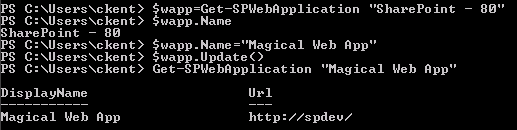
$wapp = Get-SPWebApplication "SharePoint - 80"
$wapp.Name = "Magical Web App"
$wapp.Update()

This can be written up in a script, or you can just type the lines just like above changing the names as makes sense. To verify the update was successful just use this command:

Get-SPWebApplication "Magical Web App"

You should see your new name listed with the url of your web application:

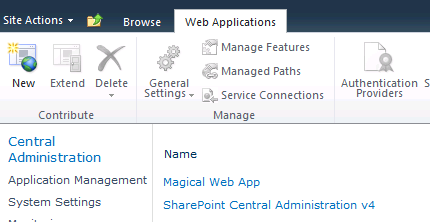
You can also check this in Central Administration under Application Management > Manage web applications:

Everything is good to go. However, this will not change the IIS website names or application pools. This takes more work than I was willing to do and I didn’t really care about that, so you’ll have to find that information elsewhere. But if you’re like me, this should be all you need!

Deleting a Document from a Record Library

Applies To: SharePoint 2010

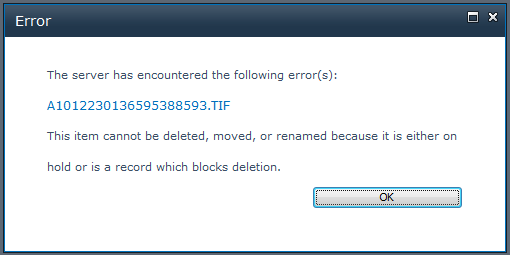
In setting up a Records Center I was trying out the Content Organizer and Drop Off Library. I configured a Send To location and an Organizer Rule to get my document to my new Record Library. It worked great! However, since this was just a test to make sure everything mapped over correctly, I wanted to delete the test document and I got this error:

This item cannot be deleted, moved, or renamed because it is either on hold or is a record which blocks deletion.

Uh… so how do I undeclare it? The answer is that with record libraries, all documents are not only automatically declared records, manual declaration/undeclaration is disabled by default. This all makes sense considering this is in the Record Center and it is a Record Library. But to delete your document, you will have to disable these settings (Temporarily).

1. Turn off Automatic Record Declaration

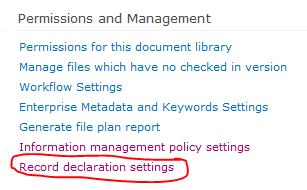
Go to your Library Settings for your Record Library. Under Permissions and Management choose Record declaration settings:

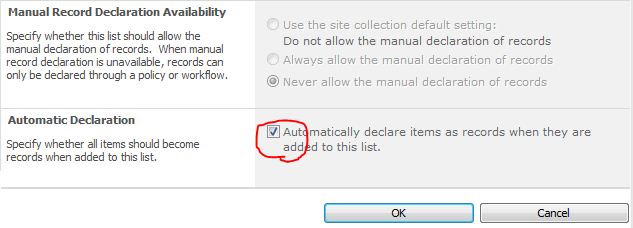
Uncheck the box in the Automatic Declaration section then press OK:

2. Enable Manual Declaration of Records

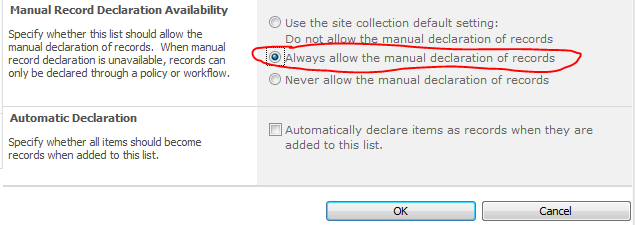
Go back into the Record declaration settings since the Manaual Record Declaration Availablity section will now be enabled. Choose Always allow the manual declaration of records:

3. Undeclare the Document as a Record

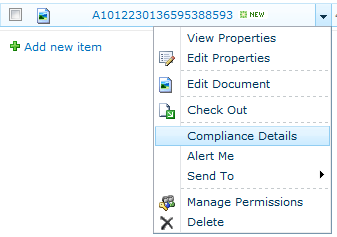
Go back to the Library and choose the document you want to delete. In the drop down menu, choose Compliance Details:

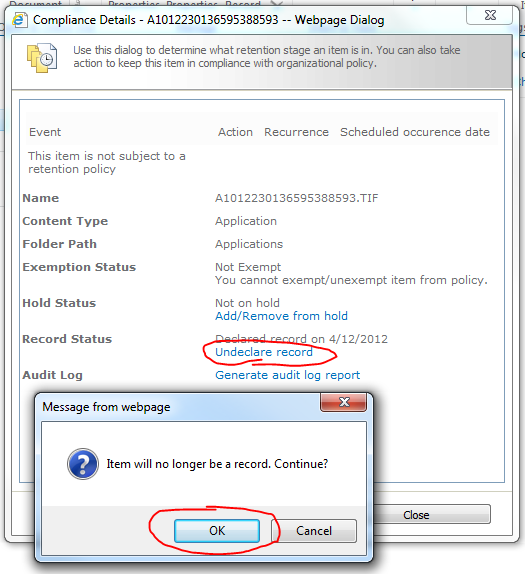
In order to remove the document, it can’t be a record nor be part of any holds. In the compliance details popup remove the document from hold (if necessary) and click the Undeclare record link. In the confirmation dialog choose OK to undeclare.

4. Delete the Document

Kill that sucker.

5. Put Everything Back in Place

Those settings were on the library for a good reason. Once you’ve finished your testing or no longer need to delete any individual records, you should go back to your library settings and reenable the default settings (Follow these steps backward).

If for some reason, you want to delete the Record Library itself. You will need to remove every record from the library following the above steps and then run the “Hold Processing and Reporting” job in Central Admin. This let’s SharePoint know there are no records in there and the standard deletion link will appear in the Library Settings.

PDF Search Results Direct Link (Eliminating DispForm.aspx Results) Without an iFilter

Applies To: SharePoint

We are utilizing our search functionality much more in SharePoint and one of the more annoying things we found was how PDF files are treated by default. In the search results, the link goes to the DispForm.aspx for the item rather than directly to the item.

The obvious fix is to install an iFilter. Unfortunately, this isn’t always an option. For us, the performance and crawl delay issues didn’t make up for the benefit of having these documents indexed. Fortunately, I came across this answer by daver306 on SharePoint SE that didn’t get a lot of attention but worked perfectly for me.

I wanted to write it up with some added detail and share my experiences. Not only does this allow you to link directly to your PDFs within the search without the use of XSL and allows KnowledgeLake queries to open PDFs directly within the KnowledgeLake Viewer, it’s actually pretty simple to do.

1. Add PDF as a File Type

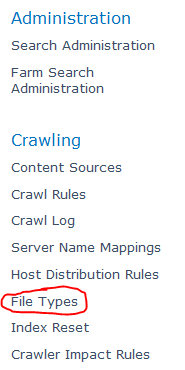
Within Central Admin, go to your Search Administration (Manage Service Applications > Search Service). From there click on the File Types link under Crawling on the left:

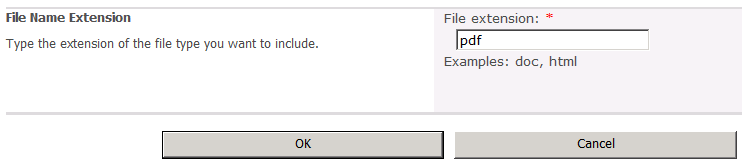
If pdf is not listed, click the New File Type button and type pdf (no period needed) in the File extension box and click OK:

2. Restart the Search Service

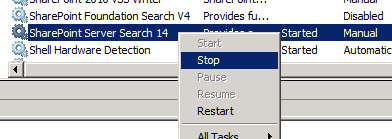
This is a very important step. I originally tried to skip it to spare myself some hassle and ended up having to repeat the crawl below. You will need to go to each server running the SharePoint Server Search service and stop it. You can do this through the command line or the Services panel under Administrative Tools:

Once off on all boxes, just go back through and start it again.

3. Reset Your Index

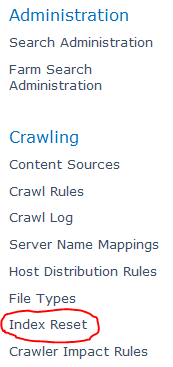
Back on the Search Administration page within Central Administration you will want to click on the Index Reset link under Crawling on the menu on the left:

Press the Reset Now button. Remember that this should be done at a time when your environment is not under heavy use or when search won’t be needed since search results will not be available until after a full crawl completes.

4. Perform a Full Crawl

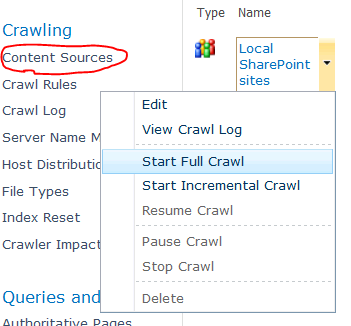
If you have a pretty standard search setup, then you probably only have one content source. If not, then you already know how to start the full crawls for each of them. If you’ve just got the one, then from the Search Administration page within Central Administration click on the Content Sources link under Crawling on the menu on the left. Hover over your content source and choose Start Full Crawl in the dropdown menu:

After the crawl completes (This could be hours depending on the size of your farm), things should be working as expected. No more DispForm.aspx links in your search results!


Minimal.Master missing corev4.css

Applies To: SharePoint 2010

While testing our new master page that replaces the minimal.master I noticed that depending on your permission level, things were rendering differently. If you had full permissions then things looked great, but if you were a visitor with read-only permissions things were a little off.

Taking a look at the actual page source we found that the stylesheet links in the header section looked different. With Full permissions the link to corev4.css existed, but didn’t for anyone else. Obviously permission to the corev4.css file wasn’t the issue since this was working fine on all other sites regardless of user permissions.

Some quick searching and experimentation revealed that the corev4.css link was only added to the page when the Site Actions menu was set to render. For the standard minimal.master file this is fine, but if you are depending on any of the corev4.css styles, you’ve got a problem. Fortunately, the solution is simple.

In your custom minimal.master master page find this section in the head element:

 <SharePoint:CssLink runat="server" Alternate="true"/>
 <SharePoint:Theme runat="server"/>
 <SharePoint:CssRegistration Name="minimalv4.css" runat="server"/>
 <SharePoint:CssRegistration Name="layouts.css" runat="server"/>

And add a CssRegistration element to corev4.css above the minimalv4.css CssRegistration:

 <SharePoint:CssLink runat="server" Alternate="true"/>
 <SharePoint:Theme runat="server"/>
 <SharePoint:CssRegistration Name="corev4.css" runat="server"/>
 <SharePoint:CssRegistration Name="minimalv4.css" runat="server"/>
 <SharePoint:CssRegistration Name="layouts.css" runat="server"/>

That’ll do it. The corev4.css will load regardless of the presence of the Site Actions menu and there aren’t any conflicts since SharePoint ensures it isn’t registered twice.

Auto Publish and Approve Your Solution Files

Applies To: SharePoint 2010

By default, every file you deploy using a sandboxed solution is left checked out. This can lead to problems depending on the type of site you are deploying to and/or the permissions of your end users.

This post focuses on Branding solutions, but anytime you are deploying a sandboxed solution these techniques should help you. This is especially important for Master Pages since these often need an approved/published version in order to be visible to anyone but the site administrators.

I found an interesting approach by Waldek Mastykarz where he suggests using a “Stamp” (Feature ID property) on each file and using that to find and check in each file. This was very cool, but requires you to modify the Elements.xml entry for each file to ensure that property is added and he also never addressed Master Pages which can be a bit of a special case.

For my needs, I generally take a simpler approach of just deploying my resources to one root folder and creating sub folders as needed. This makes it easier to find stuff, but it also means I don’t need to track each file individually. Obviously if you are doing something a little more extensive then you may need to take a hybrid approach of using the featureid property and/or just tracking the various folders you are deploying too. But for a simple branding solution you really just need to:

  1. Apply your branding to each site
  2. Publish and Approve each resource file
  3. Publish and Approve each Master Page

All of this can be done in the FeatureActivating event with a simpler helper method:

    Public Overrides Sub FeatureActivated(ByVal properties As SPFeatureReceiverProperties)
        Dim siteCollection As SPSite = CType(properties.Feature.Parent, SPSite)
        If siteCollection IsNot Nothing Then
            Dim topSite As SPWeb = siteCollection.RootWeb

            'Calculate relative path to site from Web Application root
            Dim WebAppRelativePath As String = topSite.ServerRelativeUrl
            If Not WebAppRelativePath.EndsWith("/") Then WebAppRelativePath &= "/"

            'Enumerate through each site and apply branding
            For Each site As SPWeb In siteCollection.AllWebs
                If Not site.MasterUrl.EndsWith("minimal.master") Then
                    site.MasterUrl = WebAppRelativePath & "_catalogs/masterpage/BSmain.master"
                Else
                    site.MasterUrl = WebAppRelativePath & "_catalogs/masterpage/BSminimal.master"
                End If
                If Not site.CustomMasterUrl.EndsWith("minimal.master") Then
                    site.CustomMasterUrl = WebAppRelativePath & "_catalogs/masterpage/BSmain.master"
                Else
                    site.CustomMasterUrl = WebAppRelativePath & "_catalogs/masterpage/BSminimal.master"
                End If
                site.AlternateCssUrl = WebAppRelativePath & "Style%20Library/BSResources/BS.css"
                site.SiteLogoUrl = WebAppRelativePath & "Style%20Library/BSResources/Images/BSlogo.png"
                site.UIVersion = 4
                site.Update()
            Next

            'Publish and Approve each file
            Dim styleLibrary As SPList = topSite.Lists.TryGetList("Style Library")
            If styleLibrary IsNot Nothing Then
                Dim folders As SPListItemCollection = styleLibrary.Folders
                Dim item As SPListItem = DirectCast((From i In folders Where DirectCast(i, SPListItem).Url = "Style Library/BSResources" Select i).FirstOrDefault(), SPListItem)
                ApproveAndPublish(item.Folder, styleLibrary.EnableModeration)
            End If

            'Publish and Approve the Master Pages
            Dim mpGallery As SPList = siteCollection.GetCatalog(SPListTemplateType.MasterPageCatalog)
            If mpGallery IsNot Nothing Then
                Dim mpages As SPListItemCollection = mpGallery.GetItems(New SPQuery With {.Query = "<Where><Or><Eq><FieldRef Name='FileLeafRef' /><Value Type='Text'>RegalIC.master</Value></Eq><Eq><FieldRef Name='FileLeafRef' /><Value Type='Text'>RegalICminimal.master</Value></Eq></Or></Where>"})
                If mpages IsNot Nothing Then
                    For Each i As SPListItem In mpages
                        If Not i.File.CheckOutType = SPFile.SPCheckOutType.None Then
                            i.File.CheckIn("Feature Activation", SPCheckinType.MajorCheckIn)
                            If mpGallery.EnableModeration Then
                                i.File.Approve("Feature Activation")
                            End If
                        End If
                    Next
                End If
            End If

        End If
    End Sub

    Private Sub ApproveAndPublish(folder As SPFolder, Approve As Boolean)
        If folder Is Nothing Then Return
        For Each subfolder As SPFolder In folder.SubFolders
            ApproveAndPublish(subfolder, Approve)
        Next
        For Each file As SPFile In folder.Files
            If Not file.CheckOutType = SPFile.SPCheckOutType.None Then
                file.CheckIn("Feature Activation", SPCheckinType.MajorCheckIn)
                If Approve Then
                    file.Approve("Feature Activation")
                End If
            End If
        Next
    End Sub

1. Apply your branding to each site

After gathering basic information about where the feature is being deployed and getting the correct reference URLs, we begin looping through every site in the sitecollection and setting the master page, sitelogo, and CSS settings to use our custom branding beginning in line 11.

The only thing different than the approach described in the Microsoft article, Deploying Branding Solutions for SharePoint 2010 Sites Using Sandboxed Solutions is that I am checking if the current master page is the minimal.master and if so, using my BSminimal.master file instead. This allows me to have both master pages deployed correctly, but it also allows me to restore these settings more accurately in the deactivating event (See my previous post).

2. Publish and Approve each resource file

To keep things simple, I keep all of my resource files in a single root folder within the Style Library. This makes looping through each subfolder and resource very simple to ensure that each one gets checked in and/or approved as necessary.

Lines 29-34 get a reference to the resource folder within the Style Library and pass that information over to a helper method called ApproveAndPublish. This method takes an SPFolder reference and a boolean indicating if approval is necessary or not. For the initial call, the folder is our resource folder and the approval setting comes directly from the Style Library and is found in the EnableModeration property of the SPList object.

The ApproveAndPublish method (Lines 55-68) is a recursive function that loops through every subfolder and checks in every file found. If Approval is required, it also marks them as approved.

This means you don’t have to track each file (either through stamping or keeping a list). This really cuts down on all the plumbing that is often necessary when working on a SharePoint solution.

3. Publish and Approve each Master Page

Unfortunately, Master Pages aren’t usually deployed to a sub folder and so the above technique for approval and check in has to be tweaked slightly. Lines 37-50 take care of this. Basically, we get a reference to the Master Page Catalog and use some basic CAML to isolate our master pages and then loop through them to check them in and/or activate them if required.

That’s all that’s required. You now have your files successfully deployed and ready to be used. Be sure to check out my previous post Branding Solution Cleanup. In that post I describe how to remove all of your solution files when your solution gets deactivated.