Stopping the Allow Debug Manifests Insanity

Applies to the SharePoint Framework

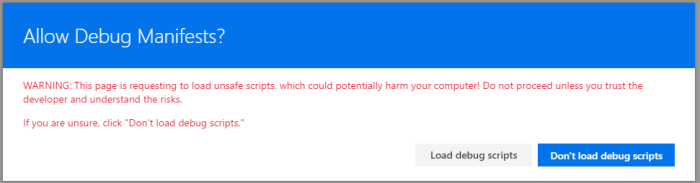
I recently followed the excellent SharePoint Framework (SPFx) Extensions tutorials and ran into an annoying issue. While working through the tutorial you will be correctly prompted to Allow Debug Manifests:

ext-app-debug-manifest-message

This allows JavaScript files being served from your localhost through the gulp serve command to be loaded on the page and your SPFx Extension to run. It’s really pretty awesome.

When I went to follow the next tutorial I found that despite my files being hosted in a SharePoint library turned CDN, I was still being prompted to Allow Debug Manifests.

I found that clicking Load debug scripts did nothing. This makes sense since I was not running gulp serve and so no local files would be loading. In fact, a check in the console didn’t show any file not found errors (as would be expected when debugging and gulp serve is not running so local JS files wouldn’t be found).

Strangely, if I chose Don’t load debug scripts my extension would run (the app had been added to the site and the assets loaded into the CDN)! So it was great that things were running, but really weird that I kept getting that prompt.

I uninstalled the app (Site Contents classic view and chose Remove) and even made sure it was deleted out of both stages of recycle bins. But I was still prompted on every modern page every time I visited them!

Aha! The custom action is still in place! So I used the Powershell PnP Cmdlet Remove-PnPCustomAction and ensured that there were no custom actions lingering anywhere. Still prompted! AHHHHHHHHHHHH!

Insanity

Finally, I posted it as an issue on the sp-dev-docs github repository and Pat Miller quickly provided the answer. Just add ?reset=true to the URL. You only need to do it once and it will clear everything up for the whole site. Apparently a debug cookie gets set sometimes and using this querystring will clear it out.

Fixing Dependency issues with the SPFx Generator

Applies to the SharePoint Framework

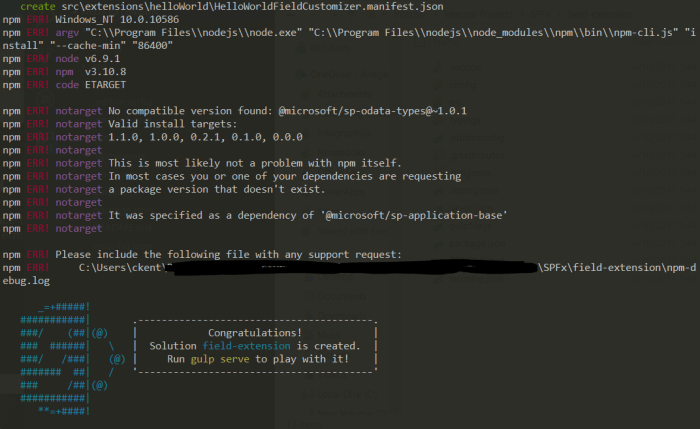
I’ve been playing with the new SharePoint Framework (SPFx) Extensions lately and ran into strange error when attempting to create a new one. I ran the yo @microsoft/sharepoint command and filled out the prompts to create a new Field Customizer extension. Things looked like they were working for about 15 seconds when I got this sadness:

Yeoman Error
“Congratulations”

Here’s the relevant text of the error:

No compatible version found: @microsoft/decorators@~1.0.1
Valid install targets:
1.1.0, 1.0.0, 0.2.1, 0.0.0
This is most likely not a problem with npm itself.
In most cases you or one of your dependencies are requesting
a package version that doesn't exist.

It was specified as a dependency of '@microsoft/sp-application-base'

So what happened? I could use this generator just a few days ago!

The first thing you should do when troubleshooting issues with the generator is check your version vs the available versions.

To check your version just use the following npm command:

npm list -g @microsoft/generator-sharepoint


When I did, I found I had version 1.1.0 so I checked what versions were available:

npm view @microsoft/generator-sharepoint versions


Sure enough, the latest version was 1.1.1 so I updated my generator:

npm install -g @microsoft/generator-sharepoint


Now running the generator again worked!

You can find more details about this particular issue on the sp-dev-docs Github repo issues list.

Setting Your SharePoint Framework WebPart Icon

Applies To: SharePoint Framework

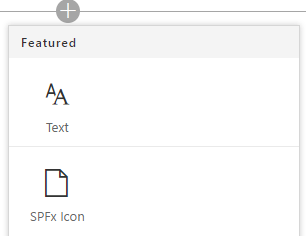
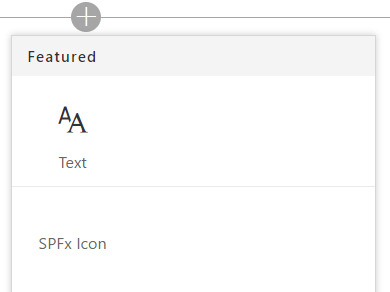
When you create a SharePoint Framework (SPFx) webpart, you can customize the icon displayed in the Authoring Canvas Toolbox. Here’s what it looks like by default:

DefaultToolboxIcon
Default “Page” icon for your webpart

By default, the Office Fabric Page icon is used but this can and should be changed before packaging up your app. This makes sure your webpart doesn’t get lost among all the other webparts and is a very simple way to add a professional touch.

There are 2 ways to customize this icon. You can specify the name of an icon from the Office UI Fabric icons or you can provide a URL to a custom image.

Both of these are accomplished by editing your webpart’s manifest.json file and changing a simple property.

Office UI Fabric Icon

The easiest way to customize your icon is to simply specify the name of an icon class in the Office UI Fabric. You can find all the icons here: https://dev.office.com/fabric#/styles/icons

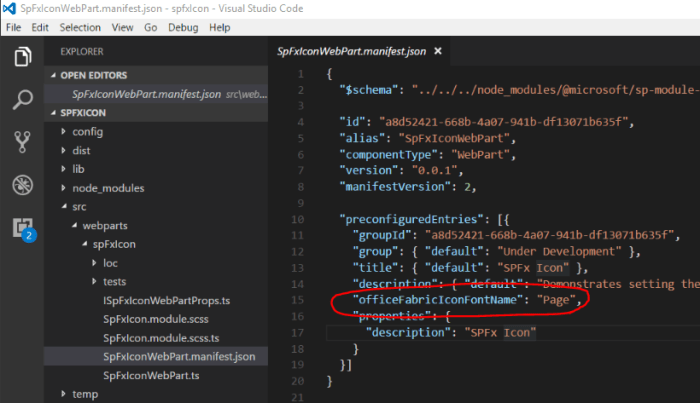
The Page icon shown above is doing exactly this. You can find this setting in the src/webparts/[YOURWEBPARTNAME]/[YOURWEBPARTNAME].manifest.json file in the preconfiguredEntries/officeFabricIconFontName property:

DefaultManifest

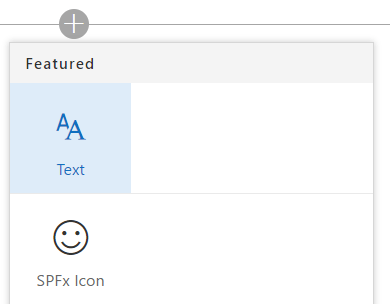
You can simply change this value from Page to any of the available icon names. Here’s what it looks like with a value of Emoji2:

SmileyToolboxIcon

Keep in mind that this value is CASE SENSITIVE. Also, note that changes to your manifest file (unlike your code files) will require you to stop the gulp serve command and do it again to have those changes reflected in the workbench.

If you inspect the actual toolbox you’ll see that the class name for the span is simply concatenating “ms-Icon–“ and the property value:

IconMarkup

This approach is super easy (just change the name) and ensures your webpart matches the official Office styles. But what if you want your own custom icon or logo?

Custom Icon

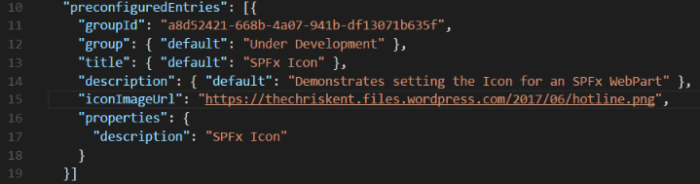
There is another property available called preconfiguredEntries/iconImageUrl and allows you to specify an image URL.

In order to use this property, create a 40x28px icon and upload it somewhere. For this example I’m just going to use my blog, but ideally you would include it in the webpart and then pull this value from your CDN.

You’ll also have to remove the preconfiguredEntries/officeFabricFontIconName property (or the iconImageUrl will be ignored). Here’s what my property looks like:

imageIconUrlManifest

Again, note that changes to your manifest file (unlike your code files) will require you to stop the gulp serve command and do it again to have those changes reflected in the workbench.

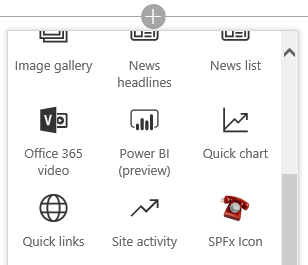
So here’s what it looks like in my local workbench:

iconImageUrlLocalWorkbench
Smells like a bug to me

What happened!?! For whatever reason, the local workbench continues to try and use a class icon as seen above (You can even see it sets a class of ms-Icon–undefined). However, the O365 workbench (/_layouts/15/workbench.aspx) works just fine:

iconImageUrl365Workbench

A quick inspection shows that the property value is just being inserted as the src attribute for an img tag.

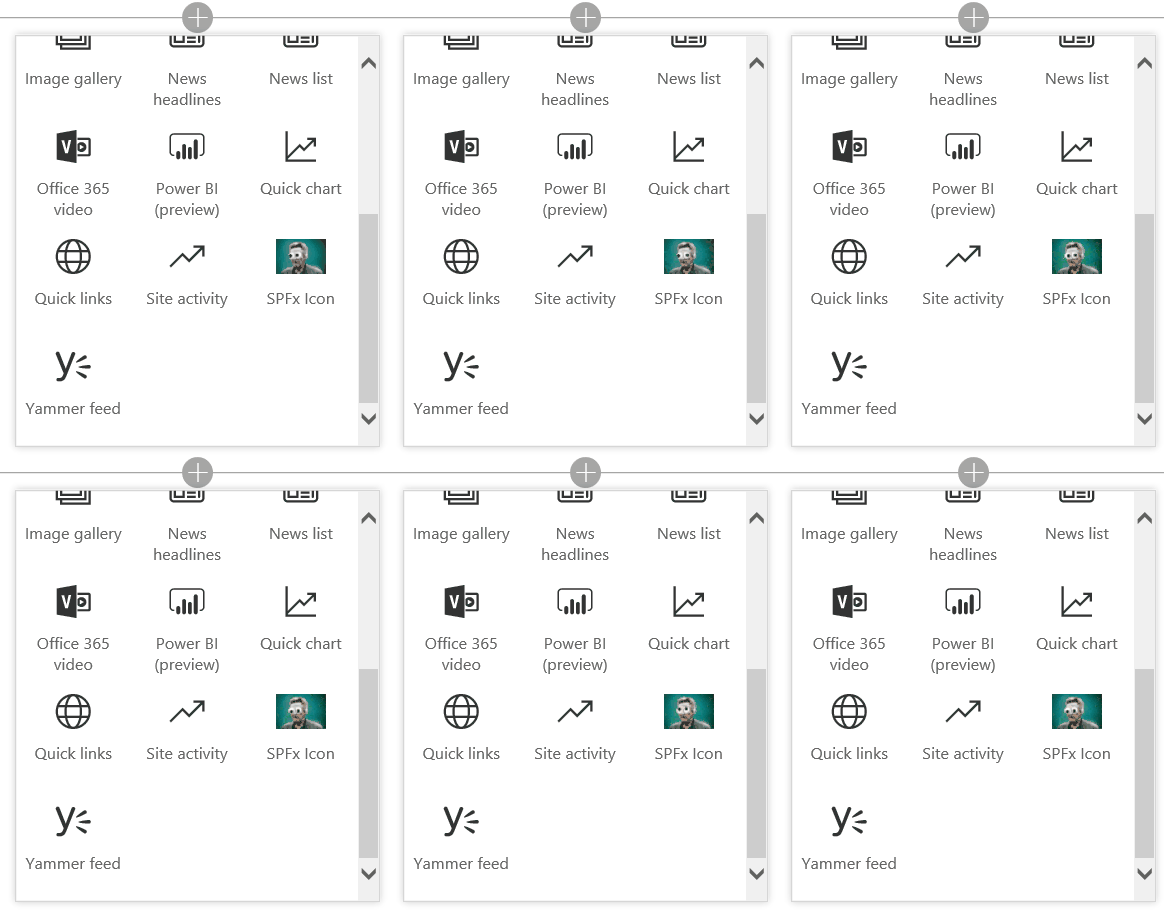
This means (and I’m not suggesting you should) that if you happen to have a weird Christopher Walken eyeball gif:

WalkenEyes

You could simply resize it and get something like this:

AnimatedIcon
Why you make Vesa cry?

Documentation Discrepancies

Looking at the documentation for the manifest properties (json schema) you may see some misleading outdated information. (If you haven’t setup config file intellisense in VSCode, go do it now! Here’s an awesome guide.)

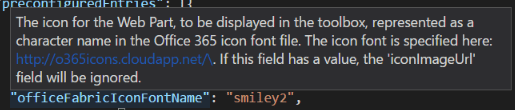
The description for the officeFabricIconFontName property looks like this:

officeFabricFontIconNameTooltip

It directs you to a site with 600+ icons many of which are present in the UI Fabric Icon styles. However, these names do NOT often match the actual class names and so cannot be reliably depended on to locate your icons (for example, the “Emoji2” icon we used in the sample above is listed as “smiley2” on the font site. It took going to the Office UI Fabric Icons page to find the correct class name).

The description for the iconImageUrl property looks like this:

iconImageUrlTooltip

You are instructed to use an icon that is exactly 38x38px. This is no longer accurate. You can use whatever size you want but it will be scaled to 40x28px.

Taking Advantage of the Loading Indicator in the SharePoint Framework

Applies to SharePoint Framework (SPFx)

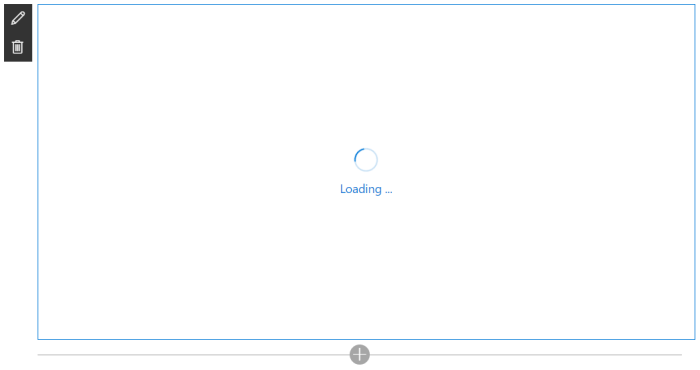
When making SharePoint Framework (SPFx) client side webparts, it’s common to load some data from somewhere else and then display it on the screen. Even if that data is just coming from a local list these requests are performed asynchronously and you should indicate to a user that the operation may take some time. The easiest way to do this is through the loading indicator. Here’s how it looks by default:

Default Indicator

Did you know that you can easily show/hide this indicator and even customize the text? You can even decide where it’s displayed. WOWEE!

To show the Loading Indicator you can simply call this.context.statusRenderer.displayLoadingIndicator where the this refers to your BaseClientSideWebPart. This method takes 2 parameters.

The first parameter is the element where you want the loading indicator to be displayed. Typically if you are calling this from the main render method in your webpart, you’ll just specify this.domElement. However, you can easily specify any other element (see below for an example). Just be aware that the default styles are currently pretty large.

The second parameter is the text you want to display between Loading and

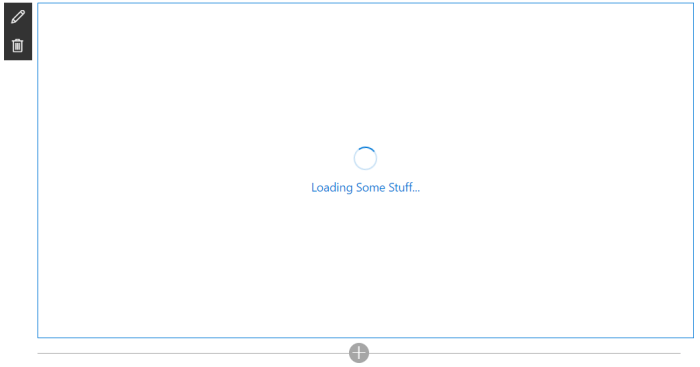
Loading indicator with some custom text:

Custom Text

this.context.statusRenderer.displayLoadingIndicator(this.domElement,"Some Stuff");

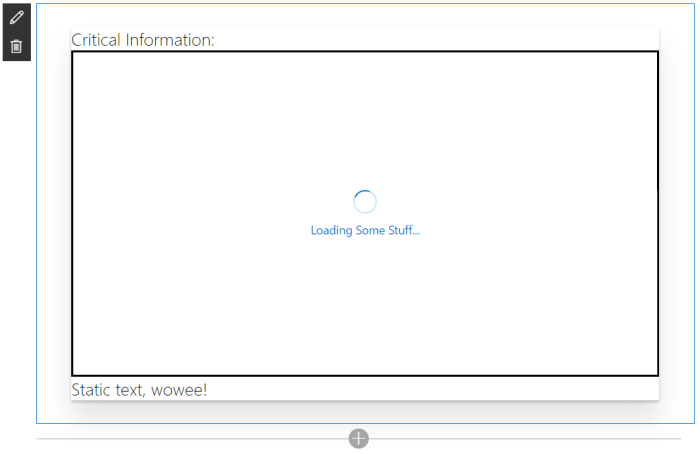
Loading indicator inside a custom element with custom text:

Custom Text - Inline

this.domElement.innerHTML = `
  <div class="${styles.loadingIndicator}">
    <div class="${styles.row}">
      <div class="${styles.container}">
        <span class="ms-font-xl">Critical Information:</span>
        <div class="${styles.specialbox}" id="myspecialbox">
        </div>
        <span class="ms-font-xl">Static text, wowee!</span>
      </div>
    </div>
  </div>`;

//Show the loading indicator inside an element
this.context.statusRenderer.displayLoadingIndicator(document.getElementById("myspecialbox"),"Some Stuff");

Hiding the Loading Indicator:

this.context.statusRenderer.clearLoadingIndicator(this.domElement);

You can find a sample project here: https://github.com/thechriskent/spfxLoadingIndicator

You can download the whole project and run it, or just take a look at the main webpart file.

Adding Bookmarks to PDF Documents with pdfmark

Applies To: PDF Manipulation

Have you ever needed to add those fancy navigational elements to a PDF document? Some people (incorrectly) call these the table of contents, most interfaces call them Bookmarks and internally they’re collectively known as the outline. I’m talking about these things:

Bookmarks

But what if you’re generating PDFs programatically? For instance, you are converting a bunch of image files to a PDF using something like ImageMagick (or even GraphicsMagick). Or maybe your fancy software doesn’t add them and you need a way to get them added. Fortunately, you can add them through the somewhat obscure pdfmark interface! WOWEE!

There are several paid tools out there to do this and there are even some free ones that do an okay job. For instance, jpdfbookmarks is free and does an alright job (the bookmarks are there, but other PDF processors will likely mark the PDF as invalid and “repair” these by removing them). However, these often introduce an extra interface or simplified format that may not fully support everything you can do with bookmarks (let alone the rest of pdfmark). There is actually a ton you can do (even bookmarks can do far more than just navigate to another page) and the syntax isn’t that complicated.

Anatomy of a PDF Bookmark

Generally, a basic bookmark simply jumps to a specific page. Here’s a very basic example of a bookmark that will open page 2 of a PDF document (pages start at 1) with a child bookmark that will open page 3:

[ /Title (Some Bookmark)
  /Page 2
  /Count 1
  /View [/XYZ null null 0]
  /OUT pdfmark

    [ /Title (Sub Bookmark)
      /Page 3
      /View [/Fit]
      /OUT pdfmark

The whitespace (tabs and spaces) makes no difference, but I find it easier to indent child bookmarks. Here’s what’s happening:

  • represents the start of a new pdfmark “command” (you can have multiple commands in a single file)
  • /Title defines the text of the bookmark (everything in the parenthesis)
  • /Count indicates the number of child bookmarks
    • When the number is positive the bookmark is expanded (it’s children showing by default)
    • When the number is negative the bookmark is collapsed (it’s children hidden by default)
    • If there are no children, leave it out
    • Child bookmarks should follow their parent. When the children are done, the next bookmark belongs to the parent level
  • /Page defines which page number (starting with 1) to navigate to (this is not required since bookmarks can do other actions as well – see below)
  • /View defines the zoom level the destination page will have (see below for details)
  • /OUT pdfmark defines the “command” as a bookmark (/OUT) and is the end of the “command”

View Magnification

The zoom level of the destination page is set using the /View option. There are a ton of options here (see page 11 of the Cooking up Enhanced PDF with pdfmark Recipes eBook by Lynn Mead for more examples). But here are the most common values:

  • [/Fit] – Fits the page to the window (the whole page is visible)
  • [/FitH top] – Fits the width of the page to the window, replace top with a number
    • The top value is the distance from the page origin to the top of the window (offset) e.g. [/FitH 32]
  • [/FitH -32768] – Fits the width of the page to the window (top value is automatic)
  • [/FitV left] – Fits the height of the page to the window, replace left with a number
    • The left value is the distance in from the page origin to the left edge of the window (offset) e.g. [/FitV -17]
  • [/XYZ left top zoom] – Gives a specific origin offset and zoom level, replace left, top, and zoom with either a number or the word null e.g. [/XYZ 3 5 10] or [/XYZ null null 0]
    • The left value is the distance in from the page origin to the left edge of the window (offset)
    • The top value is the distance from the page origin to the top of the window (offset)
    • The zoom level is the magnification (0-100)

To simply keep whatever zoom level the user is using just use [/XYZ null null 0].

Other Options

There are additional parameters for bookmarks that can be added as necessary:

  • /Color [R G B] – Defines the color of the bookmark. Replace R, G, and B with numbers e.g. [.2 1 .76]
    • R is the percentage of Red from 0 to 1 (use decimals for other values)
    • G is the percentage of Green from 0 to 1 (use decimals for other values)
    • B is the percentage of Blue from 0 to 1 (use decimals for other values)
  • /F format – Defines the format of the bookmark text. Replace format with one of the following numbers:
    • 0 – normal
    • 1 – italic
    • 2 – bold
    • 3 – bold italic

Advanced Actions

A bookmark can do more than just open a page within the document. You can use the following parameters to change that behavior:

  • /File (filename) – Opens the PDF document specified in the filename value
    • To open a non-PDF file use the /File parameter along with /Action /Launch
  • /URI (address) – Opens the web page specified in the address value
  • /Action various – Performs an advanced action
    • There are several of these and they can get rather complicated but here’s a brief list:
      • /Action /Launch – Opens non-PDF files, requires a /File parameter
      • /Action << /Subtype /Name /N /menuitem >> – Executes the menu item specified (replace menuitem with the name of the menu item e.g. /Action << /Subtype /Name /N /Print >>)
      • /Action /Article – Follow an Article Thread (requires the /Dest parameter and optionally a /File parameter)
      • /Action << /Subtype /ImportData /F (filename.fdf) >> – Import Form Data from the specified file
      • /Action << /Subtype /ResetForm >> – Reset the Form

There are even additional actions for playing movies and sounds, executing JavaScript, and submitting form data.

See page 12 of the Cooking up Enhanced PDF with pdfmark Recipes eBook by Lynn Mead for more examples and details.

Applying the Bookmarks to a PDF Document

As a reminder, pdfmark is just put in a text file and then applied using GhostScript with the following command:

gswin64c -o [outputfilename] -sDEVICE=pdfwrite -dPDFSETTINGS=/prepress [originalPDFfilename] [pdfmarkfillename]

For additional details about how to get this all quickly setup, see my previous post Applying pdfmark to PDF Documents Using GhostScript.

If you’re adding bookmarks, you should probably ensure they’re visible when the document is opened by also setting the View Options.

Setting PDF View Options with pdfmark

Applies To: PDF Manipulation

Using the pdfmark syntax, you can add a lot of features to existing PDF documents. In a previous post I showed you how to apply pdfmark to PDF documents using GhostScript from the command line. In this post, I’ll show you how to set the View Options using this same technique.

View Options control the default display for a PDF document when it is opened. You are able to set the zoom levels, the starting page, and determine what features of the interface are already visible.

The following pdfmark will apply View Options to a PDF document:

[ /PageMode /UseOutlines
  /Page 1
  /View [/Fit]
  /DOCVIEW pdfmark

Here’s a breakdown of what’s happening:

  • represents the start of a new pdfmark “command” (you can have multiple commands in a single file)
  • /PageMode defines the page mode display (see table below for options)
  • /Page defines which page number (starting with 1) to start on
  • /View defines the zoom level the document will start with (see below for details)
  • /DOCVIEW pdfmark defines the “command” as View Options (/DOCVIEW) and is the end of the “command”

Page Modes

The /PageMode option determines the starting state for the PDF document. None of the options disable any features (so a user can still turn them on in the interface).

  • /UseNone – Document displays without bookmarks or thumbnails visible
  • /UseOutlines – Document displays with the bookmarks visible
  • /UseThumbs – Document displays with the thumbnails visible
  • /FullScreen – Document displays in full screen mode

View Magnification

The starting zoom level for a PDF document is set using the /View option. There are a ton of options here (see page 11 of the Cooking up Enhanced PDF with pdfmark Recipes eBook by Lynn Mead for more examples). But here are the most common values:

  • [/Fit] – Fits the page to the window (the whole page is visible)
  • [/FitH top] – Fits the width of the page to the window, replace top with a number
    • The top value is the distance from the page origin to the top of the window (offset) e.g. [/FitH 32]
  • [/FitH -32768] – Fits the width of the page to the window (top value is automatic)
  • [/FitV left] – Fits the height of the page to the window, replace left with a number
    • The left value is the distance in from the page origin to the left edge of the window (offset) e.g. [/FitV -17]
  • [/XYZ left top zoom] – Gives a specific origin offset and zoom level, replace left, top, and zoom with either a number or the word null e.g. [/XYZ 3 5 10] or [/XYZ null null 0]
    • The left value is the distance in from the page origin to the left edge of the window (offset)
    • The top value is the distance from the page origin to the top of the window (offset)
    • The zoom level is the magnification (0-100)

Applying the View Options to a PDF Document

As a reminder, pdfmark is just put in a text file and then applied using GhostScript with the following command:

gswin64c -o [outputfilename] -sDEVICE=pdfwrite -dPDFSETTINGS=/prepress [originalPDFfilename] [pdfmarkfillename]

For additional details about how to get this all quickly setup, see my previous post Applying pdfmark to PDF Documents Using GhostScript.

Applying pdfmark To PDF Documents Using GhostScript

Applies To: PDF Manipulation

The Adobe Portable Document Format (PDF) has a ton of features but often they seem locked behind pay walls such as Acrobat Pro or 3rd party software/utilities. Fortunately, Adobe created a syntax to tap into many of these features called pdfmark. Pdfmark lets you do things like add bookmarks, annotations, document properties, links, attachments, and more! In this post I’ll introduce you to basic pdfmark syntax and show you how to apply it via the command line.

I’ve often been tasked with doing this sort of thing to 1,000s of documents. There are PDF libraries, opensource and otherwise, that you can add to some custom code but they often have poor documentation, strange support, and various levels of cost.

Fortunately, I’m going to show you how to get started writing your own pdfmark files and applying them from the command line with the free GhostScript tool! From there it’s relatively simple to batch process 1,000s of documents or integrate it into your own tool.

This post will serve as a basic setup guide for a short series on different things you can do with pdfmark.

Getting GhostScript

GhostScript is a free opensource library with a command line interface that makes it really easy to apply your pdfmark markup to any PDF with a simple command and it can be automated to process thousands of files. You may even have it installed already since it’s used by a lot of software (like PDF Printers). If not, it’s a pretty simple install.

Head over to the downloads page and pick either the 64 or 32 bit version depending on your machine. Unless you want tech support or want to redistribute GhostScript commercially, you can get the free one. As of this post, the latest version was 9.21.

After you’ve installed GhostScript, you’ll want to add it to your PATH variable so that you can easily call it within any folder from the command line. The easiest way to do this on windows 10 is to type Environment Variables in the Cortana prompt and then double-click the Path variable, click New, and paste the path to the bin directory. Your actual path may be different depending on where you installed it:
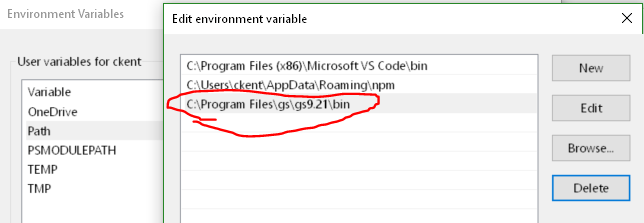
GhostScript Path

Basic pdfmark

GhostScript will apply pdfmark syntax to a PDF document by referencing a text file. So let’s create a pdfmark text file!

Just open up notepad or whatever editor you prefer and type the following:

[ /PageMode /UseOutlines
  /Page 1
  /View [/Fit]
% I'm a comment!
  /DOCVIEW pdfmark

This is an example of applying View Options to a PDF document and is one of the simplest things you can do.

Structure

Every pdfmark “command” starts with a left square bracket and ends with the command type preceded by a forward slash followed by the word pdfmark. Frustratingly, there is no closing square bracket (WHY?!).

You can have multiple commands in a single file.

Whitespace

In a pdfmark document, spaces and tabs don’t matter (except in strings which are enclosed in parenthesis and not shown above). This means that you could write it all on one line or do what I did and separate it across multiple lines and indent in a way that makes it easier to read.

Comments

You can add comments by using a % sign. The comment will apply until the end of the line and won’t be interpreted at all. Multi-line comments must each have a %.

Applying pdfmark to a PDF Document

Here’s the basic syntax for applying a pdfmark text file to a PDF document:

gswin64c -o [outputfilename] -sDEVICE=pdfwrite -dPDFSETTINGS=/prepress [originalPDFfilename] [pdfmarkfillename]
Note – GhostScript can do a ton of things and there are lots of additional options you can mix in to do some really powerful stuff, but the above is all you need to apply pdfmark.

If you just want to overwrite the PDF document, skip the -o parameter. Also, note that the parameters are CASE SENSITIVE.

Here’s an example of applying pdfmark to the MyPDF.pdf document using the pdfmark.txt file and saving the result as MySuperPDF.pdf:

gswin64c -o MySuperPDF.pdf -sDEVICE=pdfwrite -dPDFSETTINGS=/prepress MyPDF.pdf pdfmark.txt

Great! Now we can apply pdfmark to PDF files using the command line! But what can we do with it? The next few posts will provide several examples of what you can do. In the meantime, check out the pdfmark Reference, the PDF Reference, and/or the really helpful Cooking up Enhanced PDF with pdfmark Recipes eBook by Lynn Mead.

Targeted JSLink for List View Web Parts

Introduction

Standard Client Side Rendering (CSR) is a powerful technology introduced in SharePoint 2013. Out Of The Box (OOTB) you can apply this technology to list view web parts through use of the JS Link property. Using this technique, developers can quickly and easily apply display logic through JavaScript.

Unfortunately, despite its continued support in SharePoint 2016 and Office365, CSR with list view web parts still suffers from a major flaw. When you have multiple web parts that display list items from lists that share a ListTemplateType and BaseViewID, OOTB CSR provides no way to correctly target your display logic (JSLink) to individual web parts.

How to Get the Code

The example code used in this document can be found in full as part of the csrShim repository:
https://github.com/thechriskent/csrShim/tree/master/Examples/Multiple%20List%20Views

The full project can be found on GitHub:
https://github.com/thechriskent/csrShim

You can download or clone the repository directly from that site. You can also view the code directly on the site.

The Problem

When a user adds 2 or more web parts displaying list items from a list that share a ListTemplateType and BaseViewID, standard CSR has no way of distinguishing between the web parts.

The result is that if only a single web part has a JS Link property specified, all matching web parts will be drawn with that logic (even ones intended to use the OOTB display!). If more than one web part has the JS Link property, then only the last one loaded will be applied.

This is especially problematic because custom lists all share a ListTemplateType of 100 and will present with a BaseViewID of 1. This issue often surprises developers that have developed their web part in isolation where they worked perfectly just to have them break entirely when placed on a page with other web parts.

A Demonstration

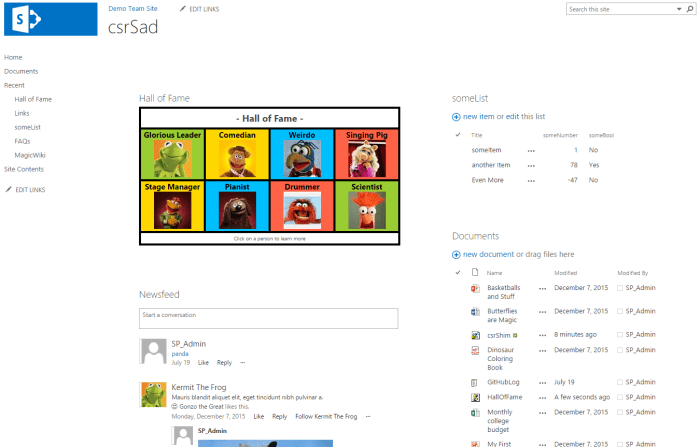
  1. We will add a web part using JSLink as configured in the List View Client Side Rendering (JSLink) Primer to have a web part using JS Link (The example code can be downloaded from the repository mentioned above):
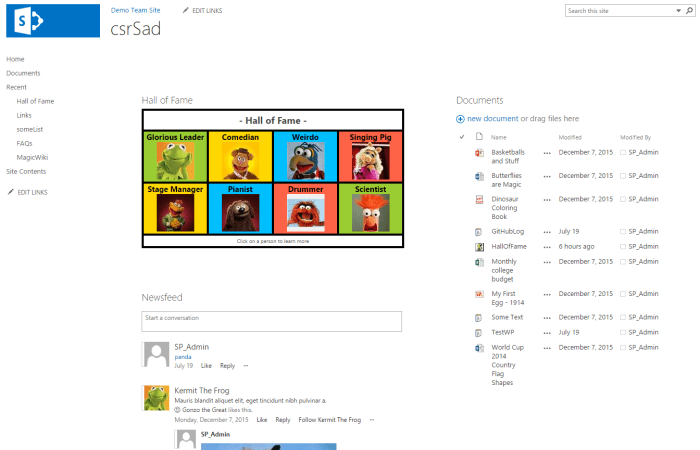
    Single CSR
    This is a pretty standard team site page with a Site Feed, a Document Library, and a custom list with JSLink applied using standard CSR (Hall of Fame)
  2. Now if we add another Custom List web part (just an OOTB view):
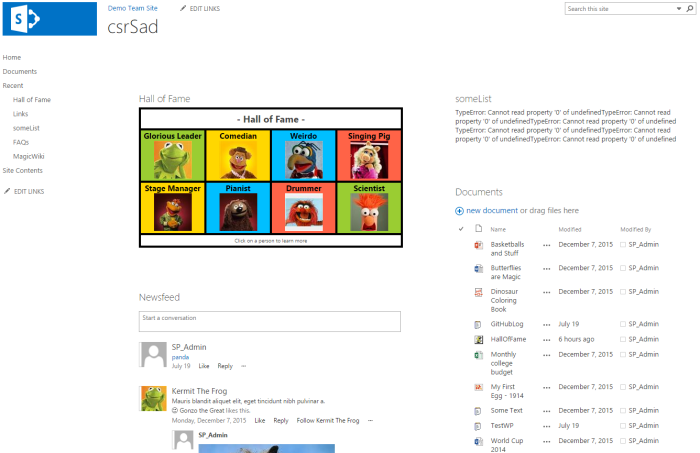
    Broken CSR
    Immediately we see the someList web part is full of errors (these are JS errors from missing fields where the CSR attempted to apply the JSLink file)
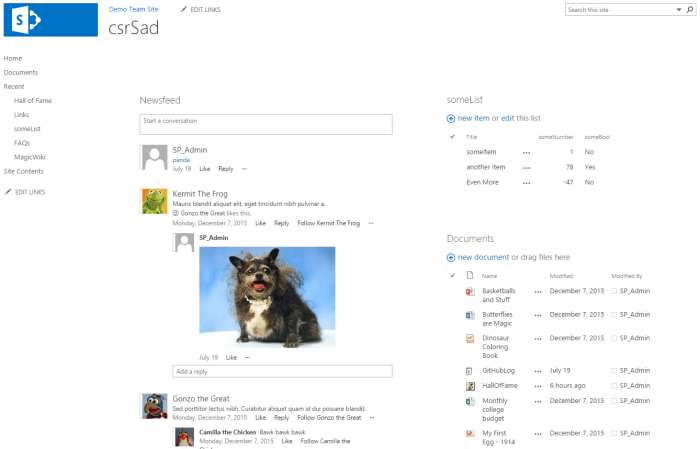
  3. Removing the Hall Of Fame web part from the page fixes the someList web part:
    No CSR Fixed

There are many solutions for this to be found online. Most of these solutions are hacky workarounds at best, at worst they create fragile code and dependencies on management code outside of the web parts themselves.

It is often suggested to “override” the standard CSR template registration function and then create your own system to route CSR requests by dynamically changing the BaseViewID of the ContextInfo (ctx) objects. This technique requires you to have knowledge ahead of time of all possible web parts on the page or to have some additional way to uniquely identify/register your parts. The override is just taking advantage of JavaScript’s ability to alter objects you don’t own and introduces serious risk to your solutions (upgrades, users adding unknown web parts, and more).

The Solution

Fortunately, there is a solution that addresses many of the risks laid out above. The best part is that it can be independently implemented for individual web parts. These web parts never need to know or care about other web parts on the page (no management system required).

The solution is to use csrShim with your list view web parts. csrShim was originally developed to bring CSR capabilities to web parts without JS Link properties (Content by Query Web Parts and XMLViewer), but it can easily be applied to XSLTListView web parts. When doing so, you can specify a BaseViewID that is not tied to the original value allowing you to target web parts very specifically to CSR templates!

In addition, using csrShim this way allows you to add as many web parts to the page with the same underlying ListTemplateTypes and BaseViewIDs as needed and each can direct which CSR (JSLink) should be used for themselves. This technique can even be used alongside the standard CSR JS Link usage without causing issues for those parts or themselves.

A Demonstration

  1. Going back to our csrSad page from above, let’s add the Hall Of Fame web part back to the page but this time we’ll skip specifying the JS Link property:
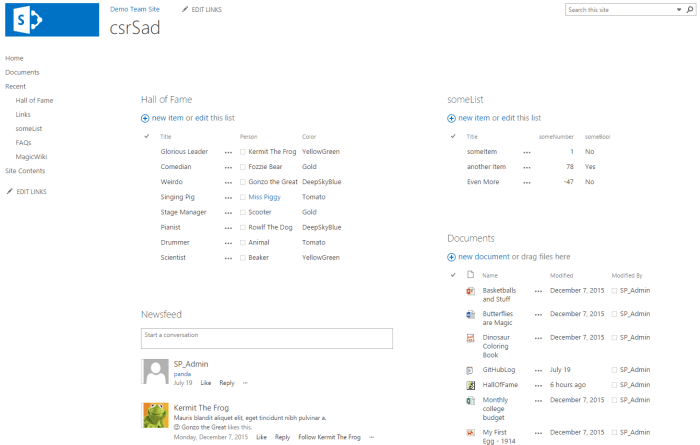
    No JSLink
    When the JS Link property is not used, the OOTB views of custom lists can live side by side on a single page. But that’s not very exciting!
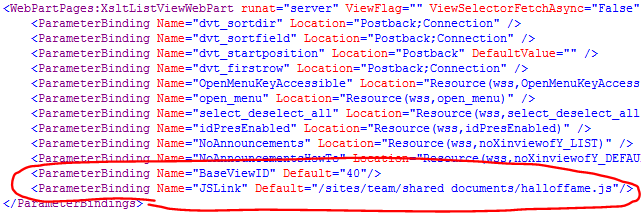
  2. Instead of specifying the JS Link property, we will specify the csrShim Parameters of BaseViewID and JSLink:
    Parameters
  3. Now when we refresh the page:
    WorkingWow
    Voila, someList web part is just fine! (If you don’t have any profile pictures showing up be sure you used the halloffame.js for this example)
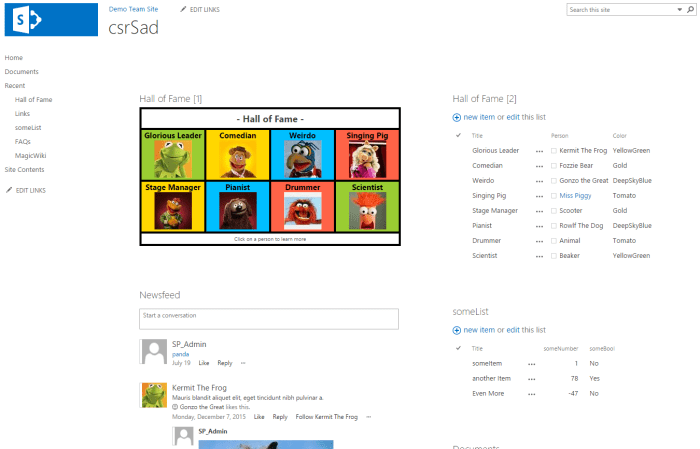
  4. We can even add additional views of the Hall of Fame list:
    Multiple Hall Of Fame
    We could apply CSR to this web part without issue as well by simply specifying a different BaseViewID (assuming we wanted it to render differently).

Benefits

  • A single property is all that’s required to distinguish web parts (BaseViewID)
    • This property is exported with the web part so that it can be added to the web part gallery and safely added to any unknown page without causing conflict
  • Utilizes OOTB XSL system
  • Utilizes OOTB Rendering system

Drawbacks

  • Some properties must be accessed differently
    • An example can be seen with how the user id was pulled to generate the link for the hall of fame. Standard CSR provides an array of user objects with individual properties. csrShim provides multiple strings for those values. Using the ctx.csrShim boolean property, you can easily create a JSLink file that can handle either:
var sip, userId;
if(ctx.csrShim){
    sip = ctx.CurrentItem["Person.sip"];
    userId = ctx.CurrentItem["Person.id"];
} else {
    sip = ctx.CurrentItem.Person[0].sip;
    userId = ctx.CurrentItem.Person[0].id
}
  • Reliance on another component (csrShim)
    • To solve this problem, you would have to introduce something, likely something requiring more overhead and support issues
  • csrShim only returns a subset of properties that standard CSR returns (all list values are returned) but nearly every property used in rendering is included