InfoPath List Form Enhanced Text Showing All Grey and Stuff

Applies To: SharePoint 2010, InfoPath 2010

As mentioned in my previous post, you can replace the standard list item forms with InfoPath browser based forms (SharePoint 2010 Server Enterprise only). This is a great feature but there are some gotchas that can be hard to find answers to; mostly because these types of forms have different limitations and options than other InfoPath forms.

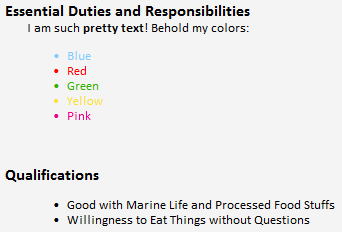
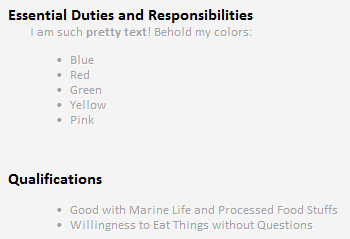
I was using this feature and had a form view for New, Edit & Display and everything was mostly working. However, my display view was annoying the crap out of me. My list has a couple of Multiple lines of text columns that allow Enhanced rich text (Rich text with pictures, tables, and hyperlinks). Although these displayed just fine on a standard List Item Display Form, they were Grayed out on my InfoPath List Item Display Form.

This means that although it would show formatting such as bold or underline, any text colors you picked were totally overridden with that obnoxious gray:

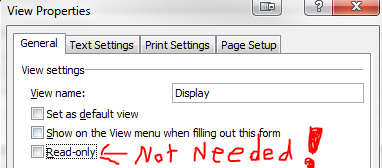
Turns out I had set the view to Read-only (This is the Display view so that seemed like an important step to me). In my desperation I opened up the View Properties and unchecked the Read-only box, hit OK and re-published the form.

When I opened the List Item Display view everything looked perfect. Apparently InfoPath and/or SharePoint is smart enough to know to make everything uneditable when displaying a list item:

InfoPath List Form New Item is Read Only

Applies To: SharePoint 2010, InfoPath 2010

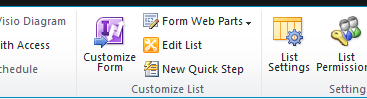
Many of you are probably aware that you can replace the standard list item forms with InfoPath browser based forms (SharePoint 2010 Server Enterprise only), and if you weren’t, you are now. It’s as simple as hitting the Customize Form button on the List tab of the List Tools ribbon:

By default the same form is used for all three views (New, Edit, & Display). You can create new views in InfoPath (Page Design tab -> New View) and then back in SharePoint use the Form Web Parts dropdown shown above to customize the InfoPath Form Web Part to show the view you want. There are other guides out there to getting this done that go into more detail, but that’s the gist of it.

I ran into an interesting problem the other day when using this feature. I had a form view for New, Edit & Display and everything was working great. Then I realized that I had some optional fields that I didn’t want to show on the display form if they were blank.

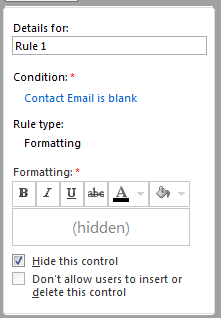
So I wrapped those up in a section and slapped a formatting rule to “Hide this control”:

Boom! I published the form and everything displayed as expected. I did a bunch of other stuff and then went back to add another item to the list. Suddenly the form view I was using for the New List Item was completely Read-only. Obviously, that’s a problem.

I opened the form back up in InfoPath and made sure the View Properties didn’t have the Read-only checkbox checked – Nope. I cried a little but then through the blur of my tears I noticed that every field on every view that wasn’t in one of my auto hide sections had a little blue info icon. Hovering over the icon showed FieldName (Control bound to missing field or group). What a heck?

Meanwhile the Edit form is still working great. So I right-clicked on the fields choose Change Binding and verified they were all hooked up correctly. Some searching brought me to this TechNet thread. The answer is in there but it wasn’t super obvious to me.

Basically, by adding the sections I had caused all the other fields on all the views to be outside the SharePointListItems_RW section and this breaks their binding. So how do you fix it? It’s actually pretty simple.

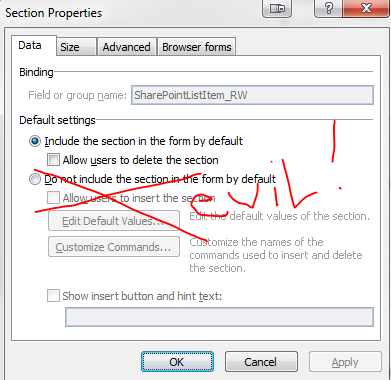
Right-click on any of your Optional Sections and choose Section Properties from the context menu. In the Default settings section of the Data tab is a radio button. Switch it from Do not include the section in the form by default to Include the section in the form by default. Click OK.

Suddenly all the little blue info icons go away and every Optional Section is now called Section. Re-Publish your form and you’ll find the auto-hiding still works perfectly and your New Item form is no longer Read-only. See? It can’t rain all the time sunshine!

Hide “All Site Content” Link Based on Permission

Applies To: SharePoint

By default in SharePoint 2010 nearly every visitor to your site automatically gets an “All Site Content” link added to their quick launch. In addition, there’s a “View All Site Content” option in the Site Actions menu. Here’s a default team site as seen by a user with only Read permission:

For team sites and basic work areas this is a great idea. However, there are several cases where it would be better if this wasn’t shown to the average user – for instance, a Business Intelligence Center. A Business Intelligence Center site is where you’re probably hosting PerformancePoint content and/or reports, etc. Anyone using your dashboards must have read permission to all the content and datasources. But generally you don’t want general users browsing this content. It’s better to provide good navigation either through the quicklaunch or a nice home page. However, you want your designers to still have this link.

Fortunately, Microsoft built the quicklaunch link with a ClusteredSPLinkButton and the Site Actions link with a MenuItemTemplate both of which have the PermissionMode and PermissionsString properties. These controls allow you to perform simple permission trimming.

SPSecurityTrimmedControl Permission Trimming

The controls both inherit from SPSecurityTrimmedControl which is where the permission trimming properties and methods come from.

The first property, PermissionsString, defines the permission(s) a user must have in order to view the control. You can find a list of permissions here. By default both of the All Site Content link controls use the ViewFormPages permission (Basically, anyone who can get to the site).

You can use multiple permissions in your PermissionsString by separating them with a comma. How those are used is determined by the PermissionMode property which can have two values: Any or All. When set to “Any” the control will show if a user has at least one of the permissions in your PermissionString. When set to “All” the control will only show if a user has every permission listed in your PermissionString.

We wanted the All Site Content links to only show for users with Full Control over a site. So our PermissionsString needs to be ManageWeb, and since we’re only using one permission our PermissionMode can be either Any or All or even not included.

Hiding the Quicklaunch Link

To change the permission trimming attributes for our controls, we have to edit the MasterPage. If you’re developing a custom branding solution then this should be easy enough to do directly in Visual Studio. If you’re just customizing on the fly, then you’ll use SharePoint Designer (Choose Edit in SharePoint Designer from the Site Actions menu).

In the default master page (v4.master) the Quicklaunch All Site Content link can be found around line 573 and is included in the PlaceHolderQuickLaunchBottomV4 UIVersionedContent control. Here’s what it looks like by default:

<SharePoint:ClusteredSPLinkButton
	id="idNavLinkViewAllV4"
	runat="server"
	PermissionsString="ViewFormPages"
	NavigateUrl="~site/_layouts/viewlsts.aspx"
	ImageClass="s4-specialNavIcon"
	ImageUrl="/_layouts/images/fgimg.png"
	ImageWidth=16
	ImageHeight=16
	OffsetX=0
	OffsetY=0
	Text="<%$Resources:wss,quiklnch_allcontent_short%>"
	accesskey="<%$Resources:wss,quiklnch_allcontent_AK%>"/>

So all we have to do is change line 576 to read PermissionsString=”ManageWeb” and save.

Hiding the Site Actions Link

The Site Actions menu is just as easy to edit. The View All Site Content link can be found around line 137 inside the SiteActions FeatureMenuTemplate control. Here’s what it looks like by default:

<SharePoint:MenuItemTemplate runat="server" id="MenuItem_ViewAllSiteContents"
	Text="<%$Resources:wss,quiklnch_allcontent%>"
	Description="<%$Resources:wss,siteactions_allcontentdescription%>"
	ImageUrl="/_layouts/images/allcontent32.png"
	MenuGroupId="300"
	Sequence="302"
	UseShortId="true"
	ClientOnClickNavigateUrl="~site/_layouts/viewlsts.aspx"
	PermissionsString="ViewFormPages"
	PermissionMode="Any" />

Again, just change line 145 to PermissionsString=”ManageWeb” and save.

That’s it! Here’s what the same Team Site now looks like to a user with Read permission:

Remove Lookup Column Link From View

Applies To: SharePoint 2010

Okay, the title to this post is a little misleading. I won’t be showing how to actually remove the link from the view column. That requires XSLT or JavaScript. What I will show you is a work around that is good enough for me and requires nothing but the browser.

When you add a Lookup Column to a list the linked item’s display form will automatically be linked to the column wherever it shows up in a view. Generally, this is pretty awesome behavior since it gives more detail on demand without us having to do anything. Sometimes, however, these links can get in the way. This is especially true when you have more than one lookup column in a view or when you don’t want people to get confused about which link to click.

In SharePoint 2010 you can include additional fields with your lookup. So for this workaround we’re going to simply have the same reference column also be an additional field for the lookup. This allows us to choose the additional field for our view. Got it? How about an example.

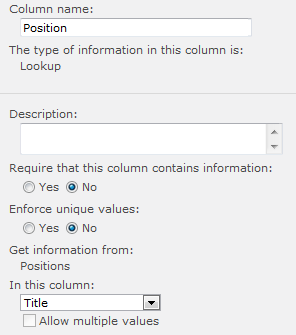
Say we have a lookup column named Position that references our Positions list. We choose Title for the display field for our lookup:

This works great because it gives us a nice drop down of all the available positions for people to choose on our new and edit forms. But then when you go to create a simple view you might run into this issue:

That’s part of our view for our list. So, which link do you click on? The Position link will open the display form for the Positions list item Associate Manager. The Job Type link will open the display form for the current list item. And my head just exploded.

So our goal is to keep the Position column showing Associate Manager but without the link to the secondary list. We also don’t want to use any JavaScript or have to edit this view with custom XSLT.

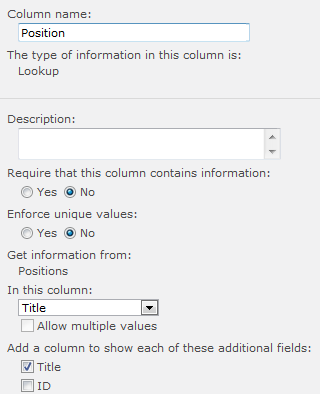
So, go back to the Lookup Column and in the Additional Fields section check the box next to the same column used in the lookup (Title in this example):

This adds a new column to our list called Position:Title. So now we edit our view to use the new column in place of the lookup:

As you can see, this takes care of our problem. The user is still only presented with the one dropdown when using the edit/new forms to pick the position and our view now has no hyperlink to the secondary list’s item display form. But what about that stupid column name?

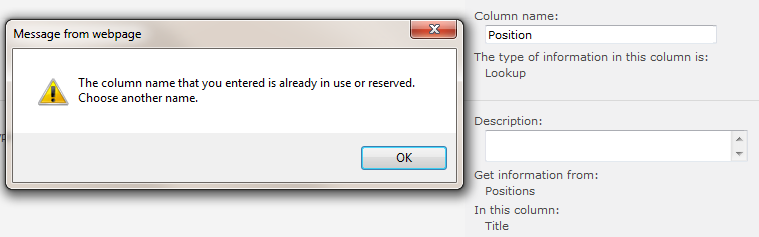
Going back to our List Settings you can click on the Position:Title column and change the column name. Obviously, selecting the same name as the lookup will get you an error:

So don’t do that. The best move is to give it another name, but you can also use a little trick. Just add a space after the name so the column name becomes “Position “. You can save this and since you already put it in your view it looks perfect:

Of course, editing the columns or messing with additional views can get confusing when columns names look exactly the same – so use at your own discretion.

Display Form Link/Menu on Column Other Than Title

Applies To: SharePoint 2010

By default, the Title column in a list can be shown in a view in three different ways:

  • Title
  • Title (linked to item with edit menu)
  • Title (linked to item)

Often you can just rename the Title column to whatever you want to have that functionality and you’re good to go. However, sometimes you want the link and/or menu on a different column. Unfortunately, this isn’t an option in the View editor within the browser. Fortunately, it can easily be done in SharePoint Designer without having to mess with XSLT at all.

Simply modify your view in SharePoint Designer:

Switch to the code view and scroll down to the purple section (you can only edit the yellow highlighted text in advanced mode – which we do NOT need to do here).

Link To Display Form

In the ViewFields section are a bunch of FieldRef elements. Find the one you want and add LinkToItem=”TRUE” and save. So your ViewFields section might look something like this:

<ViewFields>
	<FieldRef Name="SomeField1" LinkToItem="TRUE" />
	<FieldRef Name="SomeField2"/>
	<FieldRef Name="SomeField3"/>
</ViewFields>

In the above example, SomeField1 will now have a hyperlink that will open the display form for the list item.

Link To Display Form With Menu

This is pretty much the same as above except the attribute name is different. In the ViewFields section are a bunch of FieldRef elements. Find the one you want and add ListItemMenu=”TRUE” and save. So your ViewFields section might look something like this:

<ViewFields>
	<FieldRef Name="SomeField1" ListItemMenu="TRUE" />
	<FieldRef Name="SomeField2"/>
	<FieldRef Name="SomeField3"/>
</ViewFields>

In the above example, SomeField1 will now have a hyperlink that will open the display form for the list item and a drop down menu for choosing actions.

Require at Least One Field in SharePoint

Applies To: SharePoint 2010

In SharePoint just checking the box for making a column required or not isn’t always sufficient. Sometimes you want to be able to say something is only required based on the status of another column. This can be done through a list’s validation settings.

This recently came up for me when the requirement was that for a contact at least an email address OR a phone number would be required. A contact didn’t need to have both (although they could), but having neither wasn’t an acceptable option.

This is actually relatively simple. In the List Settings just click on Validation settings to provide a custom formula. Here’s mine:

=COUNTA([Email],[Phone])>=1

The COUNTA function returns the number of non-blank entries. You can put as many columns as you’d like in between those parentheses. If you’re only requiring one of these, the simple >= 1 check makes sure that at least one of those columns is not blank. Add a nice User Message and you’re good to go:

Got multiple requirement groups? Wrap multiple COUNTA calls in an AND statement.

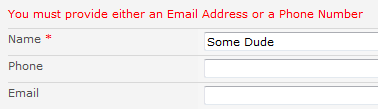
Here’s what it will look like if one of those is left blank (After you hit Save):

Field Validation

One of the nice things is that you can do field level validation in addition to the list level validation shown above. The field level validation (Column Validation) fires before the list level which creates for a smooth user experience.

In my previous posts (Phone Validation, Email Address Validation) I showed how to setup column validation for both phone numbers and email addresses and those can be used here. However, the formulas I demonstrated automatically make those required fields since they don’t allow blank fields to pass validation.

To adjust those formulas just add an OR statement around the AND with an ISBLANK function. So you can do something like this:

=OR(ISBLANK([YourColumn]),AND(....))

So for the Phone Number validation previously posted you can switch it to:

=OR(
	ISBLANK([Phone]),
	AND(
		LEN([Phone])=14,
		IF(ISERROR(FIND("(", [Phone],1)),
			FALSE,
			(FIND("(", [Phone]) = 1)
		),
		IF(ISERROR(FIND(")", [Phone],5)),
			FALSE,
			(FIND(")", [Phone], 5) = 5)
		),
		IF(ISERROR(FIND(" ", [Phone],6)),
			FALSE,
			(FIND(" ", [Phone], 6) = 6)
		),
		IF(ISERROR(FIND("-", [Phone],10)),
			FALSE,
			(FIND("-", [Phone], 10) = 10)
		),
		IF(ISERROR(1*CONCATENATE(MID([Phone], 2, 3), MID([Phone], 7, 3), MID([Phone], 11, 4))),
			FALSE,
			AND(
				1*CONCATENATE(MID([Phone], 2, 3), MID([Phone], 7, 3), MID([Phone], 11, 4)) > 1000000000,
				1*MID([Phone], 2, 3) <> 911,
				1*MID([Phone], 7, 3) <> 911,
				1*MID([Phone], 7, 3) <> 555
			)
		)
	)
)

Validate Email Address Columns in SharePoint

Applies To: SharePoint 2010

The column validation feature of SharePoint 2010 is pretty awesome but it can be relatively basic when compared to something like regular expressions. Yesterday I posted about validating phone number columns in SharePoint. Another common request is email addresses.

Proper validation of email addresses can be extremely complicated (just check out the Syntax section of the Wikipedia article). I’m sure you can get extra crazy with it and get it even closer to the actual specification, but for my needs some basic validation is all I’m really looking for.

The basic rules I’m enforcing are:

  1. No Spaces
  2. Must have 1 and only 1 @ symbol
  3. The @ symbol cannot be the first character
  4. Must have at least 1 . after the @ symbol
  5. Must have at least 1 character between the @ and the .
  6. The . cannot be the last character

The formula to do that is:

=AND(
	ISERROR(FIND(" ", [Email],1)),
	IF(ISERROR(FIND("@", [Email],2)),
		FALSE,
		AND(
			ISERROR(FIND("@",[Email], FIND("@", [Email],2)+1)),
			IF(ISERROR(FIND(".", [Email], FIND("@", [Email],2)+2)),
				FALSE,
				FIND(".", [Email], FIND("@", [Email],2)+2) < LEN([Email])
			)
		)
	)
)

To get this working in SharePoint, just copy the above and do a find and replace on [Email] with whatever your column is named. SharePoint will remove all the extra line breaks as soon as you save it.

What’s Happening

Column Validation works by returning true or false. Starting our formula with an AND statement allows us to pass multiple conditions (also returning true or false) and will return true only if all the conditions return true. This allows us to do multiple checks and ensure they all validate correctly.

The first check in Line 2 uses the FIND function to check for spaces. The ISERROR function wrapper returns true for any errors found. Since the FIND function returns an error if the string is not found, we’ll get a true for this check only when there are no spaces. This takes care of rule #1.

The second check in line 3 searches for an @ symbol using the FIND function beginning with the 2nd character. This ensures the @ symbol is not the first character (rule #3).

Having found the @, we put a second AND statement in line 5 to check some things concerning the @ we just found. The check in line 6 uses a FIND to look for another @ symbol starting with the character after (+1) where we found the first one. This takes care of rule #2.

Next we check for a period after the @ symbol in line 7. We do something similar to the above check except that we start with the 2nd character after (+2) where we found the @ symbol. This ensures there is at least 1 character between the @ and the period (rule #5) while making sure there is at least 1 period (rule #4).

Now that we’ve established there is a period after the @ we make sure that the location of that period is less than the length of the whole string using the LEN function. This makes sure the last character is not the period (rule #6).

There are several holes here which could be corrected by complicating the formula quite a bit (I’d be happy to have suggestions in the comments), but for 98% of all entries this is going to be sufficient. If this is for a public facing form you’ll probably want to invest more time in increasing the complexity of this formula, but for your normal internal sites this should be more than good enough.

Just open your list settings and edit/add your email column and expand the column validation section and paste the formula from above in there:


Side Note: The above formula will automatically make this a required column since the validation doesn’t allow blank columns. An easy fix for this is to wrap the above formula in an OR statement with an ISBLANK function. So something like this:

=OR(ISBLANK([YourColumn]),AndStatementFromAbove)

More information and a full example can be found on my Requirement Groups entry.

Validate Phone Number Columns in SharePoint

Applies To: SharePoint 2010

The column validation feature of SharePoint 2010 lists can save you a lot of headache and prevent problems before list items are ever added. I recently added a Phone column to a custom list and wanted to validate it was an actual phone number. Unfortunately, my handy dandy regular expression that I always use in .NET wouldn’t work here since you are limited to using the calculated field formulas (Excel).

Some quick searching turned up Robert Freeman’s blog where he gives a great formula for ensuring phone numbers are entered in the form (###) ###-####. This worked perfectly for me. However, I wanted to make sure I understood it so I broke it out into logical sections and went through it.

I’ve taken his formula and added 2 additional checks (Length = 14 and ensuring the number doesn’t start with 555) and formatted it to be more readable:

=AND(
	LEN([Phone])=14,
	IF(ISERROR(FIND("(", [Phone],1)),
		FALSE,
		(FIND("(", [Phone]) = 1)
	),
	IF(ISERROR(FIND(")", [Phone],5)),
		FALSE,
		(FIND(")", [Phone], 5) = 5)
	),
	IF(ISERROR(FIND(" ", [Phone],6)),
		FALSE,
		(FIND(" ", [Phone], 6) = 6)
	),
	IF(ISERROR(FIND("-", [Phone],10)),
		FALSE,
		(FIND("-", [Phone], 10) = 10)
	),
	IF(ISERROR(1*CONCATENATE(MID([Phone], 2, 3), MID([Phone], 7, 3), MID([Phone], 11, 4))),
		FALSE,
		AND(
			1*CONCATENATE(MID([Phone], 2, 3), MID([Phone], 7, 3), MID([Phone], 11, 4)) > 1000000000,
			1*MID([Phone], 2, 3) <> 911,
			1*MID([Phone], 7, 3) <> 911,
			1*MID([Phone], 7, 3) <> 555
		)
	)
)

To get this working in SharePoint, just copy the above and do a find and replace on [Phone] with whatever your column is named. SharePoint will remove all the extra line breaks and make it ugly again as soon as you save it.

What’s Happening

Column Validation works on the simple principal of returning true or false. So Freeman starts his formula in line 1 with an AND statement. An AND statement allows you to pass multiple conditions (also returning true or false) and will return true only if all the conditions return true. This is a great way to ensure that multiple checks all validate correctly.

The first check in line 2 uses the LEN function to ensure that the total length of the entry is exactly 14 characters (10 numbers, 2 parenthesis, a space, and a dash). This is a slight improvement over the original since any entry with a properly formatted phone number at the start could be used. This prevents someone from adding extra numbers or characters.

The second check in lines 3-6 uses the FIND function to see if the first character is the (. It’s wrapped in an ISERROR check because the FIND function returns an error if the string is not as long as the start number (in this case, empty) or if the text wasn’t found at all. So if it wasn’t found (error), we return false. If it was found then there is a check to see where it was found (FIND returns the character number where the search text was found). In this case we want it in position 1.

The next 3 checks in lines 7-18 are essentially the same as above just looking for the closing parenthesis in position 5, a space after the parenthesis in position 6 and a dash in position 10.

In line 19, a check is performed to ensure that the number portions of the entry are actually numbers. The 3 sections of numbers are put together using a CONCATENATE function and are multiplied by 1. If the multiplication fails (because the string can’t be converted to a number) the error condition is caught by the ISERROR wrapper and FALSE is returned. An ISNUMBER function would have worked here as well. If it’s a number, then some additional checks are performed in a new AND clause beginning in line 21.

Line 22 uses the CONCATENATE function to ensure that not only are the numbers numbers, but also that they aren’t all zeroes.

Lines 23-25 use the MID function to ensure that the area code and the prefix don’t equal 911 and that the prefix also doesn’t equal 555 since these would not be valid numbers.

That’s it! Open your list settings and edit/add your phone column and expand the column validation section and paste the formula from above in there:


Side Note: The above formula will automatically make this a required column since the validation doesn’t allow blank columns. An easy fix for this is to wrap the above formula in an OR statement with an ISBLANK function. So something like this:

=OR(ISBLANK([YourColumn]),AndStatementFromAbove)

More information and a full example can be found on my Requirement Groups entry.
Extract Timer Job History Using PowerShell

Applies To: SharePoint 2010, PowerShell

I was tasked with finding all timer jobs that ran in a given time period. Some quick searching turned up a pretty cool solution by Glyn Clough using PowerShell. I took his script and modified it some to account for UTC times and it works great. Although I’m presenting my modified script, the bulk of the work was done by Glyn and I’m really just tweaking it a little.

The Script

Param(
	[parameter(position=0)]
	[DateTime]
		$StartTime,
	[parameter(position=1)]
	[DateTime]
		$EndTime
)

if(!$StartTime) {$StartTime = (Get-Date).Date}
if(!$EndTime) {$EndTime = (Get-Date).AddDays(1).Date}

$StartTime = $StartTime.ToUniversalTime()
$EndTime = $EndTime.ToUniversalTime()

$TZ = [System.TimeZoneInfo]::FindSystemTimeZoneById(((Get-WmiObject win32_timezone).StandardName))

Get-SPWebApplication | foreach {
	$_.JobHistoryEntries |
		where{	($StartTime -le $_.StartTime -and $_.StartTime -le $EndTime) -or
			($StartTime -le $_.EndTime -and $_.EndTime -le $EndTime) } |
		sort StartTime |
		select	JobDefinitionTitle,
			WebApplicationName,
			ServerName,
			Status,
			@{Expression={[System.TimeZoneInfo]::ConvertTimeFromUtc($_.StartTime, $TZ)};Label="Start Time"},
			@{Expression={[System.TimeZoneInfo]::ConvertTimeFromUtc($_.EndTime, $TZ)};Label="End Time"},
			@{Expression={($_.EndTime - $_.StartTime).TotalSeconds};Label="Duration (secs)"}
} | Out-GridView -Title "Timer Job History"

You can copy the above script save it in a text file with a ps1 extension and run it from the console. Assuming you’ve named the file JobHistory.ps1 you can run it in a couple of different ways:

No Parameters:

Running it this way will return the entire history for the current day starting at midnight.

Specify Start Time:

This is especially helpful if you’re just trying to find the most recent history since this will give you the full history starting at the specified date/time to now.

Specify Range:

Doing this will return all history entries for the given range. The date/time parameters can be entered in a variety of ways since powershell is converting the string to a date you can enter the date/time in a format that matches your culture/locale.

The Output

The results are funneled to a GridView which requires the Windows PowerShell Integrated Scripting Environment (ISE) to be installed. On a server this is as simple as opening Server Manager, selecting features, Add Features, then choosing the Windows PowerShell Integrated Scripting Environment and installing (This did not require a restart).

There are many benefits to using the GridView. The best is the filtering, but I also like the sorting and copy/paste functionality. I often filter on job status or sort by duration to catch problem jobs. Then I can copy those rows and paste them directly into Excel if needed.

The above script also outputs histories for every web application (And will immediately show the GridView when the first is done and then slowly add the remaining ones). This could be changed by modifying the above script and adding a parameter, but this was unnecessary for me. You can also use the GridView filter to show only the web application you need.

Obviously yours will show the WebApplicationName and ServerName without my sloppy black bars

Open a Link in SharePoint 2010’s Modal Dialog

Applies To: SharePoint 2010

Recently I’ve been customizing the XSLT of some of my XsltListViewWebParts. Getting all of that to work is worth another post in itself, but I wanted to talk briefly about a small frustration I had. I was customizing an announcement’s list part and I stripped out most of the nearly 1700 lines of XSLT used by default. However, one of the things I liked was being able to open the announcement in the modal dialog (sometimes called the Lightbox or the popup window):

Some searching through the autogenerated XSL for my view, I came across this section in the LinkTitleNoMenu.LinkTitle template:

<a onfocus="OnLink(this)" href="{$FORM_DISPLAY}&amp;ID={$ID}&amp;ContentTypeID={$thisNode/@ContentTypeId}" onclick="EditLink2(this,{$ViewCounter});return false;" target="_self">
	<xsl:call-template name="LinkTitleValue.LinkTitle">
		<xsl:with-param name="thisNode" select="$thisNode"/>
		<xsl:with-param name="ShowAccessibleIcon" select="$ShowAccessibleIcon"/>
	</xsl:call-template>
</a>

I’m going to dissect what’s happening in terms of XSL for the next couple of paragraphs. If you’re just looking for the format needed, skip to the Link Format section.

Basically this is the link that gets generated inside the view’s table. The call-template element is used to fill the contents (link text), but I already had that covered and am mostly just interested in the formatting of the link to do the modal dialog magic.

Some quick experimentation shows that the onfocus call was not needed for the popup (This is what causes the menu to display and the box around the row in a standard view). Also not needed is the target=”_self” since this is equivalent to leaving the target attribute out entirely. There are really just 2 key items:

HREF

This is the URL to display in the modal dialog. In this case, it’s generated using a number of variables defined automatically. The $FORM_DISPLAY is the absolute path to the item display page. The $ID is generated using a simple Template call (we’ll come back to this). and the $thisNode/@ContentTypeId is pulling the ContentTypeId attribute from the current Row element in the $AllRows variable populated by the dsQueryResponse XML. For now, all you need to know is that it is automatically finding the display form URL and populating the necessary ID and ContentTypeId query strings for the specific item URL.

OnClick

This calls the EditLink2 javascript method defined in Core.js. This extracts the link with the webpart’s ID ($ViewCounter) and shows it in the modal dialog. Then it returns false to prevent the browser from following the link like normal.

Trying to implement this exactly in my code wasn’t too hard. Unfortunately, it wouldn’t load in the popup and always just opened the page directly. Doing some searching, I came across a quick explanation and solution on technet. The EditLink2 function attempts to use a window object referenced by my webpart’s id ($ViewCounter). Whatever code sets this all up wasn’t firing in my XSL causing the window reference to be NULL and making the function default to just opening the link. Instead of tracking it down somewhere in the default generation, I did something similar to the proposed solution on technet.

Link Format

Ultimately my goal was to have a link generated using this format:

<a href="http://mysharepoint.com/sites/thesite/_layouts/listform.aspx?PageType=4&amp;ListId={SomeGUID}&amp;ID=SomeID&amp;ContentTypeID=SomeContentTypeID" onclick="ShowPopupDialog(GetGotoLinkUrl(this));return false;">Click Me</a>

So, I’m using the same link generation (but this could be any link). The real difference is that instead of calling EditLink2 I’m calling ShowPopupDialog. For the URL, I’m using a technique found in the EditLink2 method of calling GetGotoLinkUrl which extracts the URL from the link element.

XSL Implementation

To get this to work in XSL, you can do something similar to this:

<xsl:for-each select="$AllRows">
	<xsl:variable name="thisNode" select="."/>
	<xsl:variable name="link">
		<xsl:value-of select="$FORM_DISPLAY" />
		<xsl:text>&amp;ID=</xsl:text>
		<xsl:call-template name="ResolveId">
			<xsl:with-param name="thisNode" select ="$thisNode"/>
		</xsl:call-template>
		<xsl:text>&amp;ContentTypeID=</xsl:text>
		<xsl:value-of select="$thisNode/@ContentTypeId"/>
	</xsl:variable>

	<a onclick="ShowPopupDialog(GetGotoLinkUrl(this));return false;">
		<xsl:attribute name="href">
			<xsl:value-of select="$link"/>
		</xsl:attribute>
		<xsl:text>View Announcement</xsl:text>
	</a>
</xsl:for-each>

In the above XSL, we’re looping through each row returned by your view’s CAML query. We setup a link variable that builds the full HREF attribute in lines 3-11. The thing to note is the call to the ResolveId template to pull the item’s ID from the row. This is a standard template that will automatically be referenced as long as you keep the standard includes (main.xsl and internal.xsl).

Then we generate the actual html link in lines 13-17 using the $link variable we created above. This could be consolidated some, but hopefully it’s relatively easy to follow in this format.

That’s it! Now you can generate those links using XSL or follow the link format to make them on your own (like in a content editor web part).