Using Feed Parameters in the RSS Viewer Web Part

Applies To: SharePoint 2010, RSS Viewer Web Part

The RSS Viewer web part is an Out of the Box SharePoint web part that can really add to your site by allowing you to integrate dynamic content directly on your pages from other sites in your environment (requires either anonymous or kerberos authentication) or from sites all over the web. You can add it like any other web part (Located under Content Rollup) and get it going quickly by setting the Feed URL property.

There are feeds all over the web and getting the URL for these is generally straight forward (click the RSS icon/button and then copy the URL) and I’ll let you figure that part out. If you’re simply grabbing a news feed from Yahoo! or someplace, then you’re probably done. There’s a lot that can be done with the formatting of the feed’s content using XSLT, but that’s out of scope for this particular article.

However, what if you would like something a little bit more dynamic? Some feeds are very customizable using query string parameters to automatically filter what you want. A good example might be pulling the SEC Filings from the Securities and Exchange Commission website. You can get a feed of Google’s Filings using the following URL:

http://www.sec.gov/cgi-bin/browse-edgar?action=getcompany&CIK=0001288776&type=&dateb=&owner=exclude&start=0&count=40&output=atom

There are several parts to this URL beyond the base of http://www.sec.gov/cgi-bin/browse=edgar (They begin after the ? mark and are separated by the & and take the format of name=value). The one I’m most interested in is the CIK (Central Index Key). This is what tells the feed to return Google’s filings. (As a bonus, for publicly traded companies you can replace that 10 digit number with their Ticker Symbol: GOOG for Google).

Great! Now you can generate a feed for multiple companies’ SEC filings using multiple RSS Viewer web parts. But what if you only want one web part that can switch which company is being displayed? That’s exactly where Feed Parameters come in.

Configure the Filter

Like many web parts, the RSS Viewer web part allows connections to other parts including the filter web parts. Most any of the Filter parts will work depending on what you’re trying to accomplish. An obvious example would be to use the SharePoint List Filter web part to pull company ticker symbols in from another SharePoint list and use a drop down to select which filings to view. My preference, however, is to use a Query String (URL) Filter part so that I can hook it to multiple parts to create a dynamic page that can be linked as if it were many pages. I’ll show you how to hook that up, but the basic concept is the same for any of the parts – Filter some value and send it to the RSS Viewer.

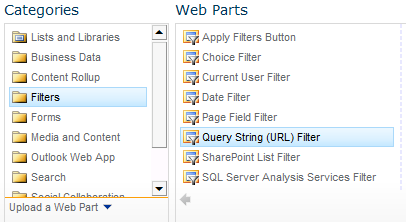
Add a Query String (URL) Fitler part to your page (Located under Filters):
From the tool pane for the Query String (URL) Filter part the key values can be found in the Filter section. The Filter Name property should match the query string property name in your RSS Feed’s URL. So in this case our Filter Name is CIK. The Query String Parameter Name is the name of your own query string to the page. In this case I’ve set it to Symbol. The Default Value is optional, but is generally a good idea so that if the page is accessed without a query string, the feed still shows something. I’ve set ours to GOOG (Although I could easily have set it to Google’s CIK value since the SEC feed is pretty flexible):

It’s also a good idea to also give your filter web part a better name than the default since this is the name you’ll see when setting up the connection. This is just the Title property in the Appearance section. I’ve set mine to Symbol Filter. Press OK to save your changes.

Setup the Connection

Using the drop down menu for the RSS Viewer Web Part choose Connections > Get Feed URL From > Symbol Filter (If you don’t have a Connections menu, select Edit Web Part and look again):

If everything has been successfully connected the Query String (URL) Filter should look similar to this when editing the page (it isn’t visible normally):

If you add ?Symbol=MSFT to the end of your page’s URL (If your page is http://app/site/SitePages/Home.aspx then the filtered url would be http://app/site/SitePages/Home.aspx?Symbol=MSFT) then the RSS Viewer should now be showing Microsoft’s latest SEC Filings. Just kidding! There’s one little gotcha that’s very easy to fix.

If a feed parameter is already set in the RSS Viewer’s URL, then any feed parameters from connected web parts are ignored. In this case, this is because we pasted the sec.gov feed’s URL in directly including the CIK=0001288776 section of the URL. To fix this, just delete this part of the URL. So our new feed URL will look like:

http://www.sec.gov/cgi-bin/browse-edgar?action=getcompany&type=&dateb=&owner=exclude&start=0&count=40&output=atom

Now try that filtered URL (Your page + ?Symbol=MSFT) again and you should see Microsoft’s SEC Filings:

This quickly gives us a lot of flexibility. This works great for all sorts of feeds allowing you to filter or customize your feeds before they ever get to you; and all on the fly.

Conclusion

So here’s the summary of what you need to do to get this working:

  • Add an RSS Viewer web part and set the Feed URL to the address of the feed you want to pull. Remove the dynamic parameter you want to set.
  • Add a Filter web part and configure it to pass the filter name as the name of the dynamic filter in the feed URL
  • Connect the RSS Viewer web part to the Filter web part using the Feed Parameter connection
  • Shout Abracadabra every time anyone uses a dynamic view of the page

The RSS Viewer part can be a very powerful part of your page allowing dynamic content without any custom code.
Hiding the Recently Modified Section in SharePoint 2010

Applies To: SharePoint 2010, CSS

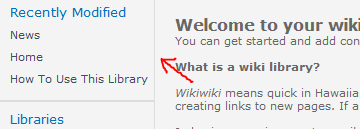
I recently added a Wiki Pages Library to a site for some end users and they really like it. However, they had a seemingly straight forward request to hide the Recently Modified section that was showing up above the Quick Launch:

This may come up as a requirement when using some of the default templates that automatically include a Site Pages library or if a user adds a new page and is prompted to create the Site Pages library automatically.

I assumed there was a setting somewhere either for the library or the site in order to turn off this “feature”. Nope. Somebody decided that this was not only a feature everyone would want, but it was so great they put it in the left actions content place holder (PlaceHolderLeftActions) of the master page – which puts it on top of the quick launch.

Some quick searching turned up “solutions” that suggested setting the contentplaceholder’s visible property to false within the master page. This works; however, it also hides anything that uses that contentplaceholder such as some of the Blog tools. This makes it a very poor candidate for a farm wide branding solution.

The other option is to use some CSS (cascading style sheets). If you’re pushing this as part of a branding solution, just add this to one of your style sheets:

.s4-recentchanges{
	display:none;
}

That’s it. Microsoft provided a very handy class just for this section and some quick use of the CSS Display property takes care of it.

So what if this is just a one off thing – You aren’t currently using any custom branding or just want it to affect one site? For a single site you can use SharePoint Designer 2010 to open the master page (v4.master – choose edit in advanced mode). Then somewhere on the page add the following:

<style>
.s4-recentchanges{
	display:none;
}
</style>

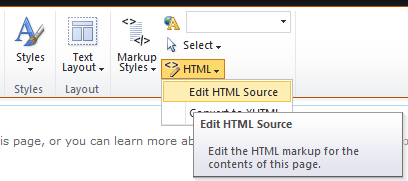
If you just want to apply it page by page, you can put the style directly in the HTML of the page. Since this is a Wiki page, choose to edit the page (Under the Page Ribbon assuming you have the rights). Click anywhere on the page and choose the HTML drop down and pick Edit HTML Source:

Somewhere on the page add the following:

<style>
.s4-recentchanges{
	display:none;
}
</style>
You can also do this in a content editor web part using the same Edit HTML Source option.

If you don’t hide this thing, I would suggest editing the master page to at least move that contentplaceholder below the quicklaunch so your navigation doesn’t get all wonky or at least displaced by a relatively unused feature.

Merging Data into a SharePoint list using SSIS

Applies To: SharePoint, SSIS, SQL

I was recently tasked with creating a one way sync between some data in SQL and a SharePoint list. This can be done through an External Content Type and External Content List and works pretty well. You can find instructions for setting this up all over Google. I found some and set it up pretty quickly. Unfortunately, it wasn’t quite what they or I wanted. The interface was kinda clunky and caused some complications in terms of using the list as a lookup (specifically in a site column).

So, I did some more searching and found the SSIS SharePoint List Source and Destination Adapters available on Codeplex. The install is super simple (Needs to be done on both your development machine and the SSIS Server) and following the readme included you can get up to speed pretty quick. Assuming you have Business Intelligence Studio installed, it’s a simple matter of right-clicking on the toolbox and selecting Choose Items. In the SSIS Data Flow Components tab scroll down and add the SharePoint Source and Destination components (again more details can be found in the readme).

So… How do you make these work? I’m certainly no expert, but I have gotten them to work and it’s solved my problem. I ran into some issues that you can hopefully avoid by following my small example.

My goal was to take a table from SQL (could also be a view or a simple SELECT statement) and to have that be written to a SharePoint list on a daily basis. However, I am using the SharePoint list for lookups. This means that I want to be able to add any new rows, update existing rows and delete missing rows without changing the SharePoint IDs. This can be done, but it’s not as straightforward as you might hope.

Continue reading

Intermittent “Unable to display this Web Part” messages

Applies To: SharePoint 2010

I few months ago I customized a view in SharePoint designer to turn the due date red for any past due items in the list. The end users really liked this but an obnoxious problem started turning up. Seemingly randomly we would get:

Unable to display this Web Part. To troubleshoot the problem, open this Web page in a Microsoft SharePoint Foundation-compatible HTML editor such as Microsoft SharePoint Designer. If the problem persists, contact your Web server administrator.

Correlation ID: Some GUID

Taking a look through our logs didn’t reveal anything and often a refresh or two would solve the problem. So it wasn’t really stopping business but it was pretty annoying. Adjusting the logging settings we finally saw some messages corresponding to the provided Correlation ID and found the issue was Value did not fall into expected range often followed by Stack Overflow exceptions.

Unfortunately the above error message is so generic it was pretty difficult to find anyone else even having the same problem, let alone the solution. Finally I came across this thread on MSDN discussing the exact issue. Instructions for fixing the problem and the background of this issue can be found on this article on Englando’s Blog. The solution presented was to get a hotfix from Microsoft. Fortunately, that is no longer necessary and the fix is provided in the February 2012 Cumulative Update from Microsoft.

The problem was introduced in the June 2011 Cumulative Update when Microsoft reduced the timeout for XSLT transformation (used whenever you customize a view in SharePoint Designer) from 5 seconds to 1 second. This is a good idea for public facing farms to help mitigate Denial of Service attacks but pretty unnecessary for internal farms like the one I was working on.

The timeout causes modified XSLTListView Web Parts and XSLTDataView Web Parts to sometimes show the “Unable to display this Web Part” errors. This is especially true if you have several columns (more transformation) or are doing anything of even mild complexity. The issue was “fixed” in the August 2011 Cumulative Update but broken again in the December 2011 Cumulative Update.

To fix this issue we installed the February 2012 Cumulative Update on our farm (More about our experiences with this update to follow). Keep in mind, however, that the update does not change the XsltTransformTimeOut but merely provides you the ability to do so using PowerShell.

To check your current timeout settings, simply use the following PowerShell:

$myfarm = Get-SPFarm
$myfarm.XsltTransformTimeOut

If you’re experiencing the above problem, you probably got a 1 back from the above command indicating that the timeout is currently set to 1 second. To set it to a more reasonable value (we choose the original 5 seconds) just do this (assuming you set the $myfarm object using the above powershell):

$myfarm.XsltTransformTimeOut = 5
$myfarm.Update()

That’s it, things are happy again.

Using Powershell to Document SharePoint 2010 Farm Configuration

Applies To: SharePoint 2010

Business continuity (Disaster Recovery) is an important topic for SharePoint 2010 and Microsoft has provided a helpful book available online here: Business Continuity Management for Microsoft SharePoint Server 2010. The book is full of steps and options for backing up and restoring your farm.

There is an interesting powershell script starting on page 132 that takes advantage of the Export-Clixml powershell cmdlet to cycle through your farm’s configuration and write everything to XML files. The resulting XML isn’t super user friendly, but it is human readable. Even cooler is that you can use the Import-Clixml cmdlet to instantiate those objects back in powershell later.

Obviously an actual Farm backup (configuration-only) is more helpful for restoration of your settings, but these XML files can be very useful. For instance, if you don’t want to restore all your configuration but just want to document it somewhere so you can either reference it in whole or in part, this is a great solution. Even better is using it as a guide to pick and choose the various commands when you’re trying to find some information on the fly.

Unfortunately, the script is all jumbled together and split across multiple pages making the included suggestion of copying and pasting into a text document more complicated than needed. The newlines are all in the wrong places, the comments run together and overwrite commands, page numbers show up, etc. So, I went through the resulting file and formatted it correctly. You can use the copy toolbar to get it directly:

Continue reading

PerformancePoint Top 10 Filter in Analytic Grid

Applies To: SharePoint 2010, SQL 2008 R2, PerformancePoint

Ran into a surprising issue with PerformancePoint today when creating a simple Analytic Grid. I had all the measures and dimensions setup correctly and decided it would be best to just show the top 10 rows. Fortunately, the Dashboard Designer has a handy Top 10 filter built in. Unfortunately, it doesn’t work.

When you apply the filter you will get a message like “There are no data rows to display” or “There is no data to display” or even “Drag measures, dimensions, or named sets to Rows and Columns to lay out the report.” This is especially irritating because it works just fine for Analytic Charts.

Some quick research revealed that the problem is with the generation of the MDX (Query) when working with the Analytic Grid and how SQL 2008 R2 handles it. You can request a hotfix for the problem (for SQL 2008 R2), but it apparently doesn’t fully fix the problem.

So, you’re pretty much stuck with a half fix from Microsoft. This is better than nothing and I would recommend doing it. However, if you’re like me and not in charge of the database management and will have to wait for that team to evaluate and apply the hotfix (if they even will), you might be interested in the workaround I’m using.

My workaround is pretty simple and fixes simple Analytic Grids you would like to start with the Top X type filters, but doesn’t fix the problem when these filters are applied on the fly by the end user using the dashboard. Basically, we take advantage of the fact that your grid’s report type can easily be switched in the designer and that Top X filters work fine for Analytic Charts. This solution is inspired by this Question and Answer on TechNet where Dan English delves into the auto generated MDX.

  • Create your report with all the dimensions, formatting, measures, etc. that you want with the exception of the Top X filter.
  • Right-Click on the Grid and select Report Type > Pie Chart
  • Now apply your Top X filter (Right-Click and select Filter > Top 10) – Generally you will select the Top 10 choice in the series section to apply it to one of the column values
  • Switch to the Query tab
  • Click in the text area, Select All (Ctrl-A) and Copy (Ctrl-C)
  • Switch to the Design tab
  • Right-Click and select Report Type > Grid
  • Switch to the Query tab
  • Click in the text area, Select All (Ctrl-A) and Paste (Ctrl-V)
  • Switch back to the Design tab to see it applied correctly

This solution is a little messy but it works until Microsoft releases a Service Pack with a full fix for the issue.

Note about Filters – Since the query has been edited, none of the automatic connection points exist. You will have to manually add parameters (Query Tab) to the report. For instance, I wanted to use a Time Intelligence filter with my top 10 list to show the top 10 for a given time period. With a regular report I would just add the calendar dimension to the Background and then hook up my filter by using the Source value of “Formula”. Now that the Top 10 filter has been applied and I have no automatic parameters, I simply replaced the Where portion of the query that had my background calendar dimension with a parameter (Query Tab). Then in the connection dialog of the dashboard I choose Source value equal to “Member Unique Name”.

OWSTimer Debugger Annoyances

Applies To: SharePoint 2010, Visual Studio 2010

If you’re running Visual Studio on the same machine with SharePoint 2010 you are probably familar with this error message:

“An unhandled exception (‘System.Security.Cryptography.CryptographicException’) occurred in OWSTIMER.EXE [#]. The Just-In-Time debugger was launched without necessary security permissions. To debug this process, the Just-In-Time debugger must be run as an Administrator. Would you like to debug this process?”

In fact, you are probably very familiar with this dialog since it will pop up at least once a day. If you haven’t logged in in a while, then you will have multiple windows to cancel debugging in.

The problem is due to a threading issue related to an encryption key used by the OWSTIMER service. In SharePoint 2010 the timer service gets recycled daily (default is 6 AM) using a timer job mysteriously called “Timer Service Recycle”. The details aren’t all that important, but you can read more here and get even more information about how the mistake really occurs here. To summarize, the key isn’t found due to impersonation issues. (BTW, that number at the end of the error message is just the process ID and will change each time.)

Bottom line for me is that the error is not really a problem and can safely be ignored in your logs. The annoyance comes when you have Visual Studio installed and the JIT debugger is enabled.

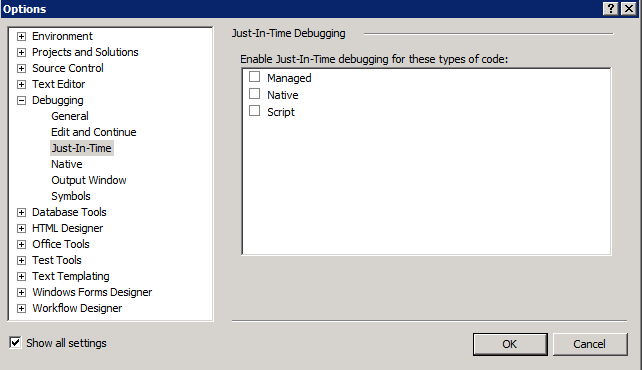
You can either adjust your settings using the registry, or even better, just open up Visual Studio (2010) and adjust your options. Using the menu, choose Tools > Options. Then expand Debugging from the tree on the left (if it isn’t showing, check the Show all settings box) then choose Just-In-Time. To turn it off, just uncheck all the boxes and press OK:

Now those annoying messages will stop and the people will rejoice. Just remember that it can be very helpful to turn these back on when attempting to debug certain types of things (Custom Timer Jobs for instance), but be sure to bookmark this page because you will forget to turn it back off and then you will be sad again and I don’t want you to be sad.

Verifying Constrained Delegation

Applies To: Active Directory

When using Kerberos with SharePoint 2010 you run into the requirement to use Constrained Delegation all over the place. Basically, even though you have the SPNs setup, you’ll need to specify which services your accounts can delegate to by using Active Directory. This is all covered elsewhere and can be found using some simple Google searches so I won’t go into any more detail.

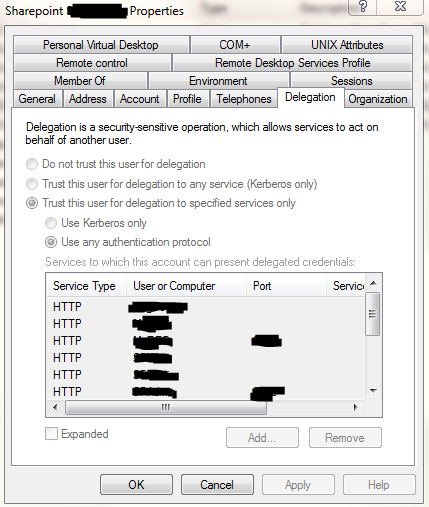
The problem I run into is that I’m not allowed to set this up in Active Directory in our production environment and I have to trust someone else to do this. I don’t mind that, but I do want to be able to check the settings when troubleshooting. Using the Active Directory tools (Here’s a guide to getting these setup), even if you don’t have permission to edit anything, you can take a look at most of the account information. Unfortunately, the delegation tab has everything disabled.

Names hidden to protect the innocent

If you just have a few items setup, then you can see the first six or so, but you can’t scroll down and you can’t expand the entries. Why Microsoft made this impossible to view is beyond me, but you can get to it using the command line.

Since you’ve got the tools installed, fire up a command prompt (Go ahead and Run as Administrator). Then type this command:

ldifde -f C:\ConstrainedDelegation.txt -d "cn=SharePoint AppPool,ou=SharePoint,ou=Services,dc=MyDomain,dc=Com" -l msDS-AllowedToDelegateTo

This will write a list of all the services the account can delegate to (To see all the properties just leave the msDS-AllowedToDelegateTo off the end). Also, make sure you replace the part in quotes with the actual path to your account.

The easiest way to figure out the correct path is to open the Active Directory Users and Computers and expand the OUs (folders) until you find your account. Then take the display name of the account as the cn= part and work backwords up the “folders” specifying ou= for each. Finally, add the dc= for each part of your FQDN. Usually something.something. In the above example, I had expanded MyDomain.com then the Services folder and then then SharePoint folder to find my account named SharePoint AppPool.

In your face Microsoft! I used your tools to get around your tools! Hopefully this can help relieve some of the frustration of troubleshooting Kerberos errors during installation or configuration. Even with the above tip, you’re gonna want a hanky to cry into and a teddy bear to squeeze.