Validate Email Address Columns in SharePoint

Applies To: SharePoint 2010

The column validation feature of SharePoint 2010 is pretty awesome but it can be relatively basic when compared to something like regular expressions. Yesterday I posted about validating phone number columns in SharePoint. Another common request is email addresses.

Proper validation of email addresses can be extremely complicated (just check out the Syntax section of the Wikipedia article). I’m sure you can get extra crazy with it and get it even closer to the actual specification, but for my needs some basic validation is all I’m really looking for.

The basic rules I’m enforcing are:

  1. No Spaces
  2. Must have 1 and only 1 @ symbol
  3. The @ symbol cannot be the first character
  4. Must have at least 1 . after the @ symbol
  5. Must have at least 1 character between the @ and the .
  6. The . cannot be the last character

The formula to do that is:

=AND(
	ISERROR(FIND(" ", [Email],1)),
	IF(ISERROR(FIND("@", [Email],2)),
		FALSE,
		AND(
			ISERROR(FIND("@",[Email], FIND("@", [Email],2)+1)),
			IF(ISERROR(FIND(".", [Email], FIND("@", [Email],2)+2)),
				FALSE,
				FIND(".", [Email], FIND("@", [Email],2)+2) < LEN([Email])
			)
		)
	)
)

To get this working in SharePoint, just copy the above and do a find and replace on [Email] with whatever your column is named. SharePoint will remove all the extra line breaks as soon as you save it.

What’s Happening

Column Validation works by returning true or false. Starting our formula with an AND statement allows us to pass multiple conditions (also returning true or false) and will return true only if all the conditions return true. This allows us to do multiple checks and ensure they all validate correctly.

The first check in Line 2 uses the FIND function to check for spaces. The ISERROR function wrapper returns true for any errors found. Since the FIND function returns an error if the string is not found, we’ll get a true for this check only when there are no spaces. This takes care of rule #1.

The second check in line 3 searches for an @ symbol using the FIND function beginning with the 2nd character. This ensures the @ symbol is not the first character (rule #3).

Having found the @, we put a second AND statement in line 5 to check some things concerning the @ we just found. The check in line 6 uses a FIND to look for another @ symbol starting with the character after (+1) where we found the first one. This takes care of rule #2.

Next we check for a period after the @ symbol in line 7. We do something similar to the above check except that we start with the 2nd character after (+2) where we found the @ symbol. This ensures there is at least 1 character between the @ and the period (rule #5) while making sure there is at least 1 period (rule #4).

Now that we’ve established there is a period after the @ we make sure that the location of that period is less than the length of the whole string using the LEN function. This makes sure the last character is not the period (rule #6).

There are several holes here which could be corrected by complicating the formula quite a bit (I’d be happy to have suggestions in the comments), but for 98% of all entries this is going to be sufficient. If this is for a public facing form you’ll probably want to invest more time in increasing the complexity of this formula, but for your normal internal sites this should be more than good enough.

Just open your list settings and edit/add your email column and expand the column validation section and paste the formula from above in there:


Side Note: The above formula will automatically make this a required column since the validation doesn’t allow blank columns. An easy fix for this is to wrap the above formula in an OR statement with an ISBLANK function. So something like this:

=OR(ISBLANK([YourColumn]),AndStatementFromAbove)

More information and a full example can be found on my Requirement Groups entry.

Validate Phone Number Columns in SharePoint

Applies To: SharePoint 2010

The column validation feature of SharePoint 2010 lists can save you a lot of headache and prevent problems before list items are ever added. I recently added a Phone column to a custom list and wanted to validate it was an actual phone number. Unfortunately, my handy dandy regular expression that I always use in .NET wouldn’t work here since you are limited to using the calculated field formulas (Excel).

Some quick searching turned up Robert Freeman’s blog where he gives a great formula for ensuring phone numbers are entered in the form (###) ###-####. This worked perfectly for me. However, I wanted to make sure I understood it so I broke it out into logical sections and went through it.

I’ve taken his formula and added 2 additional checks (Length = 14 and ensuring the number doesn’t start with 555) and formatted it to be more readable:

=AND(
	LEN([Phone])=14,
	IF(ISERROR(FIND("(", [Phone],1)),
		FALSE,
		(FIND("(", [Phone]) = 1)
	),
	IF(ISERROR(FIND(")", [Phone],5)),
		FALSE,
		(FIND(")", [Phone], 5) = 5)
	),
	IF(ISERROR(FIND(" ", [Phone],6)),
		FALSE,
		(FIND(" ", [Phone], 6) = 6)
	),
	IF(ISERROR(FIND("-", [Phone],10)),
		FALSE,
		(FIND("-", [Phone], 10) = 10)
	),
	IF(ISERROR(1*CONCATENATE(MID([Phone], 2, 3), MID([Phone], 7, 3), MID([Phone], 11, 4))),
		FALSE,
		AND(
			1*CONCATENATE(MID([Phone], 2, 3), MID([Phone], 7, 3), MID([Phone], 11, 4)) > 1000000000,
			1*MID([Phone], 2, 3) <> 911,
			1*MID([Phone], 7, 3) <> 911,
			1*MID([Phone], 7, 3) <> 555
		)
	)
)

To get this working in SharePoint, just copy the above and do a find and replace on [Phone] with whatever your column is named. SharePoint will remove all the extra line breaks and make it ugly again as soon as you save it.

What’s Happening

Column Validation works on the simple principal of returning true or false. So Freeman starts his formula in line 1 with an AND statement. An AND statement allows you to pass multiple conditions (also returning true or false) and will return true only if all the conditions return true. This is a great way to ensure that multiple checks all validate correctly.

The first check in line 2 uses the LEN function to ensure that the total length of the entry is exactly 14 characters (10 numbers, 2 parenthesis, a space, and a dash). This is a slight improvement over the original since any entry with a properly formatted phone number at the start could be used. This prevents someone from adding extra numbers or characters.

The second check in lines 3-6 uses the FIND function to see if the first character is the (. It’s wrapped in an ISERROR check because the FIND function returns an error if the string is not as long as the start number (in this case, empty) or if the text wasn’t found at all. So if it wasn’t found (error), we return false. If it was found then there is a check to see where it was found (FIND returns the character number where the search text was found). In this case we want it in position 1.

The next 3 checks in lines 7-18 are essentially the same as above just looking for the closing parenthesis in position 5, a space after the parenthesis in position 6 and a dash in position 10.

In line 19, a check is performed to ensure that the number portions of the entry are actually numbers. The 3 sections of numbers are put together using a CONCATENATE function and are multiplied by 1. If the multiplication fails (because the string can’t be converted to a number) the error condition is caught by the ISERROR wrapper and FALSE is returned. An ISNUMBER function would have worked here as well. If it’s a number, then some additional checks are performed in a new AND clause beginning in line 21.

Line 22 uses the CONCATENATE function to ensure that not only are the numbers numbers, but also that they aren’t all zeroes.

Lines 23-25 use the MID function to ensure that the area code and the prefix don’t equal 911 and that the prefix also doesn’t equal 555 since these would not be valid numbers.

That’s it! Open your list settings and edit/add your phone column and expand the column validation section and paste the formula from above in there:


Side Note: The above formula will automatically make this a required column since the validation doesn’t allow blank columns. An easy fix for this is to wrap the above formula in an OR statement with an ISBLANK function. So something like this:

=OR(ISBLANK([YourColumn]),AndStatementFromAbove)

More information and a full example can be found on my Requirement Groups entry.

Open a Link in SharePoint 2010’s Modal Dialog

Applies To: SharePoint 2010

Recently I’ve been customizing the XSLT of some of my XsltListViewWebParts. Getting all of that to work is worth another post in itself, but I wanted to talk briefly about a small frustration I had. I was customizing an announcement’s list part and I stripped out most of the nearly 1700 lines of XSLT used by default. However, one of the things I liked was being able to open the announcement in the modal dialog (sometimes called the Lightbox or the popup window):

Some searching through the autogenerated XSL for my view, I came across this section in the LinkTitleNoMenu.LinkTitle template:

<a onfocus="OnLink(this)" href="{$FORM_DISPLAY}&amp;ID={$ID}&amp;ContentTypeID={$thisNode/@ContentTypeId}" onclick="EditLink2(this,{$ViewCounter});return false;" target="_self">
	<xsl:call-template name="LinkTitleValue.LinkTitle">
		<xsl:with-param name="thisNode" select="$thisNode"/>
		<xsl:with-param name="ShowAccessibleIcon" select="$ShowAccessibleIcon"/>
	</xsl:call-template>
</a>

I’m going to dissect what’s happening in terms of XSL for the next couple of paragraphs. If you’re just looking for the format needed, skip to the Link Format section.

Basically this is the link that gets generated inside the view’s table. The call-template element is used to fill the contents (link text), but I already had that covered and am mostly just interested in the formatting of the link to do the modal dialog magic.

Some quick experimentation shows that the onfocus call was not needed for the popup (This is what causes the menu to display and the box around the row in a standard view). Also not needed is the target=”_self” since this is equivalent to leaving the target attribute out entirely. There are really just 2 key items:

HREF

This is the URL to display in the modal dialog. In this case, it’s generated using a number of variables defined automatically. The $FORM_DISPLAY is the absolute path to the item display page. The $ID is generated using a simple Template call (we’ll come back to this). and the $thisNode/@ContentTypeId is pulling the ContentTypeId attribute from the current Row element in the $AllRows variable populated by the dsQueryResponse XML. For now, all you need to know is that it is automatically finding the display form URL and populating the necessary ID and ContentTypeId query strings for the specific item URL.

OnClick

This calls the EditLink2 javascript method defined in Core.js. This extracts the link with the webpart’s ID ($ViewCounter) and shows it in the modal dialog. Then it returns false to prevent the browser from following the link like normal.

Trying to implement this exactly in my code wasn’t too hard. Unfortunately, it wouldn’t load in the popup and always just opened the page directly. Doing some searching, I came across a quick explanation and solution on technet. The EditLink2 function attempts to use a window object referenced by my webpart’s id ($ViewCounter). Whatever code sets this all up wasn’t firing in my XSL causing the window reference to be NULL and making the function default to just opening the link. Instead of tracking it down somewhere in the default generation, I did something similar to the proposed solution on technet.

Link Format

Ultimately my goal was to have a link generated using this format:

<a href="http://mysharepoint.com/sites/thesite/_layouts/listform.aspx?PageType=4&amp;ListId={SomeGUID}&amp;ID=SomeID&amp;ContentTypeID=SomeContentTypeID" onclick="ShowPopupDialog(GetGotoLinkUrl(this));return false;">Click Me</a>

So, I’m using the same link generation (but this could be any link). The real difference is that instead of calling EditLink2 I’m calling ShowPopupDialog. For the URL, I’m using a technique found in the EditLink2 method of calling GetGotoLinkUrl which extracts the URL from the link element.

XSL Implementation

To get this to work in XSL, you can do something similar to this:

<xsl:for-each select="$AllRows">
	<xsl:variable name="thisNode" select="."/>
	<xsl:variable name="link">
		<xsl:value-of select="$FORM_DISPLAY" />
		<xsl:text>&amp;ID=</xsl:text>
		<xsl:call-template name="ResolveId">
			<xsl:with-param name="thisNode" select ="$thisNode"/>
		</xsl:call-template>
		<xsl:text>&amp;ContentTypeID=</xsl:text>
		<xsl:value-of select="$thisNode/@ContentTypeId"/>
	</xsl:variable>

	<a onclick="ShowPopupDialog(GetGotoLinkUrl(this));return false;">
		<xsl:attribute name="href">
			<xsl:value-of select="$link"/>
		</xsl:attribute>
		<xsl:text>View Announcement</xsl:text>
	</a>
</xsl:for-each>

In the above XSL, we’re looping through each row returned by your view’s CAML query. We setup a link variable that builds the full HREF attribute in lines 3-11. The thing to note is the call to the ResolveId template to pull the item’s ID from the row. This is a standard template that will automatically be referenced as long as you keep the standard includes (main.xsl and internal.xsl).

Then we generate the actual html link in lines 13-17 using the $link variable we created above. This could be consolidated some, but hopefully it’s relatively easy to follow in this format.

That’s it! Now you can generate those links using XSL or follow the link format to make them on your own (like in a content editor web part).

Hiding the Recently Modified Section in SharePoint 2010

Applies To: SharePoint 2010, CSS

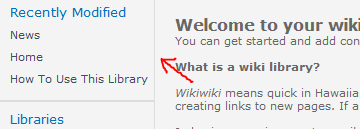
I recently added a Wiki Pages Library to a site for some end users and they really like it. However, they had a seemingly straight forward request to hide the Recently Modified section that was showing up above the Quick Launch:

This may come up as a requirement when using some of the default templates that automatically include a Site Pages library or if a user adds a new page and is prompted to create the Site Pages library automatically.

I assumed there was a setting somewhere either for the library or the site in order to turn off this “feature”. Nope. Somebody decided that this was not only a feature everyone would want, but it was so great they put it in the left actions content place holder (PlaceHolderLeftActions) of the master page – which puts it on top of the quick launch.

Some quick searching turned up “solutions” that suggested setting the contentplaceholder’s visible property to false within the master page. This works; however, it also hides anything that uses that contentplaceholder such as some of the Blog tools. This makes it a very poor candidate for a farm wide branding solution.

The other option is to use some CSS (cascading style sheets). If you’re pushing this as part of a branding solution, just add this to one of your style sheets:

.s4-recentchanges{
	display:none;
}

That’s it. Microsoft provided a very handy class just for this section and some quick use of the CSS Display property takes care of it.

So what if this is just a one off thing – You aren’t currently using any custom branding or just want it to affect one site? For a single site you can use SharePoint Designer 2010 to open the master page (v4.master – choose edit in advanced mode). Then somewhere on the page add the following:

<style>
.s4-recentchanges{
	display:none;
}
</style>

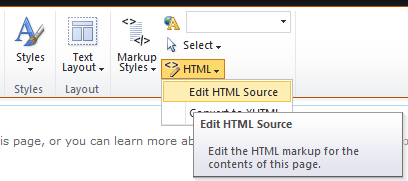
If you just want to apply it page by page, you can put the style directly in the HTML of the page. Since this is a Wiki page, choose to edit the page (Under the Page Ribbon assuming you have the rights). Click anywhere on the page and choose the HTML drop down and pick Edit HTML Source:

Somewhere on the page add the following:

<style>
.s4-recentchanges{
	display:none;
}
</style>
You can also do this in a content editor web part using the same Edit HTML Source option.

If you don’t hide this thing, I would suggest editing the master page to at least move that contentplaceholder below the quicklaunch so your navigation doesn’t get all wonky or at least displaced by a relatively unused feature.

Merging Data into a SharePoint list using SSIS

Applies To: SharePoint, SSIS, SQL

I was recently tasked with creating a one way sync between some data in SQL and a SharePoint list. This can be done through an External Content Type and External Content List and works pretty well. You can find instructions for setting this up all over Google. I found some and set it up pretty quickly. Unfortunately, it wasn’t quite what they or I wanted. The interface was kinda clunky and caused some complications in terms of using the list as a lookup (specifically in a site column).

So, I did some more searching and found the SSIS SharePoint List Source and Destination Adapters available on Codeplex. The install is super simple (Needs to be done on both your development machine and the SSIS Server) and following the readme included you can get up to speed pretty quick. Assuming you have Business Intelligence Studio installed, it’s a simple matter of right-clicking on the toolbox and selecting Choose Items. In the SSIS Data Flow Components tab scroll down and add the SharePoint Source and Destination components (again more details can be found in the readme).

So… How do you make these work? I’m certainly no expert, but I have gotten them to work and it’s solved my problem. I ran into some issues that you can hopefully avoid by following my small example.

My goal was to take a table from SQL (could also be a view or a simple SELECT statement) and to have that be written to a SharePoint list on a daily basis. However, I am using the SharePoint list for lookups. This means that I want to be able to add any new rows, update existing rows and delete missing rows without changing the SharePoint IDs. This can be done, but it’s not as straightforward as you might hope.

Continue reading

Intermittent “Unable to display this Web Part” messages

Applies To: SharePoint 2010

I few months ago I customized a view in SharePoint designer to turn the due date red for any past due items in the list. The end users really liked this but an obnoxious problem started turning up. Seemingly randomly we would get:

Unable to display this Web Part. To troubleshoot the problem, open this Web page in a Microsoft SharePoint Foundation-compatible HTML editor such as Microsoft SharePoint Designer. If the problem persists, contact your Web server administrator.

Correlation ID: Some GUID

Taking a look through our logs didn’t reveal anything and often a refresh or two would solve the problem. So it wasn’t really stopping business but it was pretty annoying. Adjusting the logging settings we finally saw some messages corresponding to the provided Correlation ID and found the issue was Value did not fall into expected range often followed by Stack Overflow exceptions.

Unfortunately the above error message is so generic it was pretty difficult to find anyone else even having the same problem, let alone the solution. Finally I came across this thread on MSDN discussing the exact issue. Instructions for fixing the problem and the background of this issue can be found on this article on Englando’s Blog. The solution presented was to get a hotfix from Microsoft. Fortunately, that is no longer necessary and the fix is provided in the February 2012 Cumulative Update from Microsoft.

The problem was introduced in the June 2011 Cumulative Update when Microsoft reduced the timeout for XSLT transformation (used whenever you customize a view in SharePoint Designer) from 5 seconds to 1 second. This is a good idea for public facing farms to help mitigate Denial of Service attacks but pretty unnecessary for internal farms like the one I was working on.

The timeout causes modified XSLTListView Web Parts and XSLTDataView Web Parts to sometimes show the “Unable to display this Web Part” errors. This is especially true if you have several columns (more transformation) or are doing anything of even mild complexity. The issue was “fixed” in the August 2011 Cumulative Update but broken again in the December 2011 Cumulative Update.

To fix this issue we installed the February 2012 Cumulative Update on our farm (More about our experiences with this update to follow). Keep in mind, however, that the update does not change the XsltTransformTimeOut but merely provides you the ability to do so using PowerShell.

To check your current timeout settings, simply use the following PowerShell:

$myfarm = Get-SPFarm
$myfarm.XsltTransformTimeOut

If you’re experiencing the above problem, you probably got a 1 back from the above command indicating that the timeout is currently set to 1 second. To set it to a more reasonable value (we choose the original 5 seconds) just do this (assuming you set the $myfarm object using the above powershell):

$myfarm.XsltTransformTimeOut = 5
$myfarm.Update()

That’s it, things are happy again.

Deleting a Document from a Record Library

Applies To: SharePoint 2010

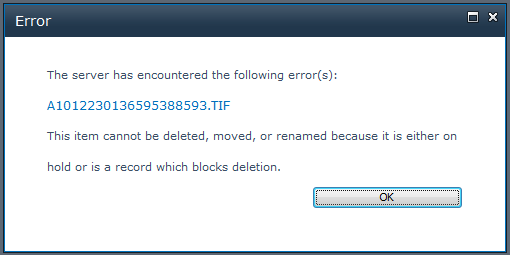
In setting up a Records Center I was trying out the Content Organizer and Drop Off Library. I configured a Send To location and an Organizer Rule to get my document to my new Record Library. It worked great! However, since this was just a test to make sure everything mapped over correctly, I wanted to delete the test document and I got this error:

This item cannot be deleted, moved, or renamed because it is either on hold or is a record which blocks deletion.

Uh… so how do I undeclare it? The answer is that with record libraries, all documents are not only automatically declared records, manual declaration/undeclaration is disabled by default. This all makes sense considering this is in the Record Center and it is a Record Library. But to delete your document, you will have to disable these settings (Temporarily).

1. Turn off Automatic Record Declaration

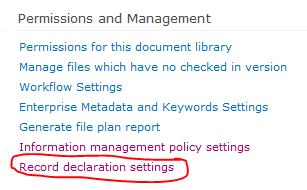
Go to your Library Settings for your Record Library. Under Permissions and Management choose Record declaration settings:

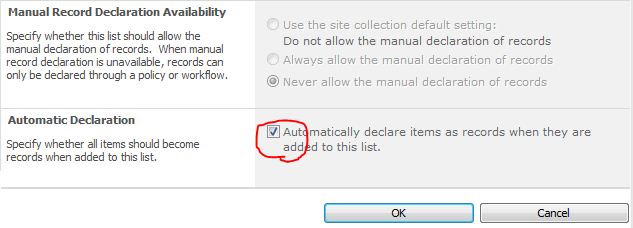
Uncheck the box in the Automatic Declaration section then press OK:

2. Enable Manual Declaration of Records

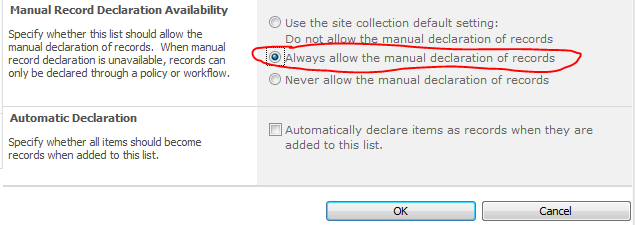
Go back into the Record declaration settings since the Manaual Record Declaration Availablity section will now be enabled. Choose Always allow the manual declaration of records:

3. Undeclare the Document as a Record

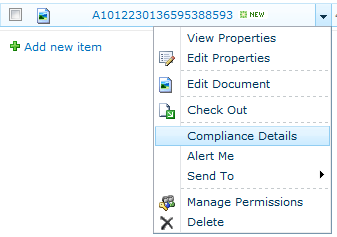
Go back to the Library and choose the document you want to delete. In the drop down menu, choose Compliance Details:

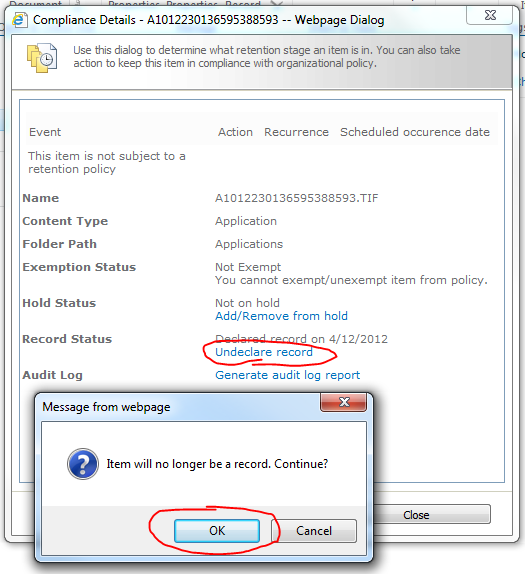
In order to remove the document, it can’t be a record nor be part of any holds. In the compliance details popup remove the document from hold (if necessary) and click the Undeclare record link. In the confirmation dialog choose OK to undeclare.

4. Delete the Document

Kill that sucker.

5. Put Everything Back in Place

Those settings were on the library for a good reason. Once you’ve finished your testing or no longer need to delete any individual records, you should go back to your library settings and reenable the default settings (Follow these steps backward).

If for some reason, you want to delete the Record Library itself. You will need to remove every record from the library following the above steps and then run the “Hold Processing and Reporting” job in Central Admin. This let’s SharePoint know there are no records in there and the standard deletion link will appear in the Library Settings.