Dates With Relative Countdowns and Pretty Colors in List Views

Applies To: SharePoint 2010

Every list in SharePoint automatically comes with two date columns (Created & Modified). Often times other date columns get added in there and it can be nice to format these to make the lists more intuitive. Out of the box you can format these a few different ways (mostly whether to show the time or not). With a little XSL you can use the ddwrt:formatdatetime function to really customize things (you’ll see a couple of examples of this below) – but can’t we do more?

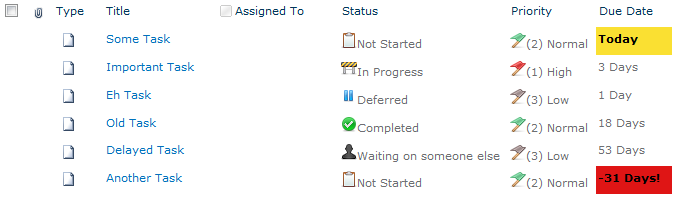
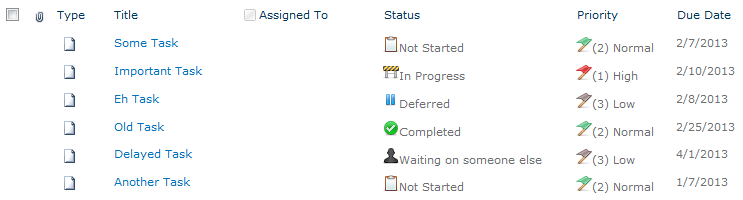
Large lists of data (whether they are numbers, statuses, dates, etc.) can be overwhelming. One of the greatest improvements we can make is to provide visual clues or analysis on this data to help end-users understand what they are looking at. When it comes to dates, what most people really want to know is what that date means relative to now. This is especially true when it comes to Due Dates such as seen in a Tasks list:
TaskList

We’ve greatly improved the readability of this list with some quick icons as demonstrated in my previous post: Showing Icons in a List View, but those due dates don’t really mean much at quick glance. We can do a couple of things to make these instantly understandable. We can add some color to indicate when the due date is near and/or missed. Even more powerful is showing how much time is left until the Due Date.

Adding Some Color

Flagging these dates with some quick color is pretty straightforward using SharePoint Designer. Designer will be generating some XSL and we’ll take a look at it at the end of this section, but we’ll be using the wizards and so no knowledge of XSL will be needed.

Open the site in SharePoint Designer (Site Actions > Edit in SharePoint Designer) and browse to the page/view you want to edit, or if this is a specific view just choose the Modify View dropdown and select Modify in SharePoint Designer (Advanced):

ModifyView

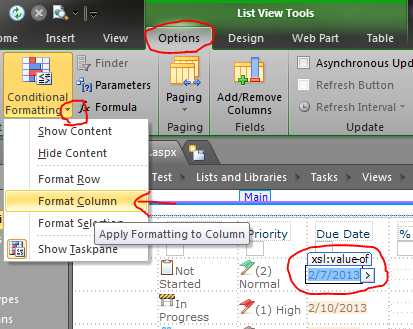
In Design view, click on one of the date values in the list and choose Format Column in the Conditional Formatting dropdown on the Options tab in the ribbon:

FormatDate

Our goal is to turn the cell red if the due date has passed; So in the Condition Criteria dialog set Field Name to Due Date, the Comparison to Less Than and the Value should remain the default of [Current Date]. Then press the Set Style button:

ConditionCriteriaPastDue

This formula reads: if the Due Date is older than (less) than now, set this style. We’re now setting up that style in the Modify Style dialog. In the Font category set the font-weight to bold (I’m also setting the color to Black since the default theme’s grayish font color doesn’t look great with a red background). Switch to the Background category and select a shade of red for the background-color and press OK:

PastDueStyle

I also like to provide a little warning before things get past due; So let’s make things turn yellow on the Due Date. So again, click on one of the date values in the list and choose Format Column in the Conditional Formatting dropdown on the Options tab in the ribbon. In the Condition Criteria dialog set Field Name to Due Date, the Comparison to Equal and the Value should remain the default of [Current Date]. Then press the Set Style button:

ConditionCriteriaWarning

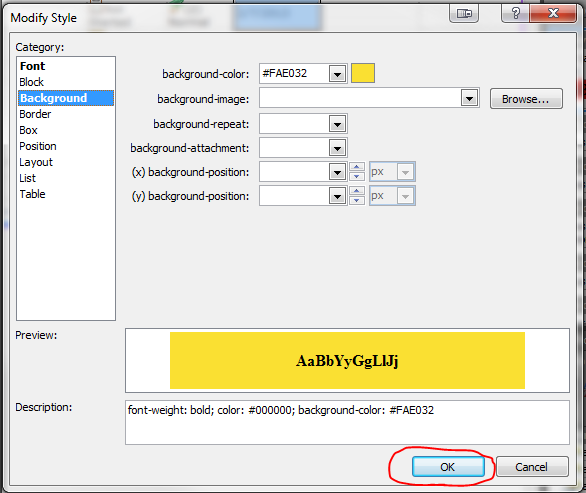
This formula reads: if the Due Date is today, set this style. We’re now setting up that style in the Modify Style dialog. In the Font category set the font-weight to bold (I’m also setting the color to Black since the default theme’s grayish font color doesn’t look great with the yellow background either). Switch to the Background category and select a shade of yellow for the background-color and press OK:

WarningStyle

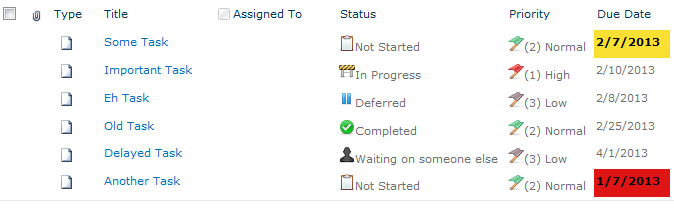
Save the view in Designer and refresh the view in the browser and you should see something similar to this (The date this screenshot was taken was 2/7/2013):

TaskListWithColors

For those that are interested, here’s the XSL that designer generated:

<xsl:attribute name="style">
	<xsl:if test="ddwrt:DateTimeTick(ddwrt:GenDisplayName(string($thisNode/@DueDate))) &lt; ddwrt:DateTimeTick(ddwrt:GenDisplayName(string($Today)))"
	 ddwrt:cf_explicit="1">
		font-weight: bold; background-color: #DF1515; color: #000000;
	</xsl:if>
	<xsl:if test="ddwrt:DateTimeTick(ddwrt:GenDisplayName(string($thisNode/@DueDate))) = ddwrt:DateTimeTick(ddwrt:GenDisplayName(string($Today)))"
	 ddwrt:cf_explicit="1">
		font-weight: bold; color: #000000; background-color: #FAE032;
	</xsl:if>
</xsl:attribute>

Relative Dates

With Due Dates there are 2 things you want to know: which ones have been missed and how much time is left. Quick color indicators are very effective in drawing the eye to important information and the red and yellow rules we put in place above help quickly answer the first question.

So how do we communicate how much time is left? Calculated columns are no help here (you can’t use Today and even when you hack it, they only get evaluated on modifications, NOT on view). The answer is some XSL tweaking. We won’t be using the same wizard-like interface as above, but I promise the type of XSL we’re going to be doing isn’t too scary.

The first thing we need to do is add some XSL templates to help us perform some basic date calculations. The easiest way is to use Andy Lewis’ DateTemplates. We’re going to pull out the needed templates and paste them directly into our XSL (since I’ve had a lot of trouble referencing external XSL when using Designer). Here’s the templates we want:

<xsl:template name="getDayDelta">
	<xsl:param name="paramDateA"/>
	<xsl:param name="paramDateB"/>
	<xsl:variable name="dateADays">
		<xsl:call-template name="countDaysInDateWithLeapYearDays">
			<xsl:with-param name="paramDate" select="$paramDateA"/>
		</xsl:call-template>
	</xsl:variable>
	<xsl:variable name="dateBDays">
		<xsl:call-template name="countDaysInDateWithLeapYearDays">
			<xsl:with-param name="paramDate" select="$paramDateB"/>
		</xsl:call-template>
	</xsl:variable>
	<xsl:value-of select="number($dateADays) - number($dateBDays)"/>
</xsl:template>

<xsl:template name="countDaysInDateWithLeapYearDays">
	<xsl:param name="paramDate"/>
	<xsl:variable name="year" select="substring-before($paramDate,'-')"/>
	<xsl:variable name="month" select="substring(substring-after($paramDate,'-'),1,2)"/>
	<xsl:variable name="day" select="substring(substring-after(substring-after($paramDate,'-'),'-'),1,2)"/>
	<xsl:variable name="rawYearDays" select="number($year) * 365"/>
	<xsl:variable name="rawLeapYears" select="floor($year div 4)"/>
	<xsl:variable name="centurySpan" select="floor($year div 100)"/>
	<xsl:variable name="fourCenturySpan" select="floor($year div 400)"/>
	<xsl:variable name="boolYearLeap">
		<xsl:call-template name="isLeapYear">
			<xsl:with-param name="paramYear" select="$year"/>
		</xsl:call-template>
	</xsl:variable>
	<xsl:variable name="yearLeapAdjust">
		<xsl:choose>
			<xsl:when test="$boolYearLeap = 1 and (($month = 1) or ($month = 2 and $day != 29))">-1</xsl:when>
			<xsl:otherwise>0</xsl:otherwise>
		</xsl:choose>
	</xsl:variable>
	<xsl:variable name="yearDays" select="$rawYearDays + $rawLeapYears - $centurySpan + $fourCenturySpan + $yearLeapAdjust "/>
	<xsl:variable name="monthDays">
		<xsl:call-template name="ConvertMonthToTotalDays">
			<xsl:with-param name="paramMonth" select="$month"/>
		</xsl:call-template>
	</xsl:variable>
	<xsl:variable name="totalDays" select="$yearDays + number($monthDays) + number($day)"/>
	<xsl:value-of select="$totalDays"/>
</xsl:template>

<xsl:template name="isLeapYear">
	<xsl:param name="paramYear"/>
	<xsl:choose>
		<xsl:when test="$paramYear mod 4 = 0 and ($paramYear mod 100 != 0) or ($paramYear mod 400 = 0)">1</xsl:when>
		<xsl:otherwise>0</xsl:otherwise>
	</xsl:choose>
</xsl:template>

<xsl:template name="ConvertMonthToTotalDays">
	<xsl:param name="paramMonth"/>
	<xsl:choose>
		<xsl:when test="$paramMonth=01">0</xsl:when>
		<xsl:when test="$paramMonth=02">31</xsl:when>
		<xsl:when test="$paramMonth=03">59</xsl:when>
		<xsl:when test="$paramMonth=04">90</xsl:when>
		<xsl:when test="$paramMonth=05">120</xsl:when>
		<xsl:when test="$paramMonth=06">151</xsl:when>
		<xsl:when test="$paramMonth=07">181</xsl:when>
		<xsl:when test="$paramMonth=08">212</xsl:when>
		<xsl:when test="$paramMonth=09">243</xsl:when>
		<xsl:when test="$paramMonth=10">273</xsl:when>
		<xsl:when test="$paramMonth=11">304</xsl:when>
		<xsl:when test="$paramMonth=12">334</xsl:when>
	</xsl:choose>
</xsl:template>

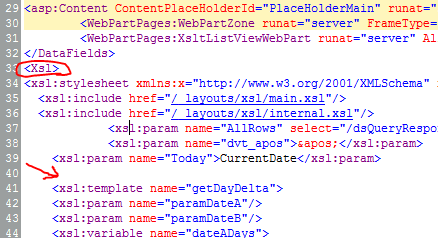
There are several templates above. We’re only going to call the getDayDelta function (it calls all the others). Copy the above XSL and in the Code view for your view of SharePoint Designer find the <Xsl> element. Skip a few lines down just past the last <xsl:param> element and paste the above. It should look something like this:

DateTemplates

Just putting these templates in the XSL doesn’t actually do anything yet. So switch to the Split view and select one of the Due Date values. The corresponding XSL should be highlighted in the code section:

DueDateOriginalXSL

Replace the highlighted section from above with the following:

<xsl:variable name="DateDueDayDelta">
	<xsl:call-template name="getDayDelta">
		<xsl:with-param name="paramDateA" select="ddwrt:FormatDateTime(string($thisNode/@*[name()=current()/@Name]),1033,'yyyy-MM-dd')"/>
		<xsl:with-param name="paramDateB" select="ddwrt:FormatDateTime(string(ddwrt:Today()),1033,'yyyy-MM-dd')"/>
	</xsl:call-template>
</xsl:variable>

<xsl:choose>
	<xsl:when test="$DateDueDayDelta=0">
		<xsl:text>Today</xsl:text>
	</xsl:when>
	<xsl:when test="$DateDueDayDelta=1">
		<xsl:text>1 Day</xsl:text>
	</xsl:when>
	<xsl:when test="$DateDueDayDelta=-1">
		<xsl:text>Yesterday!</xsl:text>
	</xsl:when>
	<xsl:when test="$DateDueDayDelta&lt;-1">
		<xsl:value-of select="concat($DateDueDayDelta,' Days!')"/>
	</xsl:when>
	<xsl:when test="$DateDueDayDelta&gt;1">
		<xsl:value-of select="concat($DateDueDayDelta,' Days')"/>
	</xsl:when>
</xsl:choose>

In lines 1-6 we’re calling the getDayDelta function from the DateTemplates and storing the value in a new variable called DateDueDayDelta. This value is the number of days between the first parameter, Due Date, and the second parameter, Today. We’re using the ddwrt:FormatDateTime function to ensure the parameters are in the form expected by the template. We’re also using the ddwrt:Today() function to get the current date.

Lines 8-24 is an XSL switch statement. We’re using it to give friendly text based on the number of days between. If the dates are the same, then we print “Today“. If the Due Date is still 1 day in the future, we print “1 Day“. If the Due Date is 1 day in the past (-1), we print “Yesterday!“. If the Due Date is even further in the past (< -1), we print “# Days!“. If the Due Date is more than a day away (> 1), we print “# Days“. This will probably make more sense if you just save the view and refresh it in the browser:

TasksWithRelativeDates

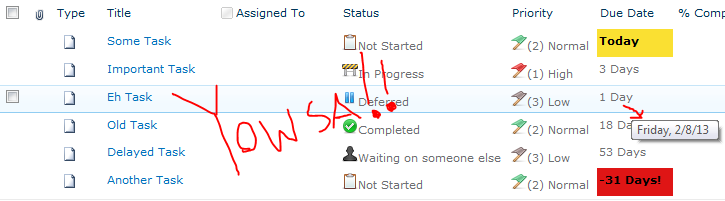
WOO HOO! That’s a huge improvement – but it could be better. Although I think it makes more sense to see the dates as relative for quickly glancing at the list, I don’t like losing that information altogether. So let’s put it back in as a tooltip.

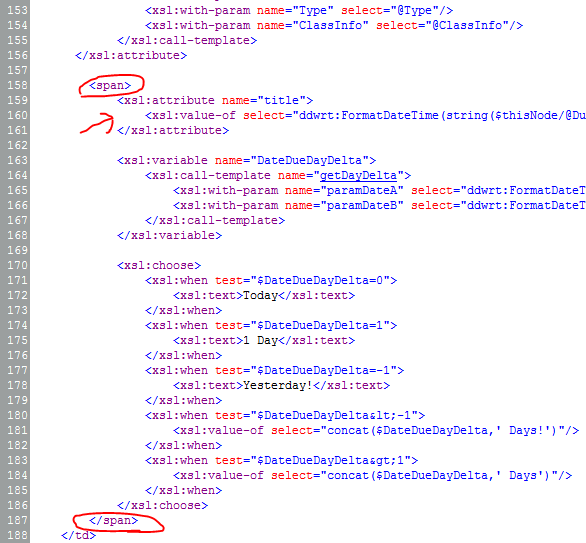
In the code view, right above where you pasted the <xsl:variable> element, paste the following:

<span>
	<xsl:attribute name="title">
		<xsl:value-of select="ddwrt:FormatDateTime(string($thisNode/@DueDate),1033,'dddd, M/d/yy ')"/>
	</xsl:attribute>

Then scroll down to the closing <xsl:choose> element and close the <span> tag. Altogether, things should look similar to this:

FinalDueDateXSL

We just wrapped everything in a span so that we could set the title attribute (tooltip). We are again using the ddwrt:FormatDateTime function so that we can format the Due Date to show not just the date but the day of the week as well since this really helps people visualize the date when a calendar isn’t available. Save the view, refresh it in the browser and you should have something like this (The date this screenshot was taken was 2/7/2013):

FinalTasksList

You can quickly see how stacking these techniques can start to make lists much more intuitive and useful. WOWEE!

Showing Icons in a List View

Applies To: SharePoint 2010

Displaying icons in a list view is a great way to make things immediately more understandable, look awesome and make things oh so pretty. It’s a pretty common request and there are some interesting methods out there to get it done. There’s everything from deployed solutions to give you specialized columns to throwing some magical jQuery on the page. I personally prefer to keep things simple with some quick use of conditional formatting in SharePoint Designer.

Technically this solution uses some XSL which I’ll show you at the end, but you don’t need to know anything about that to get it to work. A good example of a list this works really well for is a Task list. I most often show icons based on Choice columns (since there’s a nice one-to-one mapping between icon and choice value), but you can easily adapt this solution to apply icons based off of other calculations or combination of columns (for instance, showing a frowny face when a due date has been missed and the status is not completed).

Here’s the standard Tasks list that we’re going to iconize:

BasicTaskList

Right away you’ll notice there’s at least 2 easy targets for icons. Both the Status and the Priority columns would really get a big upgrade if turned into icons.

You can put your icons wherever you want, but the easiest place is going to be a picture library right on the site. So create a new picture library called Icons (Site Actions > More Options > Library > Picture Library):

PictureLibrary

Head to the Icons library you just added and upload some icons. We’re going to upload 5 status icons and 3 priority icons. They should all be the same size (16×16 works well, but I’ll leave that up to you). There’s plenty of great icon sets out there (famfamfam and all it’s varients work very well). I’ll be using icons from the Fugue Icons collection since they look nice, there’s tons of them and they’re free:

Status Icons Priority Icons
  • StatusNotStarted  StatusNotStarted.png
  • StatusInProgress  StatusInProgress.png
  • StatusDeferred  StatusDeferred.png
  • StatusWaiting  StatusWaiting.png
  • StatusCompleted  StatusCompleted.png
  • PriorityLow  PriorityLow.png
  • PriorityNormal  PriorityNormal.png
  • PriorityHigh  PriorityHigh.png

Now that the icons are uploaded, it’ll be easy to select them in Designer (You can also have designer upload them directly from your computer while you’re working but there is a bug that sometimes keeps the path relative to your machine rather than the picture library).

Open the site in SharePoint Designer (Site Actions > Edit in SharePoint Designer) and browse to the page/view you want to edit, or if this is a specific view just choose the Modify View dropdown and select Modify in SharePoint Designer (Advanced):

ModifyView

The basic steps we are going to perform 8 times (one for each image):

  1. In Design view click in one of the cells for the column we are iconizing (Status or Priority)
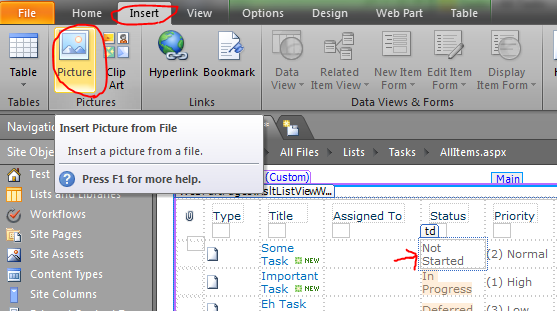
  2. On the Insert tab in the ribbon, choose Picture:

    InsertPicture
  3. Choose the Icons library (double-click), and pick the appropriate icon image:
    OpenPicture
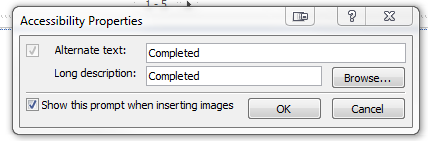
  4. Fill out the Accessibility Properties dialog with the appropriate information:
    AccessibilityProperties
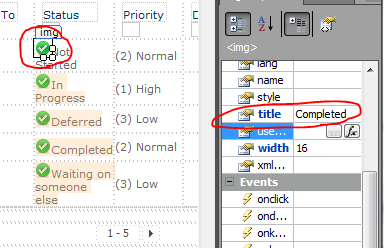
  5. With the new icon selected, type the value in the title field of the Tag Properties window (This will be the tooltip):TitleProperty
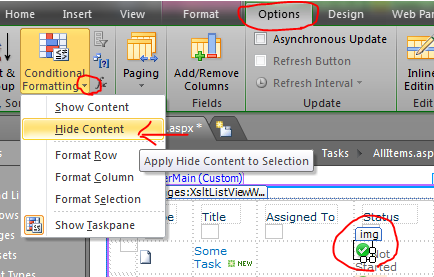
  6. With the new image still selected, choose Hide Content in the Conditional Formatting dropdown in the Options tab on the ribbon:
    HideContent
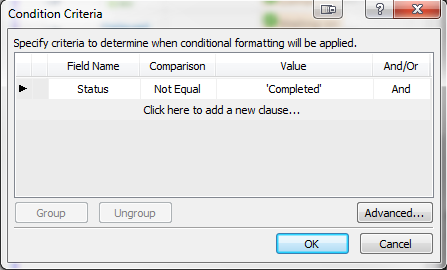
  7. In the Condition Criteria dialog, select the Field Name as the column, the Comparison as Not Equal and the Value to the value the icon should represent. This basically says when the value of this field isn’t the value this icon is meant for, then don’t show this icon:
    ConditionCriteria
  8. Repeat for all remaining icons

Once you save in SharePoint Designer you should see something like this on the page (after a refresh of course):

TasksWithIcons

That’s it, so super pretty! I’d recommend taking the actual text values away (you’ve got them in the tooltip) or at least adding some spacing.
For those that are interested, what designer’s really doing is generating some XSL templates for you. It’s the equivalent of choosing Customize Item in the Customize XSLT dropdown on the Design tab and adding some extra XSL. The XSL we’re talking about is a simple <xsl:if> element with the <img> tag inside. For instance the Completed Status icon looks like this in XSL:

<xsl:if test="not(normalize-space($thisNode/@Status) != 'Completed')"
  ddwrt:cf_explicit="1">
  	<img alt="Complete" longdesc="Complete"
  	  src="../../Icons/StatusCompleted.png" width="16" height="16"
  	  title="Complete" />
</xsl:if>

XSL isn’t nearly as scary as it seems, but Designer does a pretty good job of wrapping up a lot of basic formatting and conditional checks with some nice wizards – so why not use them?

Hiding the List Item Selection Boxes

Applies to: SharePoint 2010

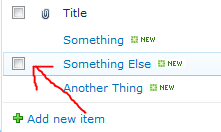
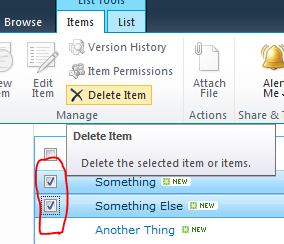
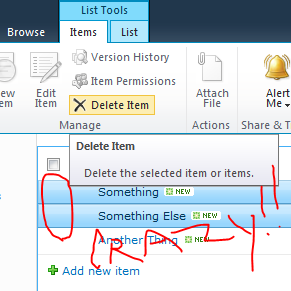
In SharePoint 2010 the standard listviewwebpart adds a checkbox to the left of each row. These only show up on hover and when you check the box the entire row is highlighted. You can check multiple boxes (or even use the helpful checkbox up top to select/unselect them all at once). This allows you to perform the same action on the selected item(s) using the ribbon.

SelectionBox MultiSelection

Generally, this is a good feature. However, not everybody agrees. If you’re doing some customization and you don’t want them to show up, you can do it through CSS. Although this is the technique I previously used, I ran across a post by Glyn Clough that made me face palm. I’ll leave the CSS technique in case it helps somebody and since I can think of at least one or two reasons you might want it (simple removal of all select boxes across an entire site or keeping the selection logic without the boxes) but if you want the simple answer just skip right to that solution.

CSS

If you’re deploying a branding solution or already using a custom style sheet just add the following:

.s4-itm-hover .s4-itm-cbx,
.ms-itmhover:hover .s4-itm-cbx,
.s4-itm-selected .s4-itm-cbx,
.ms-inlineEditLink .s4-itm-inlineedit,
.ms-itmhover:hover .s4-itm-inlineedit,
.s4-itm-hover .s4-itm-inlineedit,
.s4-itm-selected .s4-itm-inlineedit
{
    position: relative;
    top: 0;
    display:none;
    visibility:hidden;
    width:0px;
}

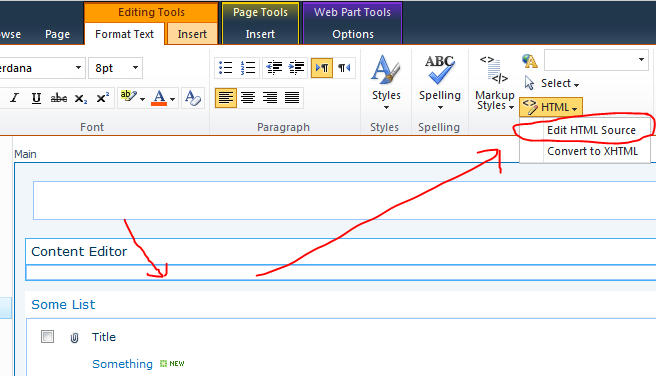
Bam! no more selection boxes! However, I’ve got no clue why you would want to hide those for an entire site. More likely you want to hide these from a specific list view or page. To do this you can slap a content editor web part on the page(Edit Page, Add a Web Part, Media and Content > Content Editor) and click inside it. Then choose the HTML drop down and pick Edit HTML Source:

EditHTMLSource

Then paste this inside there:

<style>
.s4-itm-hover .s4-itm-cbx,
.ms-itmhover:hover .s4-itm-cbx,
.s4-itm-selected .s4-itm-cbx,
.ms-inlineEditLink .s4-itm-inlineedit,
.ms-itmhover:hover .s4-itm-inlineedit,
.s4-itm-hover .s4-itm-inlineedit,
.s4-itm-selected .s4-itm-inlineedit {
    position: relative;
    top: 0;
    display:none;
    visibility:hidden;
    width:0px;
}
</style>

Save the page and you should see that all the list views on the page no longer have the selection box (although you can still click on the item(s) and get selection and multiselection):

NoSelectionBox MultiSelectionNoBox

So what about that Select All box up there? Why you want to break all the interfaces!?!

Unfortunately this isn’t as straight-forward. Microsoft did provide a convenient class for the checkbox: s4-selectAllCbx. However, until you hover over the web part, that class is not applied to the input control – Very strange. So applying some styles to that class will only take effect after someone has hovered over the part.

If you really want to do this with CSS you can add an additional selector to the above styles to get this (the key is that last selector .ms-vh-icon input):

<style>
.s4-itm-hover .s4-itm-cbx,
.ms-itmhover:hover .s4-itm-cbx,
.s4-itm-selected .s4-itm-cbx,
.ms-inlineEditLink .s4-itm-inlineedit,
.ms-itmhover:hover .s4-itm-inlineedit,
.s4-itm-hover .s4-itm-inlineedit,
.s4-itm-selected .s4-itm-inlineedit,
.ms-vh-icon input {
    position: relative;
    top: 0;
    display:none;
    visibility:hidden;
    width:0px;
}</style>

This hides them all but doesn’t shrink the column. There’s probably a CSS way to do that too, but honestly let’s just use the setting below.

The Real Solution

So everything above has been overkill. I remember looking for a simple setting to turn those boxes off and not finding it. I can’t be the only one since you’re reading this article – but it doesn’t get much easier than this.

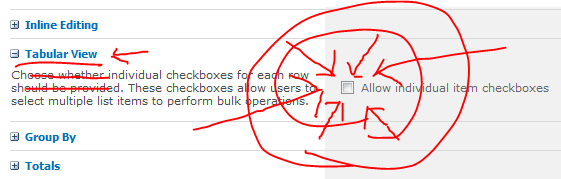
Just edit the view (either the view used by the web part or an actual view on the list) and scroll down to the Tabular View section and uncheck the box next to Allow individual item checkboxes:

FacePalm

Click OK and now those checkboxes are removed! Unfortunately so is all selection and multi-selection. So if you have some strange need to keep the selection but remove the boxes, see the CSS solution above. If you just wanted to remove them altogether, remember to always look at the settings!

If you take a look at the XML generated for the view you’ll see that all this is doing is adding a TabularView attribute to your View element and setting it to FALSE.

Printing the Display View of an InfoPath List Item Form

Applies To: SharePoint 2010

I’ve written previously about a cool feature in SharePoint 2010 Server Enterprise that allows you to customize list item forms using InfoPath. It’s really simple to do and you can get some pretty cool results in just a couple of minutes. For instance, I posted a while back about how to use SharePoint column validation to validate email addresses and phone numbers. Those are still good techniques, but by using an InfoPath list item form it’s just a validation drop down (you can even do regular expressions) and you’re done!

So the ease of validation, conditional hiding of fields, etc. are all pretty useful. However, the thing I like it most for is the ability to use different InfoPath views to match the list item views. So you can have different columns available when you’re editing than when you’re adding a new item, for instance. I especially like to spruce up the Display form.

(For some quick tips on how to get the different views working check out the top of my old post)

So, let’s say you’ve got a nice looking display form. Users open that thing up and decide to print. There’s no button, so they use the print button in the browser. Generally they’ll end up with some mess that prints all of your branding, usually some of the list behind the modal dialog, and if you’re lucky mixed in there somewhere will be your display form. Obviously, that’s not going to cut it.

So I did some digging and found some examples of people using javascript to print the form and their solutions were pretty intriguing. But I didn’t particularly want to have to apply some javascript to every form or to have to add a content editor to the pages, etc. I wanted something that just worked on existing forms and new ones too. So I did a little research into Ribbon customization and came across this great series by Chris O’Brien.

I put it all together in a solution and put it over on CodePlex as WireBear InfoPath Printer. There’s some stuff about it’s license over there (Free for personal and commercial use, etc.) and the basic installation instructions. It’s super easy to setup since it’s just a standard SharePoint Solution that you globally deploy.

You can find the full source code over on CodePlex. It’s not too complex and I’ll probably explain most of it in the next couple of posts. Bottom line is that it adds a Print button to the Ribbon when viewing list items that use an InfoPath Form:

The final printout only shows the form (No Ribbon, No Header, No Footer, No QuickLaunch, etc.).

The button is added using Custom Action XML that is deployed as a feature in the solution. The XML is targeted to allow the button to only be present when Viewing a List Item using an InfoPath Browser based List Form.

When you click the button, standard JavaScript is executed to find the InfoPath div element on the page and to copy the form’s HTML into a new window (along with all standard CSS/script references already present) and uses the browser’s page printing. Once the print dialog closes, so does the window.

We’ve been using it around here for a while and almost no one even knows it’s a custom solution. It looks like part of the UI and it’s use is immediately understood. So, go get it (It’s free!) and let me know what you think.

Links List with Favicons and Under the QuickLaunch

Applies To: SharePoint

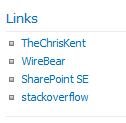
SharePoint has a handy list called Links that makes putting together a list of links with a display name pretty simple. Since it’s a normal list you can use views or even XSLT to make it look nice wherever you display it on the page. By default, here’s what a small links list looks like using the Summary View:

It’s not too bad, especially for a simple team site. But with just a little extra work you can have that same list of links display with their favicons and you can move them to some relatively unused real estate – under the QuickLaunch, and on every page in your site.

I’m combining these techniques because that was what I did. Fortunately, you can use the bulk of my tips to get nearly any web part to show up below the QuickLaunch. You can also just use the Favicon information to make your link display snazzy. Also, although I’m demonstrating all of this in SharePoint 2010, you should be able to do everything in SharePoint 2007 as well.

Displaying a Web Part Beneath the QuickLaunch

In order to place a Web Part below the QuickLaunch, you’re going to have to edit the Master Page. There are a couple of options. You can add a Web Part Zone and then customize this area on a page by page basis, or you can do what I’m going to demonstrate: add a specific web part to every page on your site.

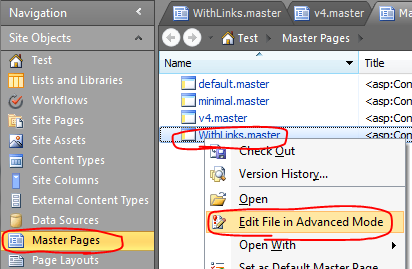
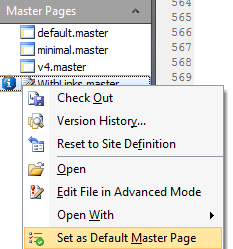
Open your site in SharePoint Designer (Site Actions -> Edit in SharePoint Designer). Choose Master Pages in the Navigation pane and right-click on v4.master and choose Copy then right-click and choose Paste. Right-click on the new Master Page, v4_copy(1).master, and choose Rename. Once you’ve renamed it, right-click on it and select Edit File in Advanced Mode:

Depending on your site’s settings, you might have to check it out. If so, make sure you check it back in when done and verify you’ve published a major version so that those without full control can see your changes.

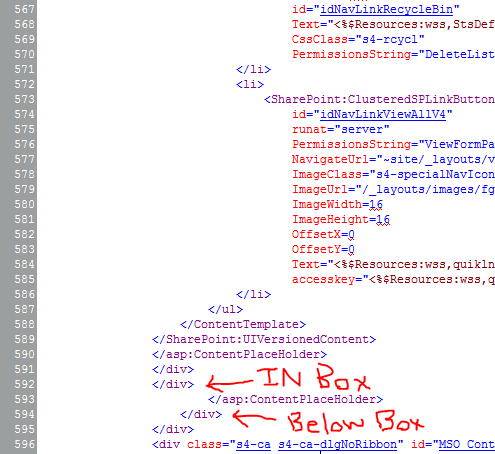
We’re going to place our web part right below the quicklaunch. So scroll down to approximately line 594 (in Code view) where you should see two closing divs shortly below the PlaceHolderQuickLaunchBottomV4 UIVersionedContent control. If you want your web part to be included in the leftpanel then press enter after the closing div in line 592, if you want it placed below the box press enter after the closing div in line 594:

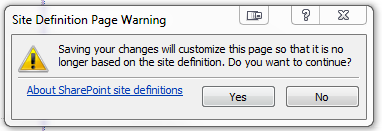
Type <br /> and press enter again. Press Save. You’ll get a warning about customizing the page, go ahead and click Yes.

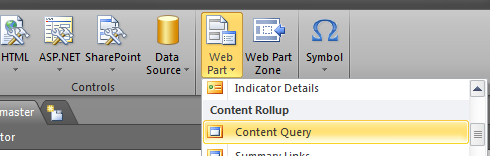
Now switch to the Insert ribbon and select Web Part > Content Query:

Switch to the Design view and right-click on your new web part and choose Web Part Properties. In the dialog window expand the Query section. Choose Show items from the following list under Source and click Browse… and choose your Links list.

Expand the Presentation section. Set Sort items by to <None> (This is to ensure the custom ordering allowed by Links lists is used). Uncheck the Limit the number of items to display checkbox.

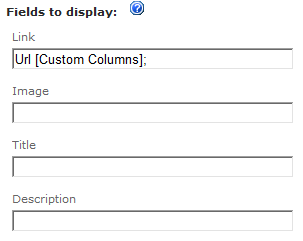
In the Fields to display section enter Url [Custom Columns]; for the Link and remove the Title entry:

Choose any other display options you want (I expanded Apperance and chose Chrome Type: None). Press OK to close the dialog. Save the master page. In the navigation pane on the left, right-click on your master page and choose Set as Default Master Page:

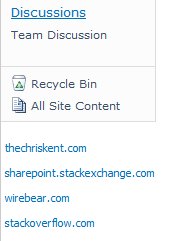
Now when you refresh your site you should see the changes (Be sure to publish a major version and/or check in the file if required to ensure everyone can see it):

Adding Favicons to the Links

The above screenshot is pretty cool. Unfortunately, instead of using the display text, it just uses the link. It also doesn’t open the links in a new window. We’ll fix these issues and add a favicon using some simple XSL.

I found the basic XSL to fix the Links display on Marc D Anderson’s blog who apparently got it from this Microsoft forum thread. We’re going to straight up copy that XSL and tweak it just a little to add our favicons. Here’s our customized XSL:

<xsl:template name="LinkList" match="Row[@Style='LinkList']" mode="itemstyle">
	<xsl:variable name="SafeLinkUrl">
		<xsl:call-template name="OuterTemplate.GetSafeLink">
			<xsl:with-param name="UrlColumnName" select="@URL"/>
		</xsl:call-template>
	</xsl:variable>
	<xsl:variable name="DisplayTitle">
		<xsl:call-template name="OuterTemplate.GetTitle">
			<xsl:with-param name="Title" select="@URL"/>
			<xsl:with-param name="UrlColumnName" select="'LinkUrl'"/>
		</xsl:call-template>
	</xsl:variable>
	<xsl:variable name="TheLink">
		<xsl:value-of select="substring-before($DisplayTitle,',')"/>
	</xsl:variable>
	<div id="linkitem" class="item link-item" style="padding-left:10px;">
		<xsl:call-template name="OuterTemplate.CallPresenceStatusIconTemplate"/>
		<img src="http://www.google.com/s2/favicons?domain_url={$TheLink}" align="middle" style="padding-right:2px;" />
		<a href="{$TheLink}" target="_blank" title="This link opens in a new window">
			<xsl:value-of select="substring-after($DisplayTitle,',')"/>
		</a>
	</div>
</xsl:template>

The main changes I made were the additional padding added to the div in line 16 to get everything to line up with the QuickLaunch links and the img element in line 18.

The img element uses a special link from Google (found on the Coding Clues blog) concatenated with our link’s URL. This link allows us to dynamically retrieve the favicons without having to store them within SharePoint or maintain them as links get added or changed.

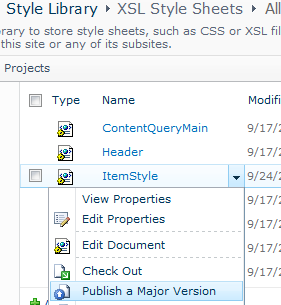
So where do we put the above XSL? In your site collection’s Style Library there is a folder called XSL Style Sheets. Open the ItemStyle.xsl file and scroll all the way to the bottom. Just before the final node, </xsl:stylesheet>, paste the above XSL. Since this is just a named template, this won’t affect anything else within your site collection. Upload the changed ItemStyle to the XSL Style Sheets folder and make sure to Publish a major version of the file so everyone can see it:

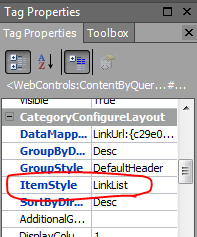
Now we need to tell our Links Content Query web part to use this item style. So, back in SharePoint Designer, right-click on your Content Query web part and choose Properties. Scroll down to ItemStyle and change it from Default to LinkList:

Save the master page and refresh your site and you should see something similar to this:

Isn’t that pretty!? Now everyone loves you!

InfoPath List Form Enhanced Text Showing All Grey and Stuff

Applies To: SharePoint 2010, InfoPath 2010

As mentioned in my previous post, you can replace the standard list item forms with InfoPath browser based forms (SharePoint 2010 Server Enterprise only). This is a great feature but there are some gotchas that can be hard to find answers to; mostly because these types of forms have different limitations and options than other InfoPath forms.

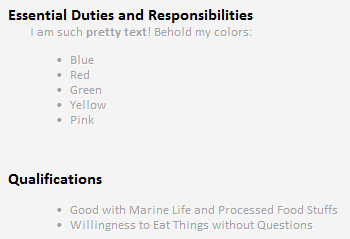
I was using this feature and had a form view for New, Edit & Display and everything was mostly working. However, my display view was annoying the crap out of me. My list has a couple of Multiple lines of text columns that allow Enhanced rich text (Rich text with pictures, tables, and hyperlinks). Although these displayed just fine on a standard List Item Display Form, they were Grayed out on my InfoPath List Item Display Form.

This means that although it would show formatting such as bold or underline, any text colors you picked were totally overridden with that obnoxious gray:

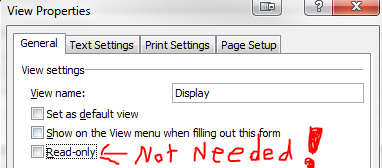
Turns out I had set the view to Read-only (This is the Display view so that seemed like an important step to me). In my desperation I opened up the View Properties and unchecked the Read-only box, hit OK and re-published the form.

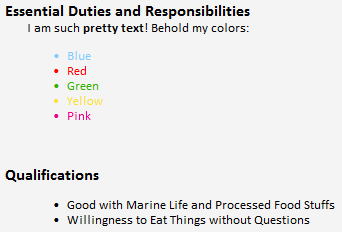
When I opened the List Item Display view everything looked perfect. Apparently InfoPath and/or SharePoint is smart enough to know to make everything uneditable when displaying a list item:

InfoPath List Form New Item is Read Only

Applies To: SharePoint 2010, InfoPath 2010

Many of you are probably aware that you can replace the standard list item forms with InfoPath browser based forms (SharePoint 2010 Server Enterprise only), and if you weren’t, you are now. It’s as simple as hitting the Customize Form button on the List tab of the List Tools ribbon:

By default the same form is used for all three views (New, Edit, & Display). You can create new views in InfoPath (Page Design tab -> New View) and then back in SharePoint use the Form Web Parts dropdown shown above to customize the InfoPath Form Web Part to show the view you want. There are other guides out there to getting this done that go into more detail, but that’s the gist of it.

I ran into an interesting problem the other day when using this feature. I had a form view for New, Edit & Display and everything was working great. Then I realized that I had some optional fields that I didn’t want to show on the display form if they were blank.

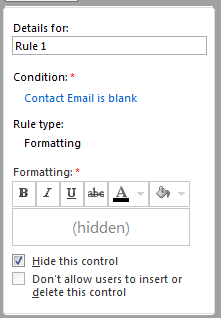
So I wrapped those up in a section and slapped a formatting rule to “Hide this control”:

Boom! I published the form and everything displayed as expected. I did a bunch of other stuff and then went back to add another item to the list. Suddenly the form view I was using for the New List Item was completely Read-only. Obviously, that’s a problem.

I opened the form back up in InfoPath and made sure the View Properties didn’t have the Read-only checkbox checked – Nope. I cried a little but then through the blur of my tears I noticed that every field on every view that wasn’t in one of my auto hide sections had a little blue info icon. Hovering over the icon showed FieldName (Control bound to missing field or group). What a heck?

Meanwhile the Edit form is still working great. So I right-clicked on the fields choose Change Binding and verified they were all hooked up correctly. Some searching brought me to this TechNet thread. The answer is in there but it wasn’t super obvious to me.

Basically, by adding the sections I had caused all the other fields on all the views to be outside the SharePointListItems_RW section and this breaks their binding. So how do you fix it? It’s actually pretty simple.

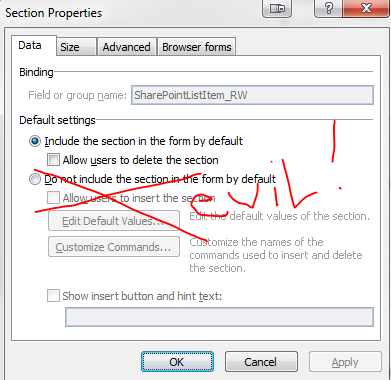
Right-click on any of your Optional Sections and choose Section Properties from the context menu. In the Default settings section of the Data tab is a radio button. Switch it from Do not include the section in the form by default to Include the section in the form by default. Click OK.

Suddenly all the little blue info icons go away and every Optional Section is now called Section. Re-Publish your form and you’ll find the auto-hiding still works perfectly and your New Item form is no longer Read-only. See? It can’t rain all the time sunshine!

Hide “All Site Content” Link Based on Permission

Applies To: SharePoint

By default in SharePoint 2010 nearly every visitor to your site automatically gets an “All Site Content” link added to their quick launch. In addition, there’s a “View All Site Content” option in the Site Actions menu. Here’s a default team site as seen by a user with only Read permission:

For team sites and basic work areas this is a great idea. However, there are several cases where it would be better if this wasn’t shown to the average user – for instance, a Business Intelligence Center. A Business Intelligence Center site is where you’re probably hosting PerformancePoint content and/or reports, etc. Anyone using your dashboards must have read permission to all the content and datasources. But generally you don’t want general users browsing this content. It’s better to provide good navigation either through the quicklaunch or a nice home page. However, you want your designers to still have this link.

Fortunately, Microsoft built the quicklaunch link with a ClusteredSPLinkButton and the Site Actions link with a MenuItemTemplate both of which have the PermissionMode and PermissionsString properties. These controls allow you to perform simple permission trimming.

SPSecurityTrimmedControl Permission Trimming

The controls both inherit from SPSecurityTrimmedControl which is where the permission trimming properties and methods come from.

The first property, PermissionsString, defines the permission(s) a user must have in order to view the control. You can find a list of permissions here. By default both of the All Site Content link controls use the ViewFormPages permission (Basically, anyone who can get to the site).

You can use multiple permissions in your PermissionsString by separating them with a comma. How those are used is determined by the PermissionMode property which can have two values: Any or All. When set to “Any” the control will show if a user has at least one of the permissions in your PermissionString. When set to “All” the control will only show if a user has every permission listed in your PermissionString.

We wanted the All Site Content links to only show for users with Full Control over a site. So our PermissionsString needs to be ManageWeb, and since we’re only using one permission our PermissionMode can be either Any or All or even not included.

Hiding the Quicklaunch Link

To change the permission trimming attributes for our controls, we have to edit the MasterPage. If you’re developing a custom branding solution then this should be easy enough to do directly in Visual Studio. If you’re just customizing on the fly, then you’ll use SharePoint Designer (Choose Edit in SharePoint Designer from the Site Actions menu).

In the default master page (v4.master) the Quicklaunch All Site Content link can be found around line 573 and is included in the PlaceHolderQuickLaunchBottomV4 UIVersionedContent control. Here’s what it looks like by default:

<SharePoint:ClusteredSPLinkButton
	id="idNavLinkViewAllV4"
	runat="server"
	PermissionsString="ViewFormPages"
	NavigateUrl="~site/_layouts/viewlsts.aspx"
	ImageClass="s4-specialNavIcon"
	ImageUrl="/_layouts/images/fgimg.png"
	ImageWidth=16
	ImageHeight=16
	OffsetX=0
	OffsetY=0
	Text="<%$Resources:wss,quiklnch_allcontent_short%>"
	accesskey="<%$Resources:wss,quiklnch_allcontent_AK%>"/>

So all we have to do is change line 576 to read PermissionsString=”ManageWeb” and save.

Hiding the Site Actions Link

The Site Actions menu is just as easy to edit. The View All Site Content link can be found around line 137 inside the SiteActions FeatureMenuTemplate control. Here’s what it looks like by default:

<SharePoint:MenuItemTemplate runat="server" id="MenuItem_ViewAllSiteContents"
	Text="<%$Resources:wss,quiklnch_allcontent%>"
	Description="<%$Resources:wss,siteactions_allcontentdescription%>"
	ImageUrl="/_layouts/images/allcontent32.png"
	MenuGroupId="300"
	Sequence="302"
	UseShortId="true"
	ClientOnClickNavigateUrl="~site/_layouts/viewlsts.aspx"
	PermissionsString="ViewFormPages"
	PermissionMode="Any" />

Again, just change line 145 to PermissionsString=”ManageWeb” and save.

That’s it! Here’s what the same Team Site now looks like to a user with Read permission:

Remove Lookup Column Link From View

Applies To: SharePoint 2010

Okay, the title to this post is a little misleading. I won’t be showing how to actually remove the link from the view column. That requires XSLT or JavaScript. What I will show you is a work around that is good enough for me and requires nothing but the browser.

When you add a Lookup Column to a list the linked item’s display form will automatically be linked to the column wherever it shows up in a view. Generally, this is pretty awesome behavior since it gives more detail on demand without us having to do anything. Sometimes, however, these links can get in the way. This is especially true when you have more than one lookup column in a view or when you don’t want people to get confused about which link to click.

In SharePoint 2010 you can include additional fields with your lookup. So for this workaround we’re going to simply have the same reference column also be an additional field for the lookup. This allows us to choose the additional field for our view. Got it? How about an example.

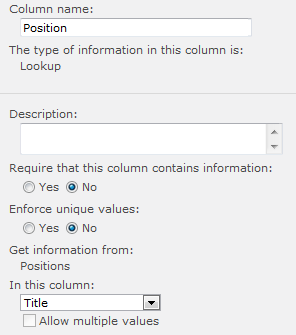
Say we have a lookup column named Position that references our Positions list. We choose Title for the display field for our lookup:

This works great because it gives us a nice drop down of all the available positions for people to choose on our new and edit forms. But then when you go to create a simple view you might run into this issue:

That’s part of our view for our list. So, which link do you click on? The Position link will open the display form for the Positions list item Associate Manager. The Job Type link will open the display form for the current list item. And my head just exploded.

So our goal is to keep the Position column showing Associate Manager but without the link to the secondary list. We also don’t want to use any JavaScript or have to edit this view with custom XSLT.

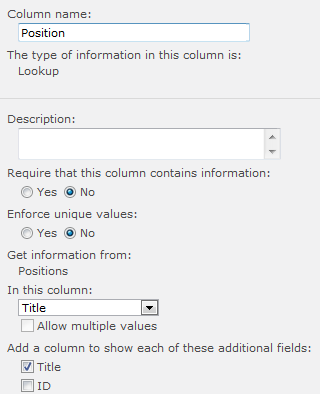
So, go back to the Lookup Column and in the Additional Fields section check the box next to the same column used in the lookup (Title in this example):

This adds a new column to our list called Position:Title. So now we edit our view to use the new column in place of the lookup:

As you can see, this takes care of our problem. The user is still only presented with the one dropdown when using the edit/new forms to pick the position and our view now has no hyperlink to the secondary list’s item display form. But what about that stupid column name?

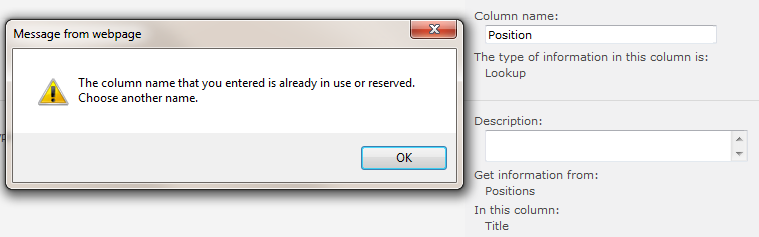
Going back to our List Settings you can click on the Position:Title column and change the column name. Obviously, selecting the same name as the lookup will get you an error:

So don’t do that. The best move is to give it another name, but you can also use a little trick. Just add a space after the name so the column name becomes “Position “. You can save this and since you already put it in your view it looks perfect:

Of course, editing the columns or messing with additional views can get confusing when columns names look exactly the same – so use at your own discretion.

Display Form Link/Menu on Column Other Than Title

Applies To: SharePoint 2010

By default, the Title column in a list can be shown in a view in three different ways:

  • Title
  • Title (linked to item with edit menu)
  • Title (linked to item)

Often you can just rename the Title column to whatever you want to have that functionality and you’re good to go. However, sometimes you want the link and/or menu on a different column. Unfortunately, this isn’t an option in the View editor within the browser. Fortunately, it can easily be done in SharePoint Designer without having to mess with XSLT at all.

Simply modify your view in SharePoint Designer:

Switch to the code view and scroll down to the purple section (you can only edit the yellow highlighted text in advanced mode – which we do NOT need to do here).

Link To Display Form

In the ViewFields section are a bunch of FieldRef elements. Find the one you want and add LinkToItem=”TRUE” and save. So your ViewFields section might look something like this:

<ViewFields>
	<FieldRef Name="SomeField1" LinkToItem="TRUE" />
	<FieldRef Name="SomeField2"/>
	<FieldRef Name="SomeField3"/>
</ViewFields>

In the above example, SomeField1 will now have a hyperlink that will open the display form for the list item.

Link To Display Form With Menu

This is pretty much the same as above except the attribute name is different. In the ViewFields section are a bunch of FieldRef elements. Find the one you want and add ListItemMenu=”TRUE” and save. So your ViewFields section might look something like this:

<ViewFields>
	<FieldRef Name="SomeField1" ListItemMenu="TRUE" />
	<FieldRef Name="SomeField2"/>
	<FieldRef Name="SomeField3"/>
</ViewFields>

In the above example, SomeField1 will now have a hyperlink that will open the display form for the list item and a drop down menu for choosing actions.