Refinement Panel Customization Saving Woes

Applies To: SharePoint 2010

Editing the Filter Category Definition of a Refinement Panel web part can make your search result pages so much better. This is one of the first things we customize and every time we do, I get tripped up by a really annoying setting in the web part.

Problem Scenario

I replace the XML in the Filter Category Definition property in the Refinement properties section of the web part. I hit Apply and everything validates. I save the page and run the results – No custom refinements! In fact, when I open the web part back up for editing, my custom Filter Category Definition is totally wiped out! Why isn’t it saving!?!?!?! Why am I weeping ever so softly?!?!! Why would I confess that on the internets?!?!?!?!

Solution

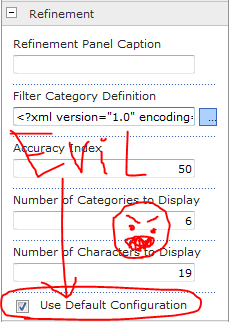
There’s a checkbox at the bottom of the Refinement properties section labeled, Use Default Configuration. This is checked by default. Unless you uncheck this when you place your custom XML in the property, it is going to completely ignore you and replace it with the default XML.

RefinementSettings

I can see why things work this way, but it is extremely unintuitive. It would seem that the web part should recognize there is custom XML in the Filter Category Definition and understand that’s what it should use. Then a button (NOT a checkbox) that says something along the lines of “Revert to Default Configuration” would be used to reset that XML when needed.

Oh well, nobody is asking my opinion anyway. So do yourself a favor and remember to uncheck that box whenever customizing the Filter Category Definition.

Broken Add New Document Links

Applies To: SharePoint 2010

We ran into an interesting problem the other day where a user called and said that everytime they clicked the Add New Document link they got a giant error message. I went to the site and was able to confirm that it was indeed blowing up.

This was only happening when the document library was being exposed through a web part on another page. Going directly to the library and clicking New Document or Upload Document in the ribbon worked just fine. The problem was obviously with the web part toolbar, which in this case was set to Summary Toolbar.

It appears this is something left over from our upgrade from SharePoint 2007 to SharePoint 2010. I would’ve thought the Visual Upgrade would have fixed this and it’s amazing no one noticed for well over a year! It seems that Microsoft changed not only the look of the link (switching the icon from a little square to a green plus and removing the word new) the underlying address also changed.

AddNewDocumentLink
Broken Old Style Link
NewDocumentLink
Correct Style Link

Taking a look at where these links were pointed, I could see that the old style link was pointed at listform.aspx:

/_Layouts/listform.aspx?PageType=8&ListId={LISTGUID}?RootFolder=

While the new style link was pointed at Upload.aspx:

/_layouts/Upload.aspx?List=LISTGUID&RootFolder

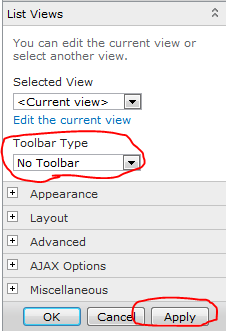
Fixing this is pretty easy. Just edit the web part and change the Toolbar Type to No Toolbar and click Apply:

ToolBarTypeNone

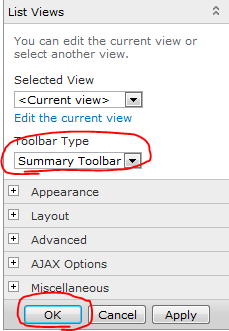
Then immediately switch the Toolbar Type back to Summary Toolbar and press OK:

ToolBarTypeSummary

Interestingly, other web parts sometimes show the old style link too (links, announcements, etc.) but since these all seem to still use the listform.aspx they continue to work. However, you can use the above technique to get them to match visually as well (green plus icon).

Dates With Relative Countdowns and Pretty Colors in List Views

Applies To: SharePoint 2010

Every list in SharePoint automatically comes with two date columns (Created & Modified). Often times other date columns get added in there and it can be nice to format these to make the lists more intuitive. Out of the box you can format these a few different ways (mostly whether to show the time or not). With a little XSL you can use the ddwrt:formatdatetime function to really customize things (you’ll see a couple of examples of this below) – but can’t we do more?

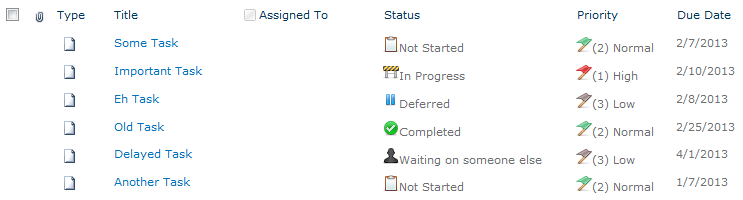
Large lists of data (whether they are numbers, statuses, dates, etc.) can be overwhelming. One of the greatest improvements we can make is to provide visual clues or analysis on this data to help end-users understand what they are looking at. When it comes to dates, what most people really want to know is what that date means relative to now. This is especially true when it comes to Due Dates such as seen in a Tasks list:

TaskList

We’ve greatly improved the readability of this list with some quick icons as demonstrated in my previous post: Showing Icons in a List View, but those due dates don’t really mean much at quick glance. We can do a couple of things to make these instantly understandable. We can add some color to indicate when the due date is near and/or missed. Even more powerful is showing how much time is left until the Due Date.

Adding Some Color

Flagging these dates with some quick color is pretty straightforward using SharePoint Designer. Designer will be generating some XSL and we’ll take a look at it at the end of this section, but we’ll be using the wizards and so no knowledge of XSL will be needed.

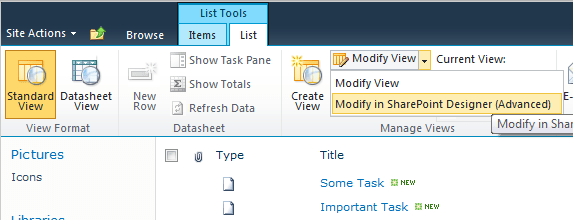
Open the site in SharePoint Designer (Site Actions > Edit in SharePoint Designer) and browse to the page/view you want to edit, or if this is a specific view just choose the Modify View dropdown and select Modify in SharePoint Designer (Advanced):

ModifyView

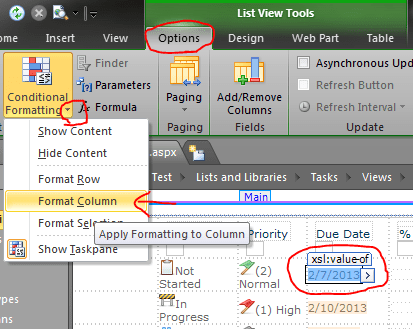
In Design view, click on one of the date values in the list and choose Format Column in the Conditional Formatting dropdown on the Options tab in the ribbon:

FormatDate

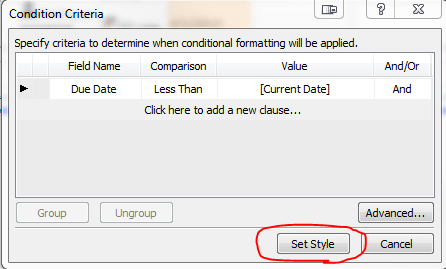
Our goal is to turn the cell red if the due date has passed; So in the Condition Criteria dialog set Field Name to Due Date, the Comparison to Less Than and the Value should remain the default of [Current Date]. Then press the Set Style button:

ConditionCriteriaPastDue

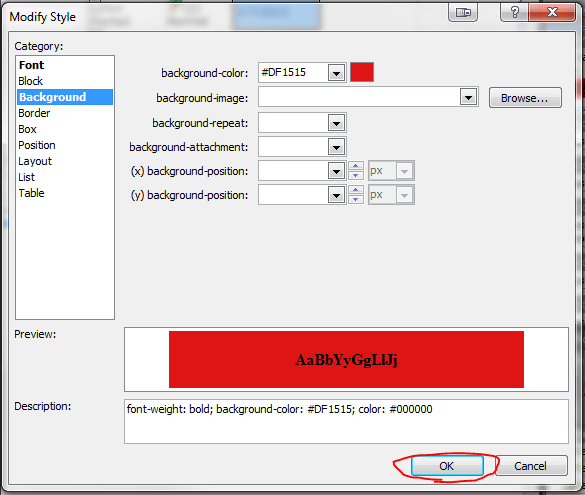
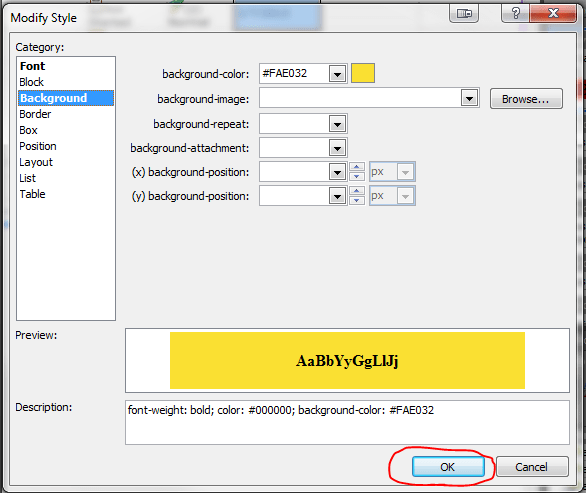
This formula reads: if the Due Date is older than (less) than now, set this style. We’re now setting up that style in the Modify Style dialog. In the Font category set the font-weight to bold (I’m also setting the color to Black since the default theme’s grayish font color doesn’t look great with a red background). Switch to the Background category and select a shade of red for the background-color and press OK:

PastDueStyle

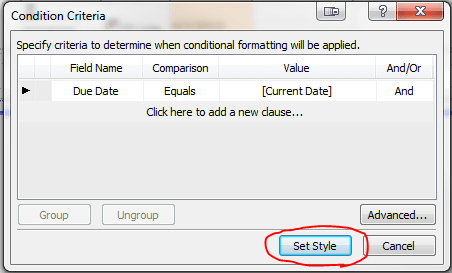
I also like to provide a little warning before things get past due; So let’s make things turn yellow on the Due Date. So again, click on one of the date values in the list and choose Format Column in the Conditional Formatting dropdown on the Options tab in the ribbon. In the Condition Criteria dialog set Field Name to Due Date, the Comparison to Equal and the Value should remain the default of [Current Date]. Then press the Set Style button:

ConditionCriteriaWarning

This formula reads: if the Due Date is today, set this style. We’re now setting up that style in the Modify Style dialog. In the Font category set the font-weight to bold (I’m also setting the color to Black since the default theme’s grayish font color doesn’t look great with the yellow background either). Switch to the Background category and select a shade of yellow for the background-color and press OK:

WarningStyle

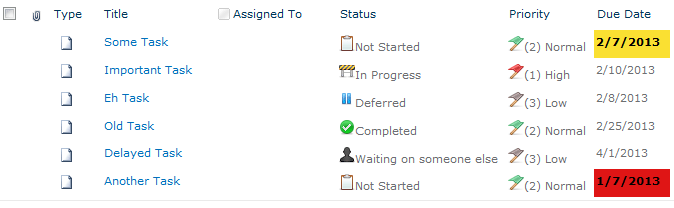
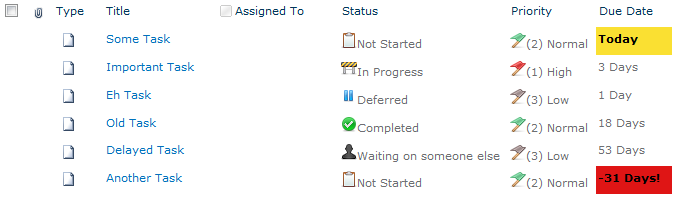
Save the view in Designer and refresh the view in the browser and you should see something similar to this (The date this screenshot was taken was 2/7/2013):

TaskListWithColors

For those that are interested, here’s the XSL that designer generated:

<xsl:attribute name="style">
	<xsl:if test="ddwrt:DateTimeTick(ddwrt:GenDisplayName(string($thisNode/@DueDate))) &lt; ddwrt:DateTimeTick(ddwrt:GenDisplayName(string($Today)))"
	 ddwrt:cf_explicit="1">
		font-weight: bold; background-color: #DF1515; color: #000000;
	</xsl:if>
	<xsl:if test="ddwrt:DateTimeTick(ddwrt:GenDisplayName(string($thisNode/@DueDate))) = ddwrt:DateTimeTick(ddwrt:GenDisplayName(string($Today)))"
	 ddwrt:cf_explicit="1">
		font-weight: bold; color: #000000; background-color: #FAE032;
	</xsl:if>
</xsl:attribute>

Relative Dates

With Due Dates there are 2 things you want to know: which ones have been missed and how much time is left. Quick color indicators are very effective in drawing the eye to important information and the red and yellow rules we put in place above help quickly answer the first question.

So how do we communicate how much time is left? Calculated columns are no help here (you can’t use Today and even when you hack it, they only get evaluated on modifications, NOT on view). The answer is some XSL tweaking. We won’t be using the same wizard-like interface as above, but I promise the type of XSL we’re going to be doing isn’t too scary.

The first thing we need to do is add some XSL templates to help us perform some basic date calculations. The easiest way is to use Andy Lewis’ DateTemplates. We’re going to pull out the needed templates and paste them directly into our XSL (since I’ve had a lot of trouble referencing external XSL when using Designer). Here’s the templates we want:

<xsl:template name="getDayDelta">
	<xsl:param name="paramDateA"/>
	<xsl:param name="paramDateB"/>
	<xsl:variable name="dateADays">
		<xsl:call-template name="countDaysInDateWithLeapYearDays">
			<xsl:with-param name="paramDate" select="$paramDateA"/>
		</xsl:call-template>
	</xsl:variable>
	<xsl:variable name="dateBDays">
		<xsl:call-template name="countDaysInDateWithLeapYearDays">
			<xsl:with-param name="paramDate" select="$paramDateB"/>
		</xsl:call-template>
	</xsl:variable>
	<xsl:value-of select="number($dateADays) - number($dateBDays)"/>
</xsl:template>

<xsl:template name="countDaysInDateWithLeapYearDays">
	<xsl:param name="paramDate"/>
	<xsl:variable name="year" select="substring-before($paramDate,'-')"/>
	<xsl:variable name="month" select="substring(substring-after($paramDate,'-'),1,2)"/>
	<xsl:variable name="day" select="substring(substring-after(substring-after($paramDate,'-'),'-'),1,2)"/>
	<xsl:variable name="rawYearDays" select="number($year) * 365"/>
	<xsl:variable name="rawLeapYears" select="floor($year div 4)"/>
	<xsl:variable name="centurySpan" select="floor($year div 100)"/>
	<xsl:variable name="fourCenturySpan" select="floor($year div 400)"/>
	<xsl:variable name="boolYearLeap">
		<xsl:call-template name="isLeapYear">
			<xsl:with-param name="paramYear" select="$year"/>
		</xsl:call-template>
	</xsl:variable>
	<xsl:variable name="yearLeapAdjust">
		<xsl:choose>
			<xsl:when test="$boolYearLeap = 1 and (($month = 1) or ($month = 2 and $day != 29))">-1</xsl:when>
			<xsl:otherwise>0</xsl:otherwise>
		</xsl:choose>
	</xsl:variable>
	<xsl:variable name="yearDays" select="$rawYearDays + $rawLeapYears - $centurySpan + $fourCenturySpan + $yearLeapAdjust "/>
	<xsl:variable name="monthDays">
		<xsl:call-template name="ConvertMonthToTotalDays">
			<xsl:with-param name="paramMonth" select="$month"/>
		</xsl:call-template>
	</xsl:variable>
	<xsl:variable name="totalDays" select="$yearDays + number($monthDays) + number($day)"/>
	<xsl:value-of select="$totalDays"/>
</xsl:template>

<xsl:template name="isLeapYear">
	<xsl:param name="paramYear"/>
	<xsl:choose>
		<xsl:when test="$paramYear mod 4 = 0 and ($paramYear mod 100 != 0) or ($paramYear mod 400 = 0)">1</xsl:when>
		<xsl:otherwise>0</xsl:otherwise>
	</xsl:choose>
</xsl:template>

<xsl:template name="ConvertMonthToTotalDays">
	<xsl:param name="paramMonth"/>
	<xsl:choose>
		<xsl:when test="$paramMonth=01">0</xsl:when>
		<xsl:when test="$paramMonth=02">31</xsl:when>
		<xsl:when test="$paramMonth=03">59</xsl:when>
		<xsl:when test="$paramMonth=04">90</xsl:when>
		<xsl:when test="$paramMonth=05">120</xsl:when>
		<xsl:when test="$paramMonth=06">151</xsl:when>
		<xsl:when test="$paramMonth=07">181</xsl:when>
		<xsl:when test="$paramMonth=08">212</xsl:when>
		<xsl:when test="$paramMonth=09">243</xsl:when>
		<xsl:when test="$paramMonth=10">273</xsl:when>
		<xsl:when test="$paramMonth=11">304</xsl:when>
		<xsl:when test="$paramMonth=12">334</xsl:when>
	</xsl:choose>
</xsl:template>

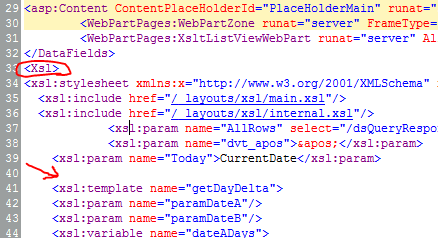
There are several templates above. We’re only going to call the getDayDelta function (it calls all the others). Copy the above XSL and in the Code view for your view of SharePoint Designer find the <Xsl> element. Skip a few lines down just past the last <xsl:param> element and paste the above. It should look something like this:

DateTemplates

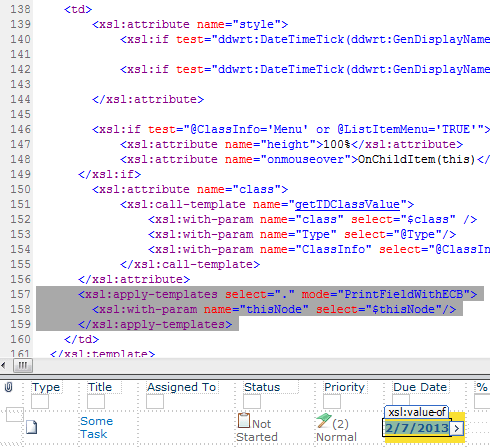
Just putting these templates in the XSL doesn’t actually do anything yet. So switch to the Split view and select one of the Due Date values. The corresponding XSL should be highlighted in the code section:

DueDateOriginalXSL

Replace the highlighted section from above with the following:

<xsl:variable name="DateDueDayDelta">
	<xsl:call-template name="getDayDelta">
		<xsl:with-param name="paramDateA" select="ddwrt:FormatDateTime(string($thisNode/@*[name()=current()/@Name]),1033,'yyyy-MM-dd')"/>
		<xsl:with-param name="paramDateB" select="ddwrt:FormatDateTime(string(ddwrt:Today()),1033,'yyyy-MM-dd')"/>
	</xsl:call-template>
</xsl:variable>

<xsl:choose>
	<xsl:when test="$DateDueDayDelta=0">
		<xsl:text>Today</xsl:text>
	</xsl:when>
	<xsl:when test="$DateDueDayDelta=1">
		<xsl:text>1 Day</xsl:text>
	</xsl:when>
	<xsl:when test="$DateDueDayDelta=-1">
		<xsl:text>Yesterday!</xsl:text>
	</xsl:when>
	<xsl:when test="$DateDueDayDelta&lt;-1">
		<xsl:value-of select="concat($DateDueDayDelta,' Days!')"/>
	</xsl:when>
	<xsl:when test="$DateDueDayDelta&gt;1">
		<xsl:value-of select="concat($DateDueDayDelta,' Days')"/>
	</xsl:when>
</xsl:choose>

In lines 1-6 we’re calling the getDayDelta function from the DateTemplates and storing the value in a new variable called DateDueDayDelta. This value is the number of days between the first parameter, Due Date, and the second parameter, Today. We’re using the ddwrt:FormatDateTime function to ensure the parameters are in the form expected by the template. We’re also using the ddwrt:Today() function to get the current date.

Lines 8-24 is an XSL switch statement. We’re using it to give friendly text based on the number of days between. If the dates are the same, then we print “Today“. If the Due Date is still 1 day in the future, we print “1 Day“. If the Due Date is 1 day in the past (-1), we print “Yesterday!“. If the Due Date is even further in the past (< -1), we print “# Days!“. If the Due Date is more than a day away (> 1), we print “# Days“. This will probably make more sense if you just save the view and refresh it in the browser:

TasksWithRelativeDates

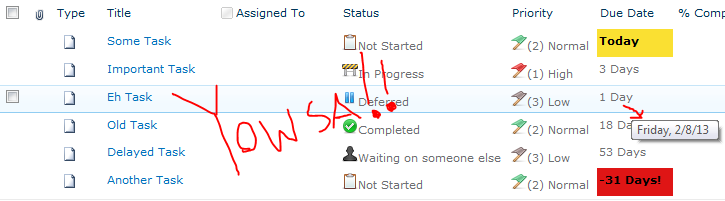
WOO HOO! That’s a huge improvement – but it could be better. Although I think it makes more sense to see the dates as relative for quickly glancing at the list, I don’t like losing that information altogether. So let’s put it back in as a tooltip.

In the code view, right above where you pasted the <xsl:variable> element, paste the following:

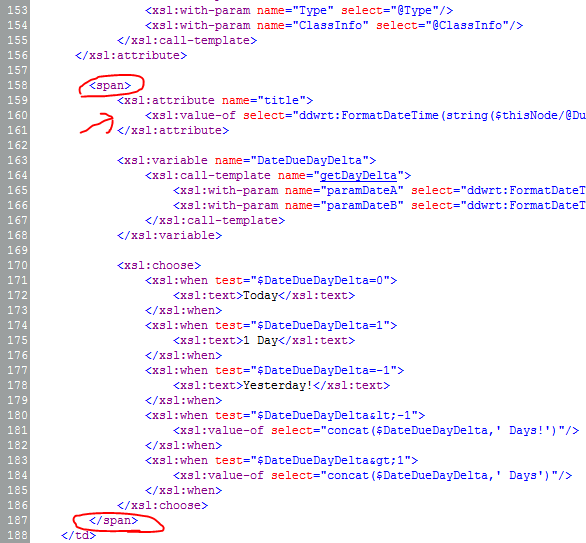
<span>
	<xsl:attribute name="title">
		<xsl:value-of select="ddwrt:FormatDateTime(string($thisNode/@DueDate),1033,'dddd, M/d/yy ')"/>
	</xsl:attribute>

Then scroll down to the closing <xsl:choose> element and close the <span> tag. Altogether, things should look similar to this:

FinalDueDateXSL

We just wrapped everything in a span so that we could set the title attribute (tooltip). We are again using the ddwrt:FormatDateTime function so that we can format the Due Date to show not just the date but the day of the week as well since this really helps people visualize the date when a calendar isn’t available. Save the view, refresh it in the browser and you should have something like this (The date this screenshot was taken was 2/7/2013):

FinalTasksList

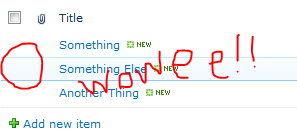
You can quickly see how stacking these techniques can start to make lists much more intuitive and useful. WOWEE!

Showing Icons in a List View

Applies To: SharePoint 2010

Displaying icons in a list view is a great way to make things immediately more understandable, look awesome and make things oh so pretty. It’s a pretty common request and there are some interesting methods out there to get it done. There’s everything from deployed solutions to give you specialized columns to throwing some magical jQuery on the page. I personally prefer to keep things simple with some quick use of conditional formatting in SharePoint Designer.

Technically this solution uses some XSL which I’ll show you at the end, but you don’t need to know anything about that to get it to work. A good example of a list this works really well for is a Task list. I most often show icons based on Choice columns (since there’s a nice one-to-one mapping between icon and choice value), but you can easily adapt this solution to apply icons based off of other calculations or combination of columns (for instance, showing a frowny face when a due date has been missed and the status is not completed).

Here’s the standard Tasks list that we’re going to iconize:

BasicTaskList

Right away you’ll notice there’s at least 2 easy targets for icons. Both the Status and the Priority columns would really get a big upgrade if turned into icons.

You can put your icons wherever you want, but the easiest place is going to be a picture library right on the site. So create a new picture library called Icons (Site Actions > More Options > Library > Picture Library):

PictureLibrary

Head to the Icons library you just added and upload some icons. We’re going to upload 5 status icons and 3 priority icons. They should all be the same size (16×16 works well, but I’ll leave that up to you). There’s plenty of great icon sets out there (famfamfam and all it’s varients work very well). I’ll be using icons from the Fugue Icons collection since they look nice, there’s tons of them and they’re free:

Status Icons Priority Icons
  • StatusNotStarted  StatusNotStarted.png
  • StatusInProgress  StatusInProgress.png
  • StatusDeferred  StatusDeferred.png
  • StatusWaiting  StatusWaiting.png
  • StatusCompleted  StatusCompleted.png
  • PriorityLow  PriorityLow.png
  • PriorityNormal  PriorityNormal.png
  • PriorityHigh  PriorityHigh.png

Now that the icons are uploaded, it’ll be easy to select them in Designer (You can also have designer upload them directly from your computer while you’re working but there is a bug that sometimes keeps the path relative to your machine rather than the picture library).

Open the site in SharePoint Designer (Site Actions > Edit in SharePoint Designer) and browse to the page/view you want to edit, or if this is a specific view just choose the Modify View dropdown and select Modify in SharePoint Designer (Advanced):
ModifyView

The basic steps we are going to perform 8 times (one for each image):

  1. In Design view click in one of the cells for the column we are iconizing (Status or Priority)
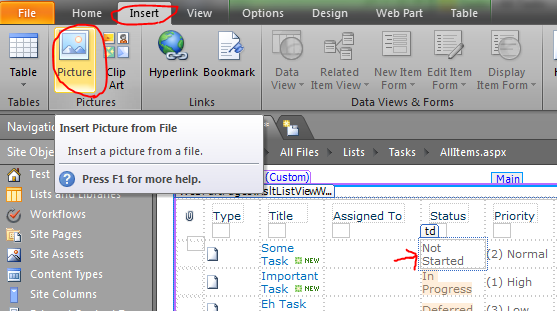
  2. On the Insert tab in the ribbon, choose Picture:

    InsertPicture
  3. Choose the Icons library (double-click), and pick the appropriate icon image:
    OpenPicture
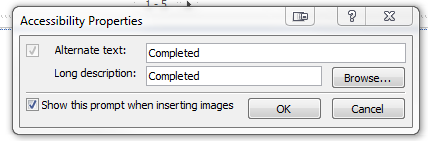
  4. Fill out the Accessibility Properties dialog with the appropriate information:
    AccessibilityProperties
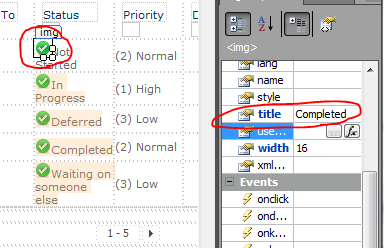
  5. With the new icon selected, type the value in the title field of the Tag Properties window (This will be the tooltip):TitleProperty
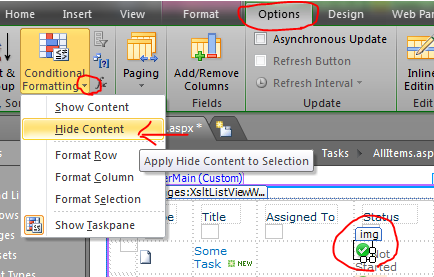
  6. With the new image still selected, choose Hide Content in the Conditional Formatting dropdown in the Options tab on the ribbon:
    HideContent
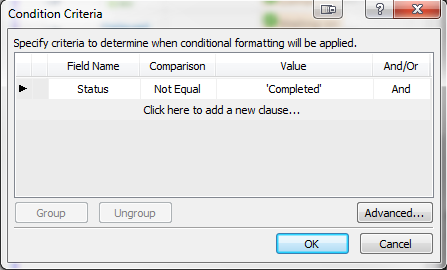
  7. In the Condition Criteria dialog, select the Field Name as the column, the Comparison as Not Equal and the Value to the value the icon should represent. This basically says when the value of this field isn’t the value this icon is meant for, then don’t show this icon:
    ConditionCriteria
  8. Repeat for all remaining icons

Once you save in SharePoint Designer you should see something like this on the page (after a refresh of course):

TasksWithIcons

That’s it, so super pretty! I’d recommend taking the actual text values away (you’ve got them in the tooltip) or at least adding some spacing.
For those that are interested, what designer’s really doing is generating some XSL templates for you. It’s the equivalent of choosing Customize Item in the Customize XSLT dropdown on the Design tab and adding some extra XSL. The XSL we’re talking about is a simple <xsl:if> element with the <img> tag inside. For instance the Completed Status icon looks like this in XSL:

<xsl:if test="not(normalize-space($thisNode/@Status) != 'Completed')"
  ddwrt:cf_explicit="1">
  	<img alt="Complete" longdesc="Complete"
  	  src="../../Icons/StatusCompleted.png" width="16" height="16"
  	  title="Complete" />
</xsl:if>

XSL isn’t nearly as scary as it seems, but Designer does a pretty good job of wrapping up a lot of basic formatting and conditional checks with some nice wizards – so why not use them?

Hiding the List Item Selection Boxes

Applies to: SharePoint 2010

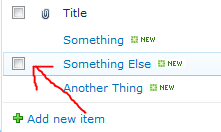
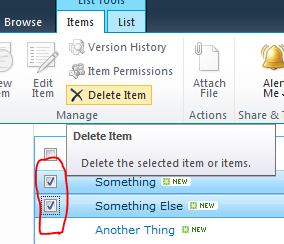
In SharePoint 2010 the standard listviewwebpart adds a checkbox to the left of each row. These only show up on hover and when you check the box the entire row is highlighted. You can check multiple boxes (or even use the helpful checkbox up top to select/unselect them all at once). This allows you to perform the same action on the selected item(s) using the ribbon.

SelectionBox MultiSelection

Generally, this is a good feature. However, not everybody agrees. If you’re doing some customization and you don’t want them to show up, you can do it through CSS. Although this is the technique I previously used, I ran across a post by Glyn Clough that made me face palm. I’ll leave the CSS technique in case it helps somebody and since I can think of at least one or two reasons you might want it (simple removal of all select boxes across an entire site or keeping the selection logic without the boxes) but if you want the simple answer just skip right to that solution.

CSS

If you’re deploying a branding solution or already using a custom style sheet just add the following:

.s4-itm-hover .s4-itm-cbx,
.ms-itmhover:hover .s4-itm-cbx,
.s4-itm-selected .s4-itm-cbx,
.ms-inlineEditLink .s4-itm-inlineedit,
.ms-itmhover:hover .s4-itm-inlineedit,
.s4-itm-hover .s4-itm-inlineedit,
.s4-itm-selected .s4-itm-inlineedit
{
    position: relative;
    top: 0;
    display:none;
    visibility:hidden;
    width:0px;
}

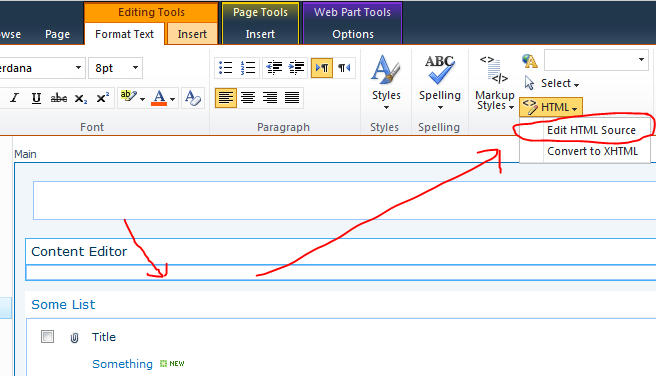
Bam! no more selection boxes! However, I’ve got no clue why you would want to hide those for an entire site. More likely you want to hide these from a specific list view or page. To do this you can slap a content editor web part on the page(Edit Page, Add a Web Part, Media and Content > Content Editor) and click inside it. Then choose the HTML drop down and pick Edit HTML Source:

EditHTMLSource

Then paste this inside there:

<style>
.s4-itm-hover .s4-itm-cbx,
.ms-itmhover:hover .s4-itm-cbx,
.s4-itm-selected .s4-itm-cbx,
.ms-inlineEditLink .s4-itm-inlineedit,
.ms-itmhover:hover .s4-itm-inlineedit,
.s4-itm-hover .s4-itm-inlineedit,
.s4-itm-selected .s4-itm-inlineedit {
    position: relative;
    top: 0;
    display:none;
    visibility:hidden;
    width:0px;
}
</style>

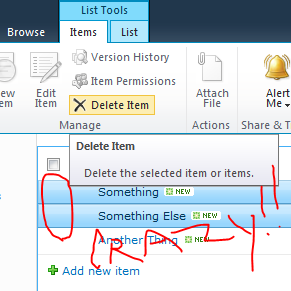
Save the page and you should see that all the list views on the page no longer have the selection box (although you can still click on the item(s) and get selection and multiselection):

NoSelectionBox MultiSelectionNoBox

So what about that Select All box up there? Why you want to break all the interfaces!?!

Unfortunately this isn’t as straight-forward. Microsoft did provide a convenient class for the checkbox: s4-selectAllCbx. However, until you hover over the web part, that class is not applied to the input control – Very strange. So applying some styles to that class will only take effect after someone has hovered over the part.

If you really want to do this with CSS you can add an additional selector to the above styles to get this (the key is that last selector .ms-vh-icon input):

<style>
.s4-itm-hover .s4-itm-cbx,
.ms-itmhover:hover .s4-itm-cbx,
.s4-itm-selected .s4-itm-cbx,
.ms-inlineEditLink .s4-itm-inlineedit,
.ms-itmhover:hover .s4-itm-inlineedit,
.s4-itm-hover .s4-itm-inlineedit,
.s4-itm-selected .s4-itm-inlineedit,
.ms-vh-icon input {
    position: relative;
    top: 0;
    display:none;
    visibility:hidden;
    width:0px;
}</style>

This hides them all but doesn’t shrink the column. There’s probably a CSS way to do that too, but honestly let’s just use the setting below.

The Real Solution

So everything above has been overkill. I remember looking for a simple setting to turn those boxes off and not finding it. I can’t be the only one since you’re reading this article – but it doesn’t get much easier than this.

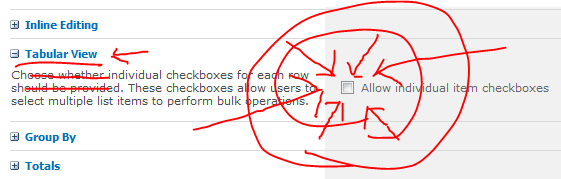
Just edit the view (either the view used by the web part or an actual view on the list) and scroll down to the Tabular View section and uncheck the box next to Allow individual item checkboxes:

FacePalm

Click OK and now those checkboxes are removed! Unfortunately so is all selection and multi-selection. So if you have some strange need to keep the selection but remove the boxes, see the CSS solution above. If you just wanted to remove them altogether, remember to always look at the settings!

If you take a look at the XML generated for the view you’ll see that all this is doing is adding a TabularView attribute to your View element and setting it to FALSE.

DevConnections 2012

Applies To: SharePoint, SQL, .NET, HTML5

I just got back from DevConnections 2012 in Las Vegas, Nevada. I learned several things that the made the trip worthwhile and I’m glad I got to be a part of it. I choose DevConnections over SPC because I wanted to take workshops from a variety of tracks including SQL, .NET and HTML5. Choosing DevConnections also meant I didn’t have to go alone.

There were several good speakers and I received plenty of swag (8+ T-Shirts, an RC helicopter, a book and more). Not surprisingly, I enjoyed the SharePoint Connections track the most and Dan Holme was my favorite speaker.

For all those that didn’t get to go I thought I’d share my notes from the sessions I attended and any insights I gained as well. My notes are not a total reflection of what was said, but represent things I found interesting or useful.


Where Does SharePoint Designer 2010 fit in to Your SharePoint Application Development Process?

Asif RehmaniSharePoint-Videos.com

My Notes:

  • Always use browser first when possible
  • Anything Enterprise wide should be VS or buy
  • DVWP also called Data Form WP
  • DVWP multiple sources to XML with XSLT
  • LVWP specific to SP lists
  • Browser limits in views don’t apply in Designer (Grouping, Sorting, etc.)
  • Import Spreadsheet is only through browser – NOT SP Designer
  • Conditional Formatting in views including icons (put all icons in cell and change content conditional formatting on each).Pictures automatically go in SiteAssets
    • Sometimes img uploads retain local path (switch to code and correct src url)
  • Formulas: select parameter and double click the function to have the selection become the 1st parameter
  • DVWP can easily be changed to do updates: switch from text to text box, then add a row and insert a form action button and choose the commit action (save)
  • Parameters for all sorts of stuff (username, query string, etc)can be used all over including in conditional formatting
  • SPD was designed and intended to be used in production – not a lot of support for working in Dev and moving to Production
    • WP can be packaged (DVWP) for import elsewhere
    • Reusable workflows can also be packaged

Key Insights:

  • SharePoint Designer is fine to be used in production (and in fact requires it in certain cases). However, there are things you can do to minimize the amount of work done in production.
  • SP Designer is pretty powerful and can replace a lot of extra VS development

Overall Impression:

Just as in his videos, Asif was a great presenter. He was very personable and knowledgeable. The session ended up being less about when SP Designer should be used in your environment and more a broad demo of what can be done with Designer. This was a little disappointing but I learned enough tips and tricks that I really didn’t mind too much. Interestingly, some people in the audience asked about an intermittent error they’ve been receiving in SP 2010 for some Web Parts they’d applied conditional formatting too. This was almost certainly the XSLT Timeout issue and I was able to provide them a solution.


Data Visualization: WPF, Silverlight & WinRT

Tim HuckabyInterknowlogy

My Notes:

  • WPF is great at 3D, cool demo of scripps molecule viewer (codeplex)
  • Silverlight is dead
  • Winforms is dead
  • HTML 5 hysteria is in full swing
  • HTML 5 has a canvas and SVG support
  • ComponentOne has neat HTML 5 sales dashboard demo

Key Insights:

  • Silverlight has lost to HTML 5 and we shouldn’t expect another version.

Overall Impression:

This was obviously a recycled workshop from several years ago (he actually said so) that he added a couple of slides to. In his defense, he planned to show a WinRT demo but the Bellagio AV guys were unable to get the display working. Regardless it seemed more like a bragging session. He showed pictures of him with top Microsoft people, showed his company being featured in Gray’s Anatomy, and alluded to all the cool things he’s involved with that he couldn’t mention.

This was pretty disappointing. I am already aware that .NET can do some pretty awesome things including some neat visualizations. I was hoping to get some actual guidance on getting started. Instead I got Microsoft propaganda from 3 years ago about why .NET (specifically WPF) is awesome. Tim Huckaby is obviously a very smart guy and has a lot of insight to share. Hopefully I’ll be able to attend a workshop from him in the future on a topic he cares a little more about.


Building Custom Applications (mashups) on the SharePoint Platform

Todd Baginski – http://toddbaginski.com/blog/

My Notes:

  • Used Silverlight but recommends HTML 5
  • Suggests that all mashups should be Sandbox compatible
  • Bing Maps has great examples requiring little work
  • SL to SL: localmessagesender use SendAsync method. In receiver setup allowedSenderDomains list of strings. Use localmessagereceiver and messagereceived event. Be sure to call the listen() method!!
  • Assets Library great for videos
  • Silverlight video player included in SP 2010/2013. 2013 has an additional fallback HTML 5 player.
  • External Data Column: Works as lookup for BCS
  • OOTB \14\TEMPLATE\LAYOUT\MediaPlayer.js: _spBodyOnLoadFunctionNames.push(‘mediaPlayer.createOverlayPlayer’); after you’ve made links hook ‘em up: mediaPlayer.attachToMediaLinks((document.getElementById(‘idofdivholdinglinks’)), [‘wmv’,’mp3′]);
  • OOTB \14\TEMPLATE\LAYOUT\Ratings.js: ExecuteDelayUntilScriptLoaded(RatingsManagerLoader, ‘ratings.js’); RatingsManagerLoader is huge, see slides. Then loop through everything you want to attach a rating to.
  • SL JS call: HtmlPage.Window.Invoke(“Jsfunctionname”, new string[] { parameter1, parameter2})
  • JQuery twitter plugin
  • SP 2013 has geolocation fields. Requires some setup & code. He has app to add GL column & map view to existing lists.
  • Even in SP 2013 the supported video formats are really limited
  • AppParts are really just iframes.  Connections work different. Not designed to communicate outside of app.

Key Insights:

  • Silverlight to Silverlight communication is pretty simple but will be pretty irrelevant in SharePoint 2013
  • Getting the Video Player to show your videos when using custom XSLT takes some work
  • Adding a working Ratings Control when using custom XSLT is even more complicated and convoluted
  • New GeoLocation columns in SP 2013 will be really cool, but adding them to existing lists is going to be a pain.

Overall Impression:

Todd had a lot of good information and you could tell he knew his stuff. Unfortunately he has a very dry style. Regardless, I enjoy demos that show actual architecture and code and there was plenty of that.

I do wish he’d updated his demos to use HTML 5 as he recommends. It’s very frustrating to hear a presenter recommend something different and then to spend an hour diving into the non-recommended solution. Additionally, although I prefer specific examples (and his were very good) I prefer to have more general best practices/recommendations presented as well. But despite all that he gave a few key tips that I will be using immediately and that is the primary thing I’m looking for in a technical workshop.


Creating Mobile-Enabled SharePoint Web Sites and Mobile Applications that Integrate with SharePoint

Todd Baginski – http://toddbaginski.com/blog/

My Notes:

  • AirServer $14.99 shows iPad on computer
  • Mobile is much better in SP 2013
  • Device channel panel allows content to target specific devices

Key Insights:

  • Mobile is important. You can struggle with SP 2010, but you should probably just upgrade to SP 2013

Overall Impression:

I enjoyed Todd’s other session (see above), but this one was too focused on SP 2013 to have any real practical value for me.


Getting Smarter about .NET

Kathleen Dollard – http://msmvps.com/blogs/kathleen/

My Notes:

  • Lambdas create pointers to a function
  • LINQ creates expressions that can be evaluated everywhere
  • int + int will still be an int even if larger than an int can be. No errors, but addition will be wrong. (default in C#, VB.NET will break for default)
  • There is no performance gain by using int16 over int32, some memory is saved but is only significant when processing multimillion values at the same time
  • VisualStudio 2012 will be going to quarterly updates
  • Static values are shared with all instances – Even among derived classes!
  • LINQ queries Count() does full query
  • Func last parameter is what is returned
  • Closure is the actual variable in a lambda (not copy) so multiple lambdas can be changing the same variable
  • Projects can be opened in both VS 2010 and VS 2012 at the same time

Key Insights:

  • Despite all the new and exciting things that keep getting added to .NET, a firm grip of the basics is what will really make a difference in your code and ability to make great applications
  • Static sharing even among derived classes makes for some potential mistakes, but also for some very powerful architecture
  • LINQ and Lambdas are some crazy cool stuff that I should stop ignoring
  • .NET is very consistent and following it’s logic rather than our own assumptions is key for truly understanding what your code is doing

Overall Impression:

I really enjoyed this session. It was the most challenging workshop I attended despite it’s focus of dealing with things at the most basic level. Kathleen kept it fun (although she could be a little intimidating) and continued to surprise everyone in the room both with the power of .NET and the dangers of our own misconceptions. She pointed out several gotcha areas and provided the reasoning behind them. This was a last minute session, but it was also one of the best.


Wish I’d Have Known That Sooner! SharePoint Insanity Demystified

Dan Holme – Intelliem

My Notes:

  • SQL alias: use a fake name for SQL server to account for server changes/moves. Use CLICONFIG.exe on each SP server in the farm. Do NOT use DNS for this (CNAMEs). Consider using tiers of aliases for future splitting of DBs: content, search, services – all start with the same target and changed as needed
  • ContentDB sizing: change initial size and growth. Defaults are 50mb and 1mb growth. Makes a BIG difference in performance.
  • ContentDBs can be up to 4 TB. Over 200 GB is not recommended.
  • SiteCollections can be same as ContentDBs but 100 GB is as high with OOTB tools
  • Limit of 60 million items per ContentDBs (each version counts)
  • Remote BLOB storage: SP is unaware. Common performance measurements are mostly inaccurate because they are based on single files. Externalizing all BLOBs is significant performance boost. 25-40%! Storage can be cheaper too but complexity increases. Using a SAN allows you to take advantage of SAN features (ie deduplication – which really reduces storage footprint). RBS OOTB is fine, but you can’t set business rules.
  • Office Web Apps no longer run on SP servers in 2013. These are great, test on SkyDrive consumer.
  • Get office365 preview account
  • Nintex highly recommended over InfoPath. InfoPath is supported but unenhanced in 2013, likely indicator of unannounced strategy.
  • AD RMS allows the cloud to be more secure than on-premise. Allows exported documents to have rights management that restricts actions regardless of location. Very difficult to setup infrastructure. Office365 has this which is compelling reason to migrate.
  • User Profile DB is extremely important and becomes much more so in SP 2013
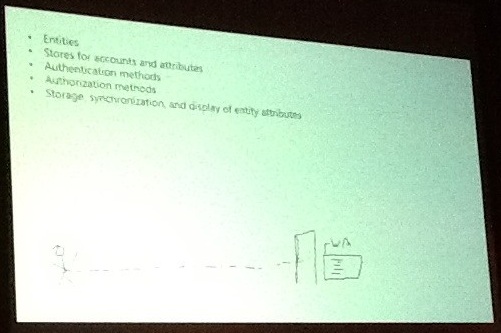
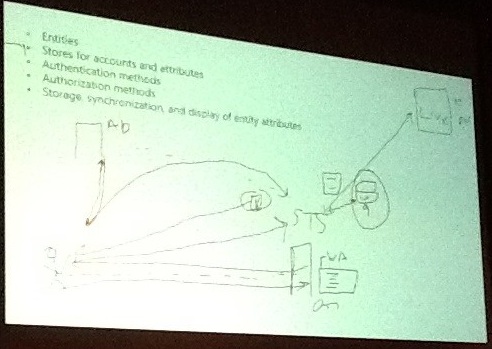
  • Claims Authentication is apparently a dude pees on a server and then gets shot with lasers:
Pee on a server LASERS!
  • Upgrade to 2013 should be done as quickly as possible. Much easier than 7-10. Fully backward compatible. Both 14 & 15 hives.
  • Governance is very important!

Key Insights:

  • Preparing for growth up front with SQL aliases is a great idea
  • Nintex and Office 365 both need more investigation by me
  • Remote Blob Storage is a good idea for nearly everyone – very different perspective than what I’ve previously been told!

Overall Impression:

This session was full of great tips and best practice suggestions tempered with practical applications. This was exactly the kind of information I came to hear. Dan did a great job of presenting a lot of information (despite a massive drive failure just previous to the convention) while keeping it interesting. The only thing that was probably a little much was his in-depth explanation of Claims Authentication. His drawings were pretty rough and his enthusiasm for the topic didn’t really transfer to the audience. Regardless, this was a great session.


SharePoint Data Access Shootout

Scot Hillier – http://www.shillier.com

My Notes:

  • LINQ cannot query across multiple lists (unless there is a lookup connection)
  • SPSiteDataQuery can query all lists of a certain template using CAML within a Site or Site Collection
  • SPMetal.exe generates Object Relational Map needed for LINQ  (in hive bin)
  • LINQ isn’t going to have much support in SP 2013
  • SP 2013 has continuous crawl
  • Keyword Queries are very helpful
  • KQL: ContentClass determines the kind of results you get. (ie STS_Web, STS_Site, STS_ListItem_Events)
  • Search in 2013 provides a rest interface to use KQL in JavaScript
  • CSOM is very similar to Serverside OM
  • CSOM is JS or .NET

Key Insights:

  • Keyword Query Language (KQL) needs more consideration as an effective query language for SharePoint.
  • LINQ isn’t actually a great way to access SP data despite Microsoft’s big push over the past couple of years.

Overall Impression:

This was a strange session. He didn’t go into enough depth about any one data access method to provide any real insight to those of us familiar with them and he moved so quick that anyone new to them would just have been overwhelmed. This session would have been better if he’d given clear and practical advise on when to use these methods rather than just demoing them. My guess is that he was trying to cover way too much information in too little time. However, I did enjoy hearing more about the Keyword Query Language since this is something I haven’t done much of and is rarely mentioned. Those tips alone made the whole session worthwhile.


HTML5 JavaScript APIs: The Good, The Bad, The Ugly

Christian Wenz – http://www.hauser-wenz.de/s9y/

My Notes:

  • HTML5 is a large umbrella of technologies
  • Suggests Microsoft WebMatrix is a good Editor
  • Semantics for HTML elements is a powerful new feature: input type = email, number, range, date, time, month, week, etc. These customize the type of editor and adds validation
  • Suggests Opera Mobile Emulator is a good testing tool
  • Additional elements: aside, footer
  • Requesting location: navigator.geolocation.getCurrentPosition(function(result){console.log(result)});
  • to debug local cache use Google Chrome by going to: Chrome://app cache-internals
  • Worker() web worker allows messaging for functions
  • CORS allows cross domain requests
  • Web sockets do not have full support yet but will be very cool

Key Insights:

  • HTML 5 is going to dramatically change how we think of website capabilities – eventually.
  • Although exciting, HTML 5 has a long way to go and several of it’s most compelling features have little to no support in main stream browsers.

Overall Impression:

Christian did a good job of keeping the energy up about HTML 5 and showing off some of the cool features. Unfortunately he seemed to lose site of the big picture in favor of really detailed samples. I enjoyed the presentation but would like to have had more guidance about how to get started and what to focus on with this new style of web development.


Roadmap: From HTML to HTML 5

Paul D. Sheriff – http://weblogs.asp.net/psheriff/

My Notes:

  • Lots of new elements – but they don’t do anything. They make applying CSS easier and allow search engines to parse through a page easier.
  • Browsers that don’t understand new elements will treat them as divs – but styles won’t be applied.
  • Lots of new input types (color, tel, search, URL, email, number, range, date, date-time, time, week, month)
  • New attributes (autofocus, required, placeholder, form validate, min, max, step, pattern, title, disabled)
  • CSS3 has huge style upgrades but there are still a lot of browser incompatibilities
  • JqueryUI, Modernizr = good tools, use VS 2012 with IE10 or Opera
  • Modernizr allows you to use HTML 5 with automatic replacements in incompatible browsers. Uses JQuery and is included automatically with VS 2012.
  • This stuff is not ready for the prime time except for mobile browsers. Modernizr fills in those gaps.
  • Box-sizing can be either border-box or content-box, which helps with the div width interpretation problem
  • Dude appears to hate JavaScript and HTML 5, sure love hearing a presenter complain about what we all came to learn about!

Key Insights:

  • Use Visual Studio 2012 with Modernizr to make HTML 5 websites

Overall Impression:

This session really annoyed me. Paul was very knowledgeable and had a lot of information to share. Unfortunately, he was so busy bashing the technology we all came to see that it was hard to know why we were even there.


Scaling Document Management in the Enterprise: Document Libraries and Beyond

Dan Holme – Intelliem

My Notes:

  • Can store up to 50 million documents in a single document library
  • SP 2013 allows documents to be dragged onto the doc library in the browser to upload – no ActiveX required
  • When a User is a member of the default group for a site they get the links in office and on their mysite. Site Members is the default group by default, but this can be switched in the group settings. Suggests creating an additional group that contains everyone on the site and has no permissions, then this can be the default group.
  • Email enabled document libraries can be very helpful for receiving documents outside of your network
  • Pingar is a recommended product he briefly mentioned
  • Big improvements in navigation using managed metadata service in SP 2013
  • Content type templates can use the columns as quick parts in Word

Key Insights:

  • Separating Site Membership from Site Permissions by creating an additional group just for managing memberships is a great idea.
  • A lot can be done with SP 2010 but SP 2013 will add a few key features to make things easier (drag and drop on the browser will be awesome).

Overall Impression:

The tip about site membership was worth the whole session. Additionally he reviewed a lot of the basics of content types and the content type hub. While this wasn’t particularly helpful to me, I can’t wait to get ahold of his slides for both this and his other sessions. He had way too many slides for the amount of time he was given.

This session reminded me of how powerful SharePoint is at so many things. Document management is not a particularly exciting topic to me but it is one of the key reasons we are using the SharePoint platform. A review of the features available to maintain the integrity of our data and to simply the classification of that data was very helpful.


SharePoint in Action: What We Did at NBC Olympics

Dan Holme – Intelliem

My Notes:

  • Keep SharePoint simple. Use OOTB features as much as possible
  • 300 hours of content broadcasted per day
  • NBCOlympics.com streamed every competition live
  • Most watched event in TV history
  • 3,700 NBC Olympics team members
    • 1 SP admin/support
  • PDF viewing was turned on despite security concerns
  • Set as default IE page – very difficult to do, they used a script to set a registry entry to account for multiple OSs and browser versions
  • All additional web applications were exposed through SP using a PageViewer WP
    • Phone Directory, Calendar application
  • WebDAV was used to allow other apps to publish documents
  • Global Navigation on top site using tabs (drop down menus)
    • Quick launch had contextual items to site
    • Navigation centric homepage, kept navigation as simple as possible. Only homepage had global navigation.
  • No real branding (put picture on right and used a custom icon). They set the site icon to go to the main web page because it’s what users expected.
  • Did not use lists or libraries as terms instead used Content (libraries, other lists) and Apps (Calendar, Tasks, etc.)
  • Suggests hiding “I like it” and notes since they are not helpful and deprecated in SP 2013
  • Site mailboxes for teams using OWA
  • Embedded documentation: Put basic instructions right on the homepage of team sites as needed. Also above some document libraries – basic upload and open instructions.
  • Focus on usability since there was no time for training
  • Took out All Site Content link and all other navigation was on homepage of site. Sub sites had tab links to parent site.
  • Used InfoPath to customize List Forms mostly to add instructions (placed below field title on left)
  • Lots of calendars. Conference room calendars were very popular. Didn’t use exchange for this in order to accommodate outside users.
  • Used InfoPath lists and workflows to replace paper processes. Kept them simple but effective. Although not used in this case, he recommends Nintex for more advanced needs.
  • Self-service help desk: printer/app installs, FAQs. Showed faces of team.
    • PageViewer web part and point it to \\servername to show all printers and put instructions on right to get those installed directly out of SP
    • Kept running FAQ to show common solutions
  • IT Administration site: ticket system used issue tracking list highly customized with InfoPath list forms.
    • Inventory lists in IT admin, also DHCP lease reports using powershell to dump that information.
    • List for user requests. WF for approvals, then Powershell took care of approved memberships directly in AD.
    • Used a list for password resets. Powershell would set password to generic password as requested (scheduled task every 5 min)
    • Powershell script to create team sites through list requests
  • SP will never be used to broadcast the Olympics but very effective to manage those teams
  • You must understand your users and build to what users really want/need
    • Don’t overwork, don’t over brand – It just clutters.
    • Don’t over deliver or over train.

Key Insights:

  • Keeping global navigation centralized in a single location (without including everything) and providing contextual navigation as needed can keep things simple from a management perspective while still allowing things to be intuitive.
    • Ensuring all navigation needed is exposed through the Quick Launch eliminates the need for All Site Content (except for Admin) and ensures your sites are laid out well
    • As long as you allow users to easily return to the global navigation from any sub site (Using the site icon is very intuitive) there is no need to clutter every site with complicated menu trees.
  • Request lists and Scheduled Tasks running Powershell Scripts can be used to create easy to manage but very powerful automation.
  • Removal of “I like it” and notes icons is a good idea
  • Embedding instructions directly on a given site/list using OOTB editing tools can increase usability dramatically
  • InfoPath List forms can go a long way towards improving list usability by making things appear more intuitive and providing in line instructions.
  • There are so many cool things in SP it can be easy to forget all the amazing things you can do using simple OOTB functionality. It is far too tempting to over deliver and over share when end users really only want to get their job done in the simplest way possible.

Overall Impression:

This was the best session I attended and made the entire conference worthwhile. It is unfortunately rare that you can see SP solutions in the context of an entire site. Seeing how SP was used to help manage one of the largest and most daring projects I can imagine was both inspiring and reassuring.

Besides the several tips of things they did (many of which will soon be showing up in our environment), he was able to confirm several things we were already doing that we were a little unsure about. Even better was his focus on simplifying things. I get so excited about SP features that sometimes I overuse them or forget the real power of simple lists. It was a fantastic reminder that we are often over delivering and therefore complicating things that just make SP scary and hard to use for end users.


Convention Summary

DevConnections 2012 was great. I had a great time in Vegas and I brought home several insights that have immediate practical value. Really, there’s not much more you can ask for in a technical convention.

Printing the Display View of an InfoPath List Item Form

Applies To: SharePoint 2010

I’ve written previously about a cool feature in SharePoint 2010 Server Enterprise that allows you to customize list item forms using InfoPath. It’s really simple to do and you can get some pretty cool results in just a couple of minutes. For instance, I posted a while back about how to use SharePoint column validation to validate email addresses and phone numbers. Those are still good techniques, but by using an InfoPath list item form it’s just a validation drop down (you can even do regular expressions) and you’re done!

So the ease of validation, conditional hiding of fields, etc. are all pretty useful. However, the thing I like it most for is the ability to use different InfoPath views to match the list item views. So you can have different columns available when you’re editing than when you’re adding a new item, for instance. I especially like to spruce up the Display form.

(For some quick tips on how to get the different views working check out the top of my old post)

So, let’s say you’ve got a nice looking display form. Users open that thing up and decide to print. There’s no button, so they use the print button in the browser. Generally they’ll end up with some mess that prints all of your branding, usually some of the list behind the modal dialog, and if you’re lucky mixed in there somewhere will be your display form. Obviously, that’s not going to cut it.

So I did some digging and found some examples of people using javascript to print the form and their solutions were pretty intriguing. But I didn’t particularly want to have to apply some javascript to every form or to have to add a content editor to the pages, etc. I wanted something that just worked on existing forms and new ones too. So I did a little research into Ribbon customization and came across this great series by Chris O’Brien.

I put it all together in a solution and put it over on CodePlex as WireBear InfoPath Printer. There’s some stuff about it’s license over there (Free for personal and commercial use, etc.) and the basic installation instructions. It’s super easy to setup since it’s just a standard SharePoint Solution that you globally deploy.

You can find the full source code over on CodePlex. It’s not too complex and I’ll probably explain most of it in the next couple of posts. Bottom line is that it adds a Print button to the Ribbon when viewing list items that use an InfoPath Form:

The final printout only shows the form (No Ribbon, No Header, No Footer, No QuickLaunch, etc.).

The button is added using Custom Action XML that is deployed as a feature in the solution. The XML is targeted to allow the button to only be present when Viewing a List Item using an InfoPath Browser based List Form.

When you click the button, standard JavaScript is executed to find the InfoPath div element on the page and to copy the form’s HTML into a new window (along with all standard CSS/script references already present) and uses the browser’s page printing. Once the print dialog closes, so does the window.

We’ve been using it around here for a while and almost no one even knows it’s a custom solution. It looks like part of the UI and it’s use is immediately understood. So, go get it (It’s free!) and let me know what you think.

Links List with Favicons and Under the QuickLaunch

Applies To: SharePoint

SharePoint has a handy list called Links that makes putting together a list of links with a display name pretty simple. Since it’s a normal list you can use views or even XSLT to make it look nice wherever you display it on the page. By default, here’s what a small links list looks like using the Summary View:

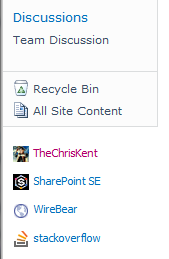
It’s not too bad, especially for a simple team site. But with just a little extra work you can have that same list of links display with their favicons and you can move them to some relatively unused real estate – under the QuickLaunch, and on every page in your site.

I’m combining these techniques because that was what I did. Fortunately, you can use the bulk of my tips to get nearly any web part to show up below the QuickLaunch. You can also just use the Favicon information to make your link display snazzy. Also, although I’m demonstrating all of this in SharePoint 2010, you should be able to do everything in SharePoint 2007 as well.

Displaying a Web Part Beneath the QuickLaunch

In order to place a Web Part below the QuickLaunch, you’re going to have to edit the Master Page. There are a couple of options. You can add a Web Part Zone and then customize this area on a page by page basis, or you can do what I’m going to demonstrate: add a specific web part to every page on your site.

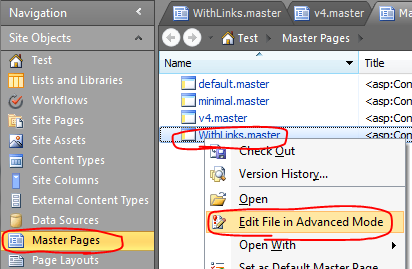
Open your site in SharePoint Designer (Site Actions -> Edit in SharePoint Designer). Choose Master Pages in the Navigation pane and right-click on v4.master and choose Copy then right-click and choose Paste. Right-click on the new Master Page, v4_copy(1).master, and choose Rename. Once you’ve renamed it, right-click on it and select Edit File in Advanced Mode:

Depending on your site’s settings, you might have to check it out. If so, make sure you check it back in when done and verify you’ve published a major version so that those without full control can see your changes.

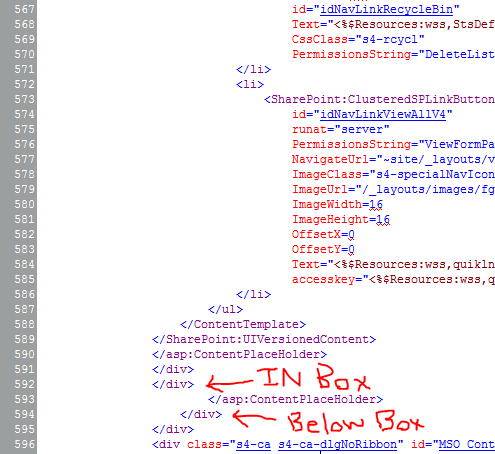
We’re going to place our web part right below the quicklaunch. So scroll down to approximately line 594 (in Code view) where you should see two closing divs shortly below the PlaceHolderQuickLaunchBottomV4 UIVersionedContent control. If you want your web part to be included in the leftpanel then press enter after the closing div in line 592, if you want it placed below the box press enter after the closing div in line 594:

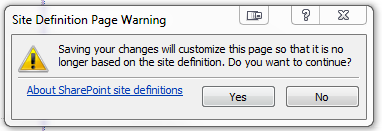
Type <br /> and press enter again. Press Save. You’ll get a warning about customizing the page, go ahead and click Yes.

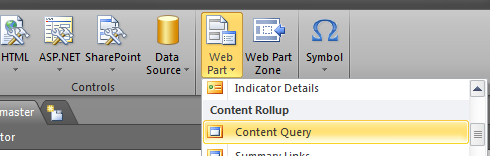
Now switch to the Insert ribbon and select Web Part > Content Query:

Switch to the Design view and right-click on your new web part and choose Web Part Properties. In the dialog window expand the Query section. Choose Show items from the following list under Source and click Browse… and choose your Links list.

Expand the Presentation section. Set Sort items by to <None> (This is to ensure the custom ordering allowed by Links lists is used). Uncheck the Limit the number of items to display checkbox.

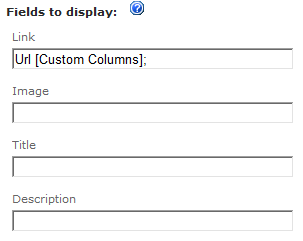
In the Fields to display section enter Url [Custom Columns]; for the Link and remove the Title entry:

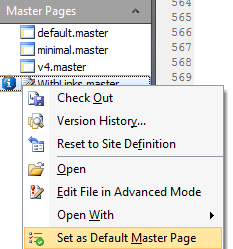
Choose any other display options you want (I expanded Apperance and chose Chrome Type: None). Press OK to close the dialog. Save the master page. In the navigation pane on the left, right-click on your master page and choose Set as Default Master Page:

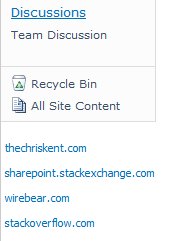
Now when you refresh your site you should see the changes (Be sure to publish a major version and/or check in the file if required to ensure everyone can see it):

Adding Favicons to the Links

The above screenshot is pretty cool. Unfortunately, instead of using the display text, it just uses the link. It also doesn’t open the links in a new window. We’ll fix these issues and add a favicon using some simple XSL.

I found the basic XSL to fix the Links display on Marc D Anderson’s blog who apparently got it from this Microsoft forum thread. We’re going to straight up copy that XSL and tweak it just a little to add our favicons. Here’s our customized XSL:

<xsl:template name="LinkList" match="Row[@Style='LinkList']" mode="itemstyle">
	<xsl:variable name="SafeLinkUrl">
		<xsl:call-template name="OuterTemplate.GetSafeLink">
			<xsl:with-param name="UrlColumnName" select="@URL"/>
		</xsl:call-template>
	</xsl:variable>
	<xsl:variable name="DisplayTitle">
		<xsl:call-template name="OuterTemplate.GetTitle">
			<xsl:with-param name="Title" select="@URL"/>
			<xsl:with-param name="UrlColumnName" select="'LinkUrl'"/>
		</xsl:call-template>
	</xsl:variable>
	<xsl:variable name="TheLink">
		<xsl:value-of select="substring-before($DisplayTitle,',')"/>
	</xsl:variable>
	<div id="linkitem" class="item link-item" style="padding-left:10px;">
		<xsl:call-template name="OuterTemplate.CallPresenceStatusIconTemplate"/>
		<img src="http://www.google.com/s2/favicons?domain_url={$TheLink}" align="middle" style="padding-right:2px;" />
		<a href="{$TheLink}" target="_blank" title="This link opens in a new window">
			<xsl:value-of select="substring-after($DisplayTitle,',')"/>
		</a>
	</div>
</xsl:template>

The main changes I made were the additional padding added to the div in line 16 to get everything to line up with the QuickLaunch links and the img element in line 18.

The img element uses a special link from Google (found on the Coding Clues blog) concatenated with our link’s URL. This link allows us to dynamically retrieve the favicons without having to store them within SharePoint or maintain them as links get added or changed.

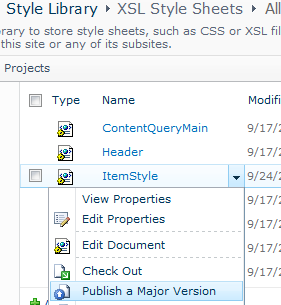
So where do we put the above XSL? In your site collection’s Style Library there is a folder called XSL Style Sheets. Open the ItemStyle.xsl file and scroll all the way to the bottom. Just before the final node, </xsl:stylesheet>, paste the above XSL. Since this is just a named template, this won’t affect anything else within your site collection. Upload the changed ItemStyle to the XSL Style Sheets folder and make sure to Publish a major version of the file so everyone can see it:

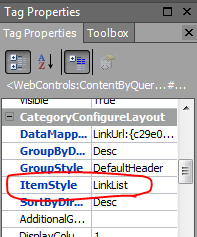
Now we need to tell our Links Content Query web part to use this item style. So, back in SharePoint Designer, right-click on your Content Query web part and choose Properties. Scroll down to ItemStyle and change it from Default to LinkList:

Save the master page and refresh your site and you should see something similar to this:

Isn’t that pretty!? Now everyone loves you!

Remove Drop Off Libraries from Every Site

Applies To: SharePoint 2010

The other day I came across a problem with some missing features on a few of our sites. Some quick searching told me I needed to enable all my sites to use the SharePoint Server Enterprise Features. This is a good thing to do, especially if you’ve just upgraded from 2007 to 2010 or you were using Foundation or Standard Server.

So, I went to Central Administration and clicked on Upgrade and Migration and chose Enable Features on Existing Sites. I was presented with this screen:

So, I checked the box and pressed OK. It took a few hours, but then everything was good to go! Almost…

Turns out I had people asking me what this new Drop Off Library link was on their sites. A quick check showed that EVERY SITE in EVERY SITE COLLECTION in EVERY WEB APPLICATION now had the Content Organizer feature enabled and a Drop Off Library added.

So, I go to Manage Site Features I deactivate the Content Organizer and go to delete the Drop Off Library. No delete option in Library settings. Turns out you need to use something like SharePoint Manager or Powershell to allow the library to be deleted before that link will show up. Regardless, we have hundreds of sites and my sites – All of which now have an unremovable library and unnecessary feature activated.

So, time for some Powershell! I wrote a script (below) that will cycle through all the sites in all the site collections for a given Web Application and disable the DocumentRouting feature (Content Organizer) and delete the Drop Off Library. I was inspired by this forum thread and this blog post.

Additionally, I was also faced with the complication that I had actually activated this feature previously for a few sites and wanted to make sure they weren’t stripped along with everybody else. So I added an ExclusionURLs parameter. I’ll explain more about that and how the rest of the script works in a minute.

The Script

Param(
	[parameter(position=0)]
	[String]
		$WebApplicationURL,
    [parameter(position=1)]
    [Boolean]
        $AnalysisOnly = $true,
	[parameter(position=2)]
	[String[]]
		$ExclusionURLs
)

#Display Exclusion URL information
if($ExclusionURLs -and $ExclusionURLs.Count -gt 0) {
    Write-Host "Excluded URLs:" -foregroundcolor green
    $ExclusionURLs | ForEach-Object {
        Write-Host "     $_" -foregroundcolor green
    }
} else {
    Write-Host "No URL Exclusions" -foreground cyan
}

#Display Feature Information
$feature = Get-SPFeature “DocumentRouting”
Write-Host “Feature ID for Content Organizer is called $($feature.DisplayName)" -foregroundcolor cyan

if($AnalysisOnly) {
    Write-Host "ANALYSIS ONLY" -foregroundcolor red
}

#Go Through Every Site
Get-SPWebApplication $WebApplicationURL | Get-SPSite -Limit ALL | Get-SPWeb -Limit ALL | ForEach-Object {

    #Check for Exclusion
    if(!($ExclusionURLs -contains $_.URL)) {
        Write-Host "$_ | $($_.URL)" -foregroundcolor DarkCyan

        #Disable Feature if found
        if ($_.Features[$feature.ID]) {
            Write-Host “  Feature $($feature.DisplayName) Found" -foreground green
            if(!$AnalysisOnly){
                Disable-SPFeature $feature -Url $_.Url -Force -Confirm:$false
                Write-Host “  Feature $($feature.DisplayName) Disabled” -foreground magenta
            }
        } else {
            Write-Host "  Feature $($feature.DisplayName) NOT Found" -foreground yellow
        }

        #Delete Drop Off Library if found
        $list = $_.Lists["DROP OFF LIBRARY"]
        if ($list) {
            Write-Host “  List $list Found” -foregroundcolor green
            if(!$AnalysisOnly){
                $list.AllowDeletion = $true;
                $list.Update()
                $list.Delete()
                Write-Host “  List $list Deleted” -foreground magenta
            }
        } else {
            Write-Host “  Drop Off Library NOT found” -foregroundcolor yellow
        }
    }

}
Write-Host " "
Write-Host "All Done!" -foregroundcolor yellow

You can copy the above script, save it in a text file with a ps1 extension and run it from the console. Assuming you’ve named the file RemoveDropOffLibraries.ps1 you can run it in a couple of different ways:

Analysis Only:

Since I’m the cautious type, I want to know which sites are going to be affected before I actually pull the trigger. So running it with just the Web Application URL will provide you with a list of all sites. Additionally, you’ll be told if a given site has the DocumentRouting feature enabled and if a Drop Off Library was found.

Perform Actions:

If you’re comfortable with the results above, just pass the Web Application URL and $false for the AnalysisOnly parameter. This will do the same list of sites and indicate if the DocumentRouting feature is enabled and if a Drop Off Library was found. Each time the feature is found activated, it gets disabled and you’ll see a message. Additionally, each time a Drop Off Library is found, it gets deleted and you’ll see a message.

Analysis Only with Exclusions:

Exclusions allow you to pass site URLs in a comma separated list. Doing the above command ensures your exclusions are working. Just specify the Web Application URL, $true for AnalysisOnly and then 1 or more exclusion URLs separated only by a comma.

Perform Actions with Exclusions:

This uses the same rules for exclusions as above, but instead of just analyzing, it actually does the work.

Quick Tip:

If you have a lot of sites and want to be able to see the output easily, use the start-transcript and stop-transcript cmdlets like so:

start-transcript -path SomeFile.rtf
...Commands and Output...
stop-transcript

Just replace line 2 with one of the command examples from above.


Surely no one else will ever end up in this situation, but just in case – there ya go!